This clickThis page focuses on how to view and edit a product catalog on your website.
...
- Product catalog export and import.
- Choosing how to display categories in a tree list layout.
- Managing the category tree.
...
The category tree is a structure of a catalog that includes root categories and a number of subcategories.
...
To download a file to your computer:
Click on click the “Export categories” button.
...
This option allows you to upload a file with a catalog from your computer to your website.
Here is how:
Click on click the “Import categories” button.
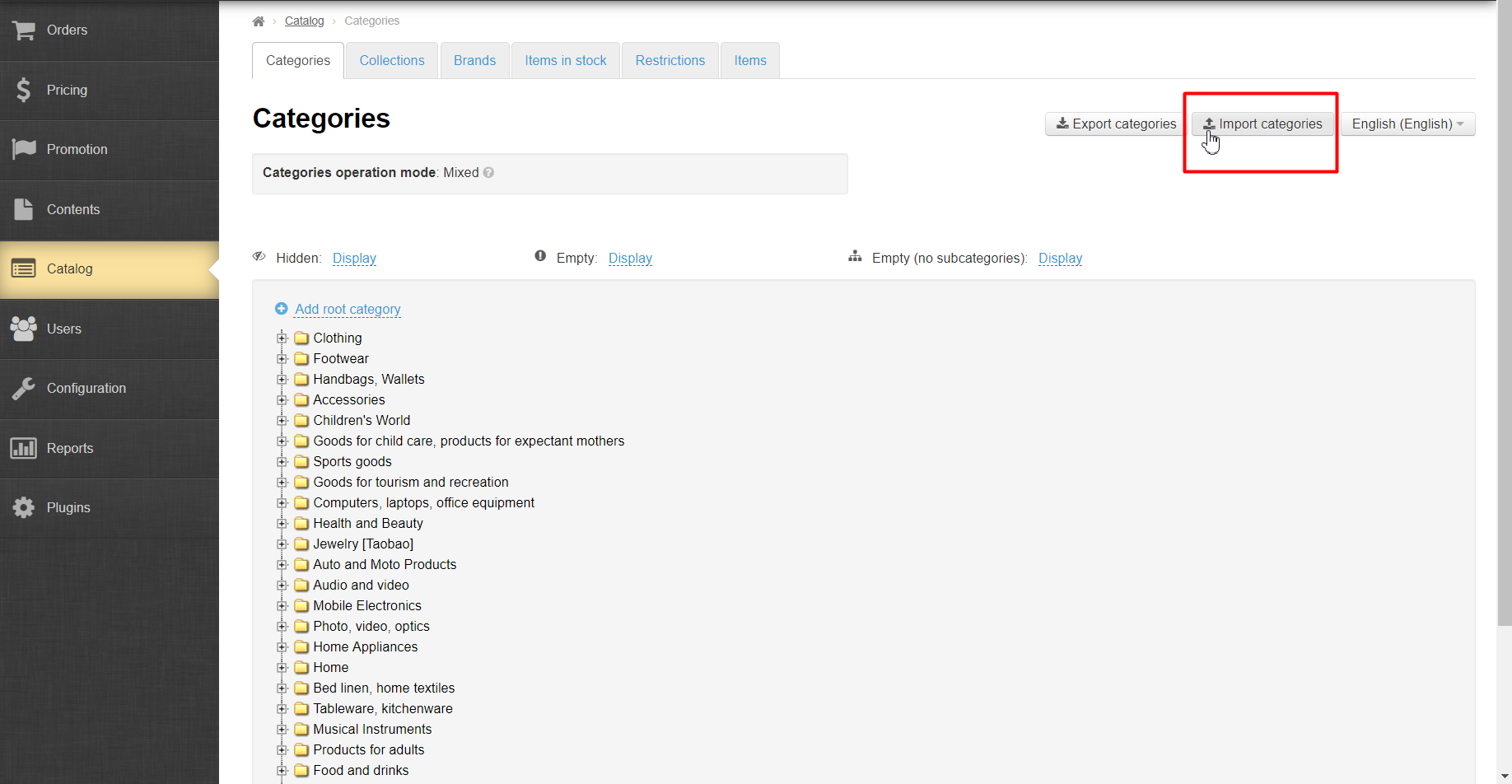
Click on click the “Choose file” button in the menu that appears.
...
Select a file on your computer. (It is advised that you use *.xml file formats) and click on the “Upload” button.
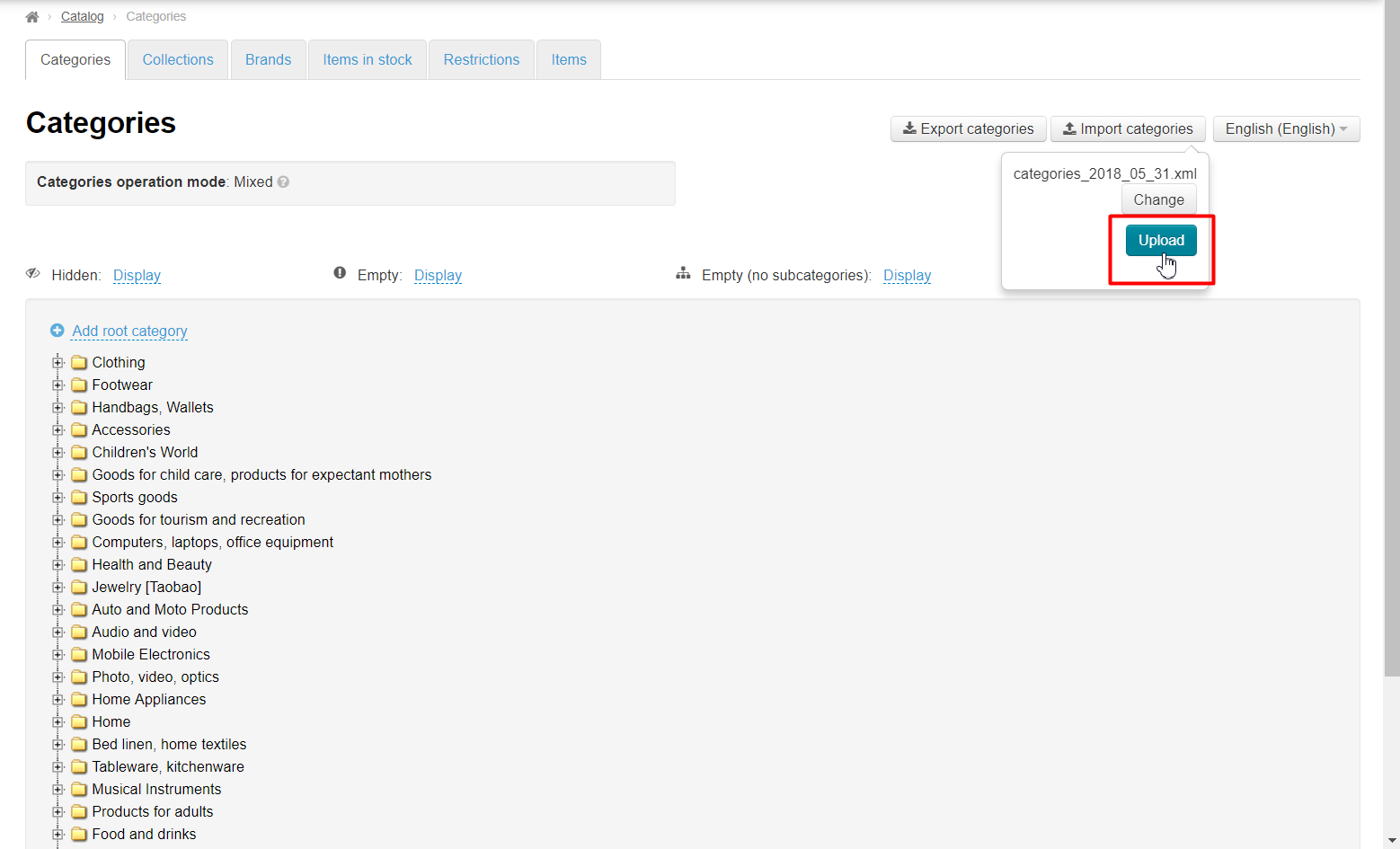
Note: Uploading a file may take some time.
...
To display or hide categories:
Click on click the dashed blue underlined text “Display” next to the dashed blue underlined text “Hidden”.
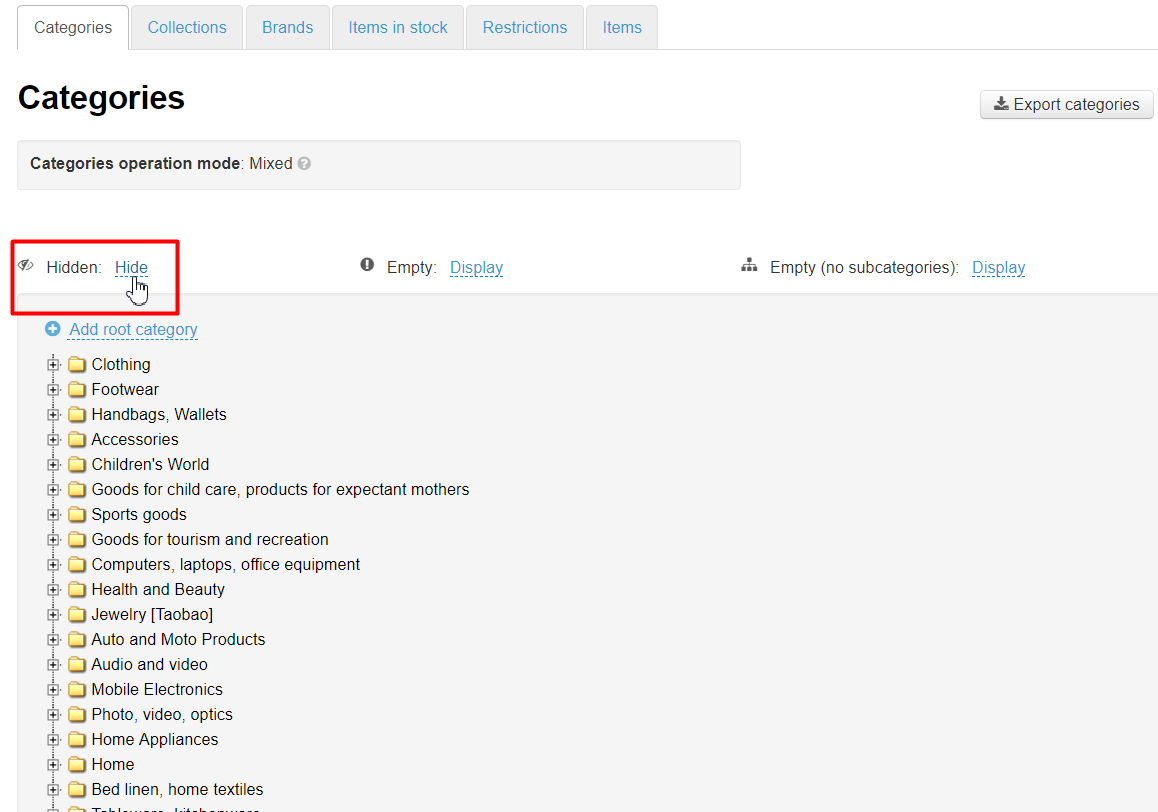
Click on click the desired menu item (for example, Display).
...
To display or hide empty categories:
Click on click the dashed blue underlined text “Display” next to the dashed blue underlined text “Empty”.
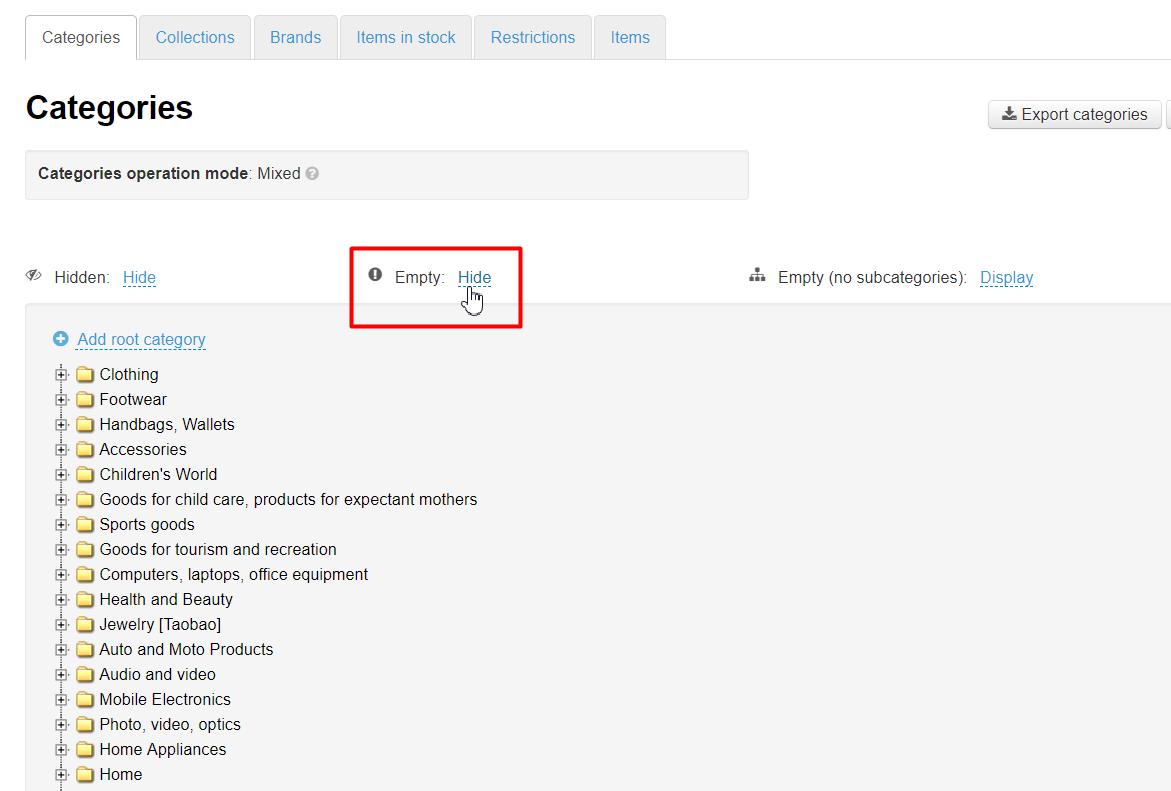
Click on click the desired menu item (for example, Display).
...
Empty categories and subcategories are marked with the “!” sign on the folder.
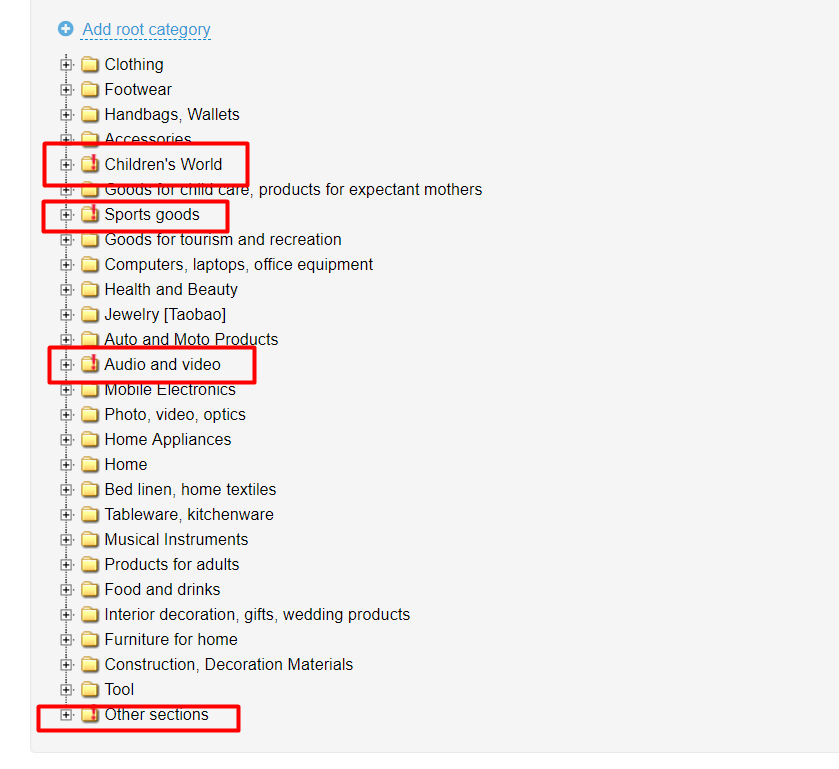
Displaying empty categories without subcategories
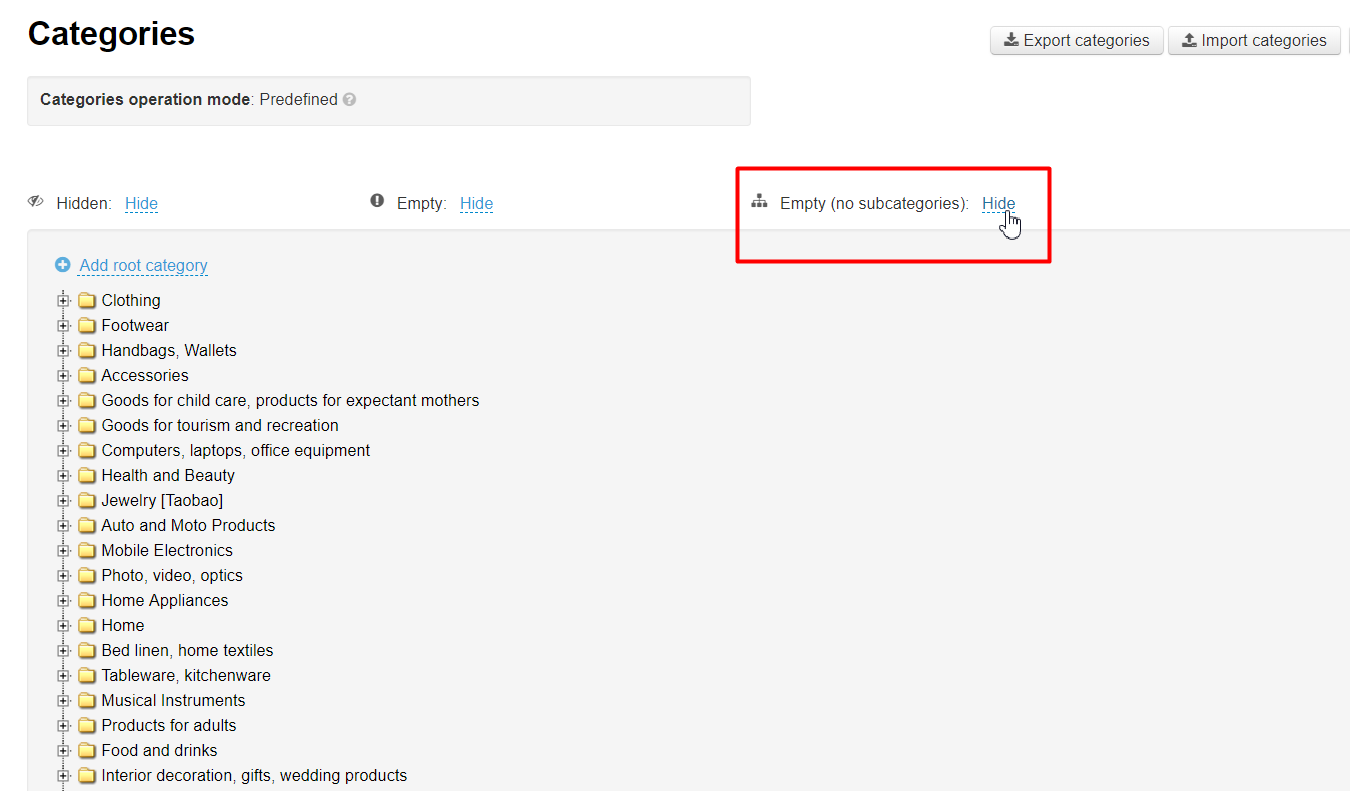
To display or hide empty categories without subcategories:
Click on click the dashed blue underlined text “Display” next to the dashed blue underlined text “Empty (no subcategories)”.
Click on click the desired menu item (for example, Display).
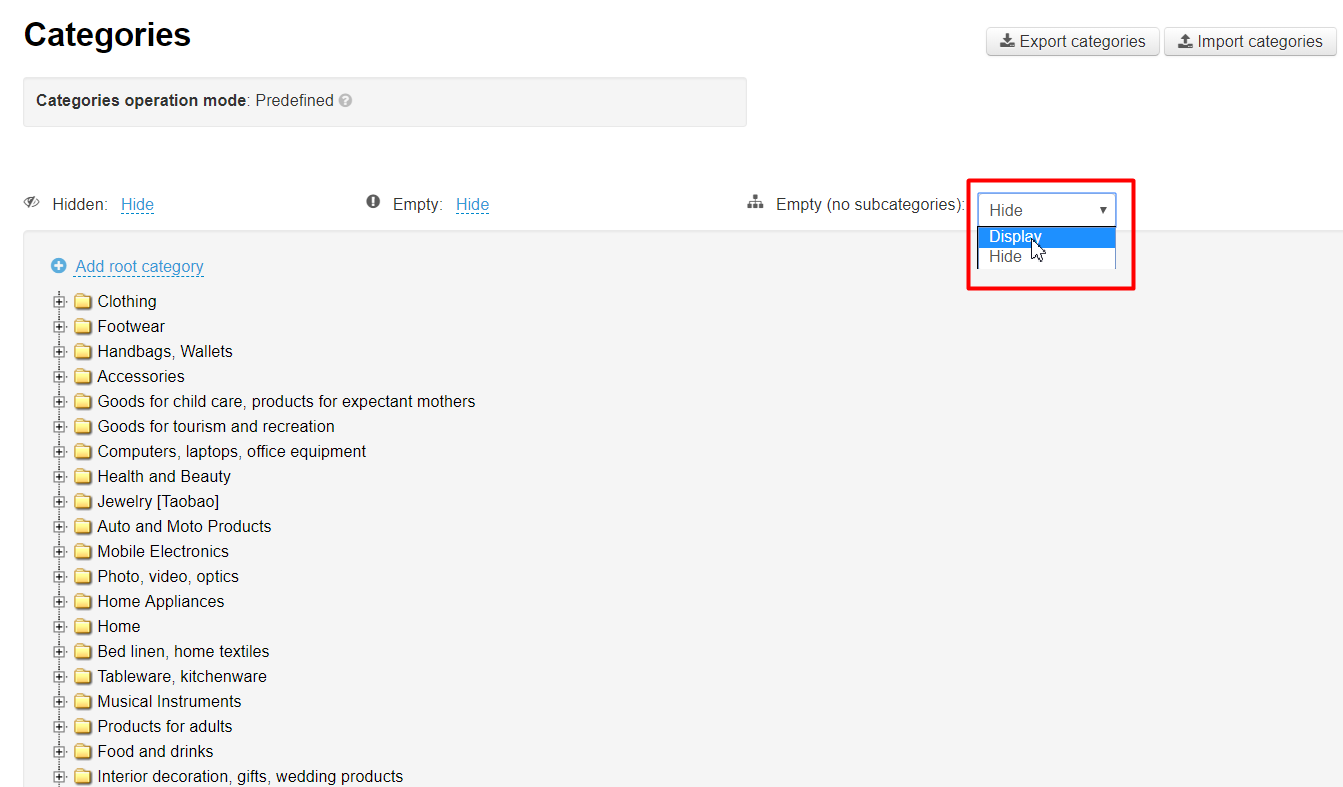
Once the current page has been automatically refreshed, after clicking, the category will be displayed both on the website and in the admin area.