Module for agents who have their own account on Taobao marketplace (or 1688.com). It allows to reserve goods directly in your website admin panel.
Booking goods using "Autopurchase" module involves adding items to your account cart on provider's website by clicking "Book" button. Payment for items is currently handled manually.
Here is a detailed description of benefits for businesses: Autopurchase (module description)
Here are the steps to connect "Autopurchase module":
- Register on marketplace (Taobao Global or 1688.com).
- Update to version 1.15.0. If you have a custom build, installing Autopurchase module is a paid service. Or you need to remove the custom build and update yourself.
- Buy "Autopurchase" module. "Autopurchase" module must be purchased separately for each provider. More details about module price are available on our promo website. More details about connecting multiple product providers are available in your Telegram chat.
- After purchasing the module, you must submit a request to technical support with the data required for connection.
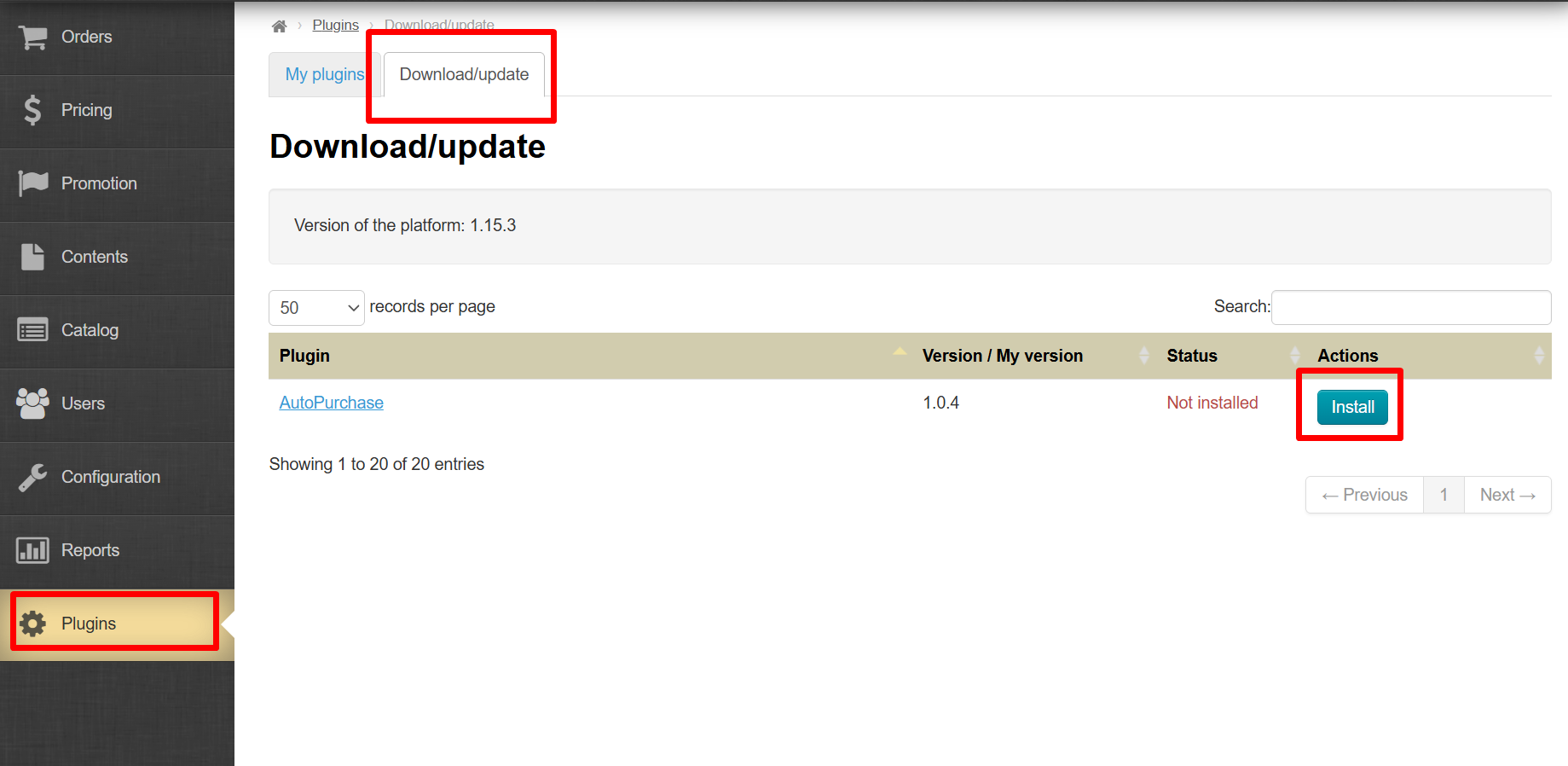
- Log in admin panel of your OT Box based website or API Key and find Plugins section. Go to “Download/Update” tab, find AutoPurchase module and install it.
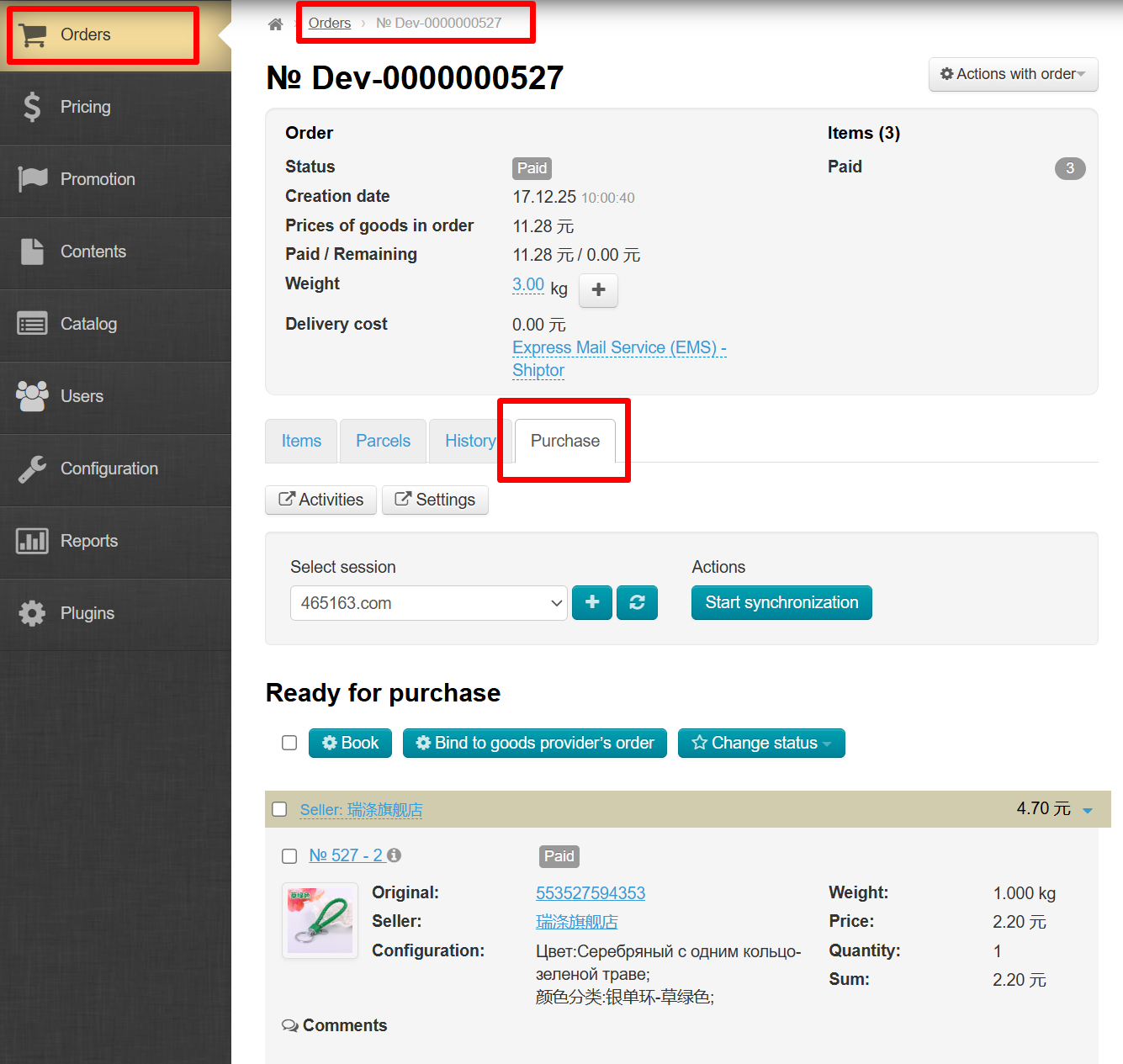
After installing "Autopurchase" module, you will see “Purchases” tab in Orders → Order Details section.
To reserve goods, you must be registered on the marketplace.
Note!
Module price includes connection to only one of all possible product providers. Each additional provider is paid separately.
A phone number is required to register and log in to the marketplace. The code will be sent to this phone number. If you do not receive the code via SMS, check your social media accounts and messengers (Telegram, Viber, WhatsApp, etc.). The code is often sent there.
You may also be asked to download a mobile app to authorize access to the marketplace. This is not mandatory but if you want to hide your registration region for some reason (for example, you have a Chinese virtual SIM card but you live in the US and have a local SIM card in your phone), it's better not to install the app on your phone, as authorization is done via a QR code and the marketplace will link your real phone number and app intallation region to your account.
Autopurchase Setup for Таобао Global
Registration on marketplace
Register using a special link: https://distributor.taobao.global/apps/user/register?rc=Worldpost01
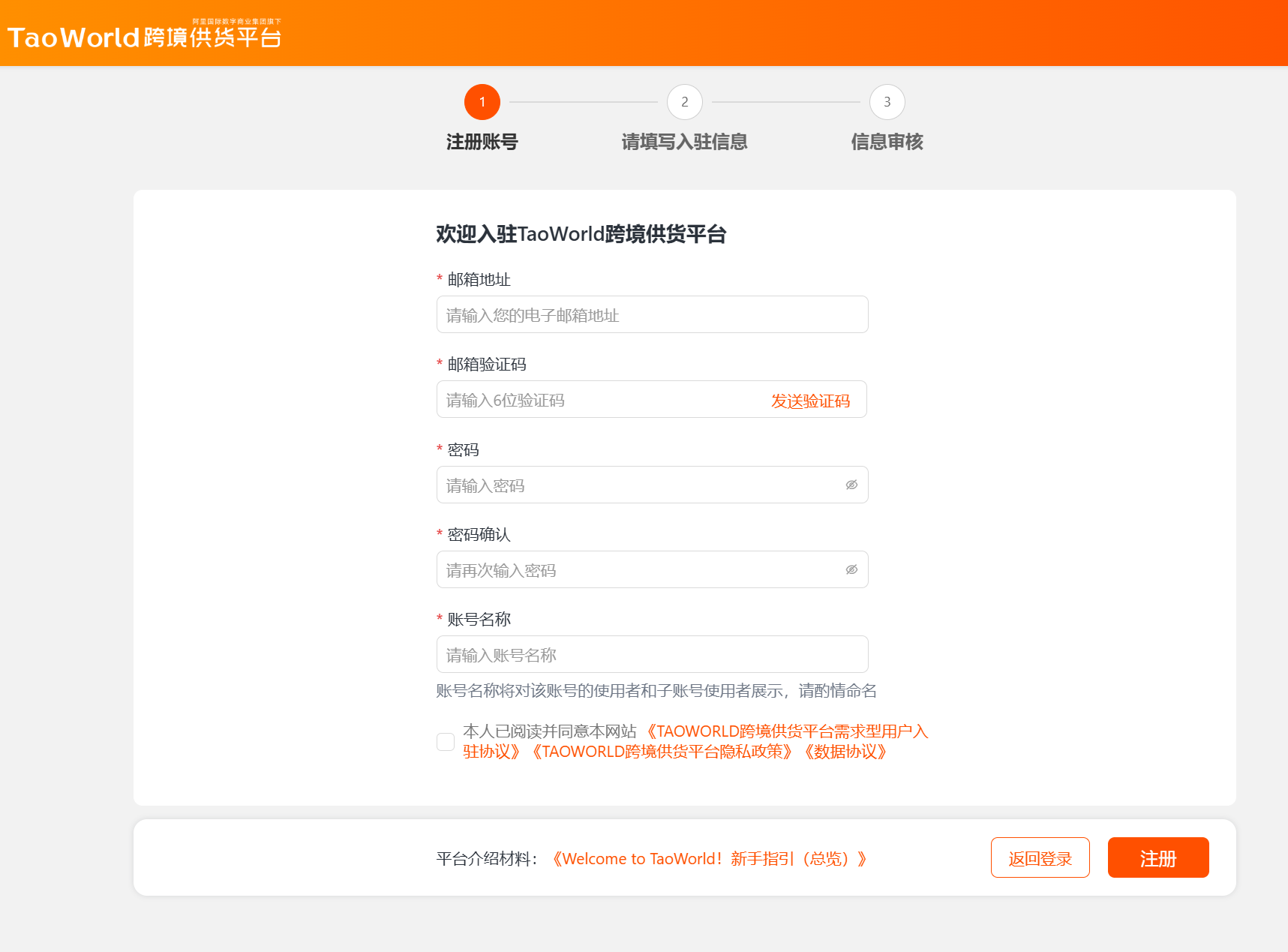
Fill in all the fields and follow the instructions.
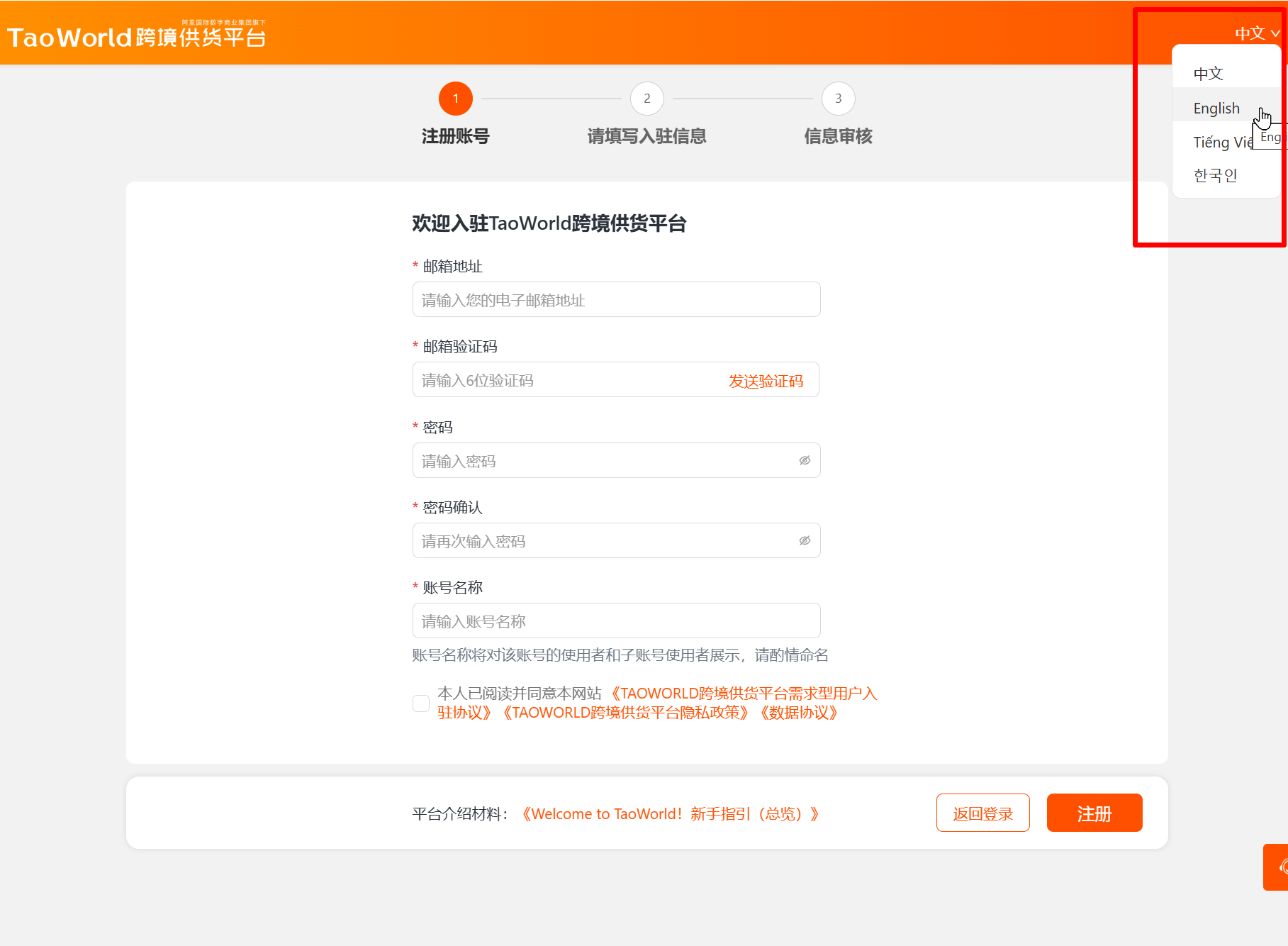
You can switch to English at the top right.
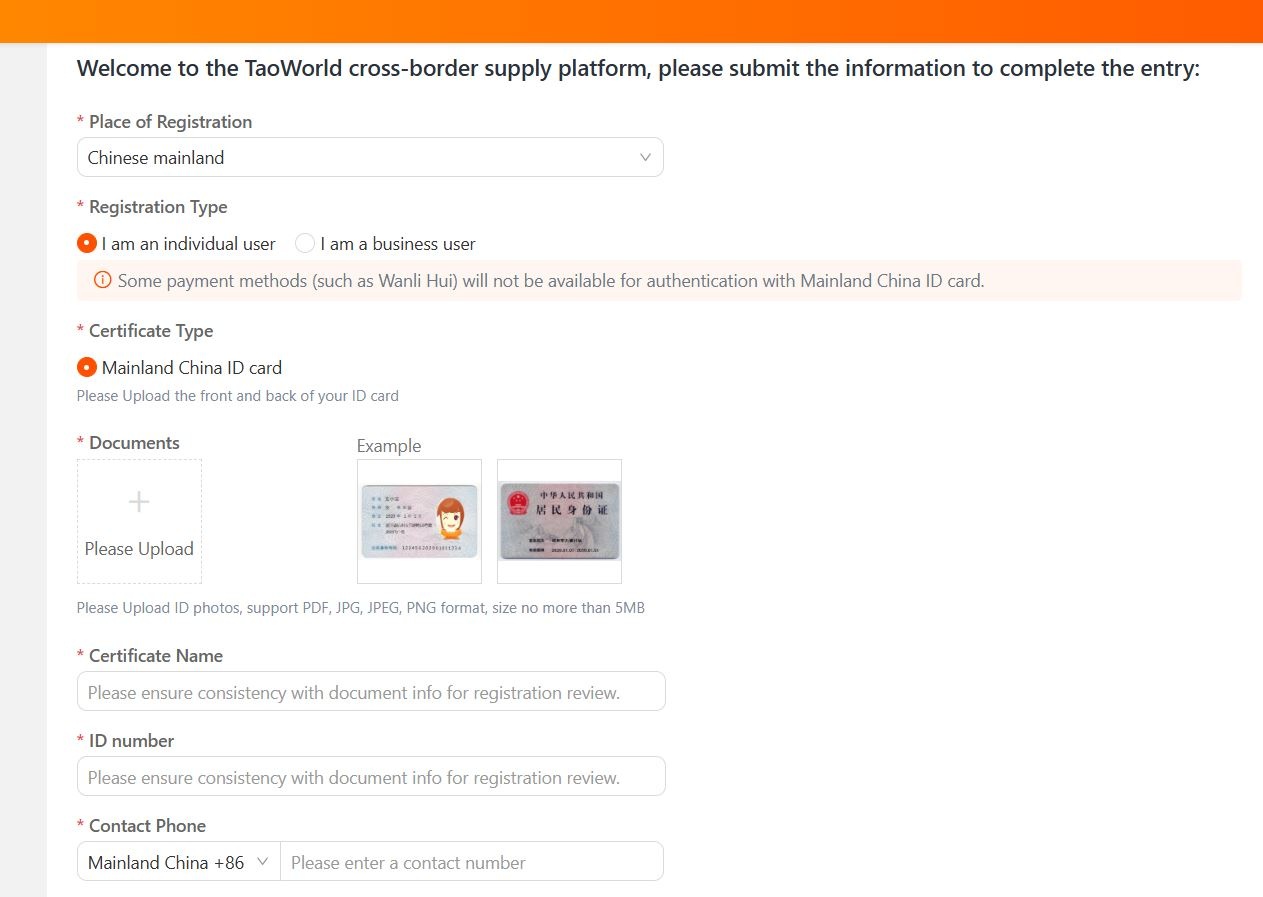
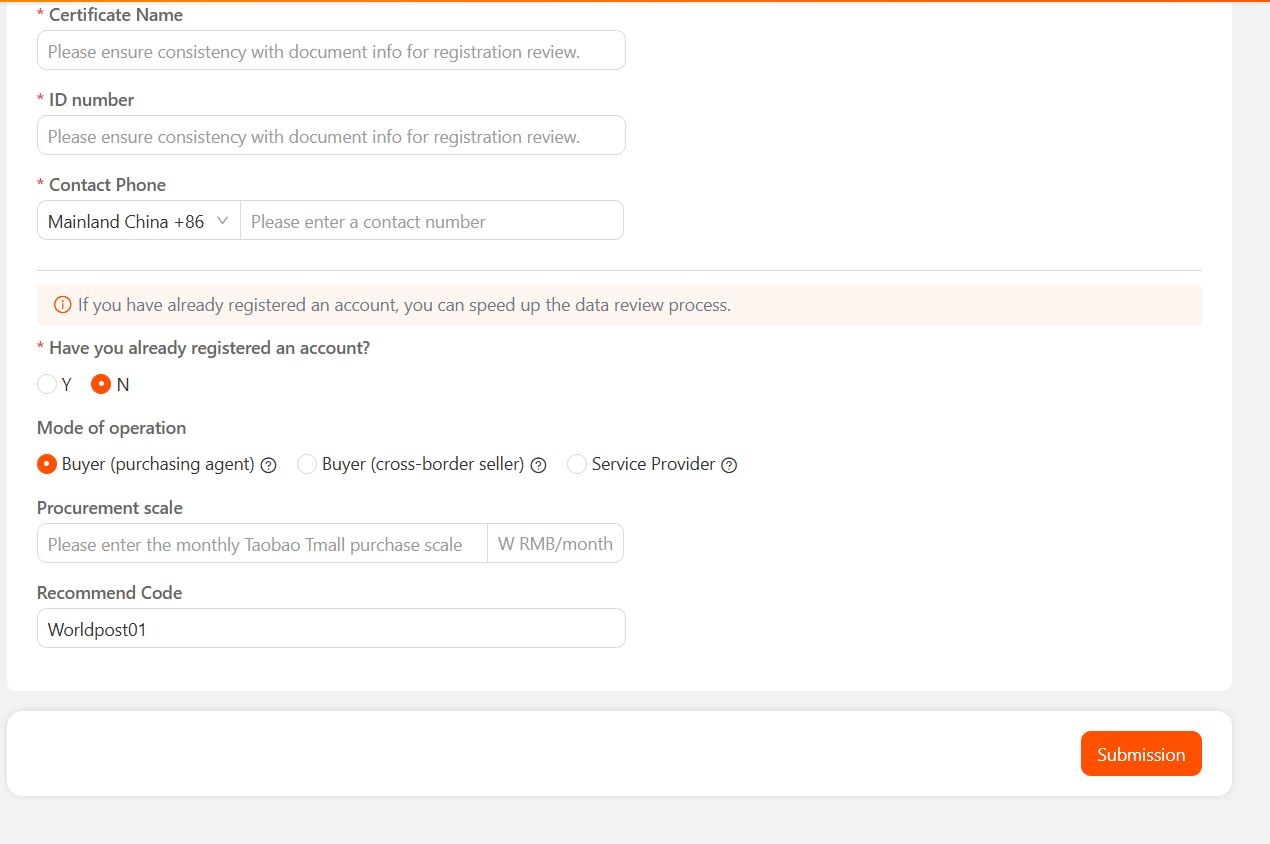
Your application will be approved after submitting the form and you can continue with the setup.
To configure OT Box admin panel, you will need information about parcels recipient (your warehouse details) in Chinese:
- Recipient's name — Important! Between 2 and 14 characters
Recipient's mobile phone number (11 digits)
Postal code of the warehouse in China
Warehouse address in China
Warehouse province in China
Warehouse city in China
Warehouse district in China
Autopurchase Setup in OT admin panel
You can set up module by 2 ways.
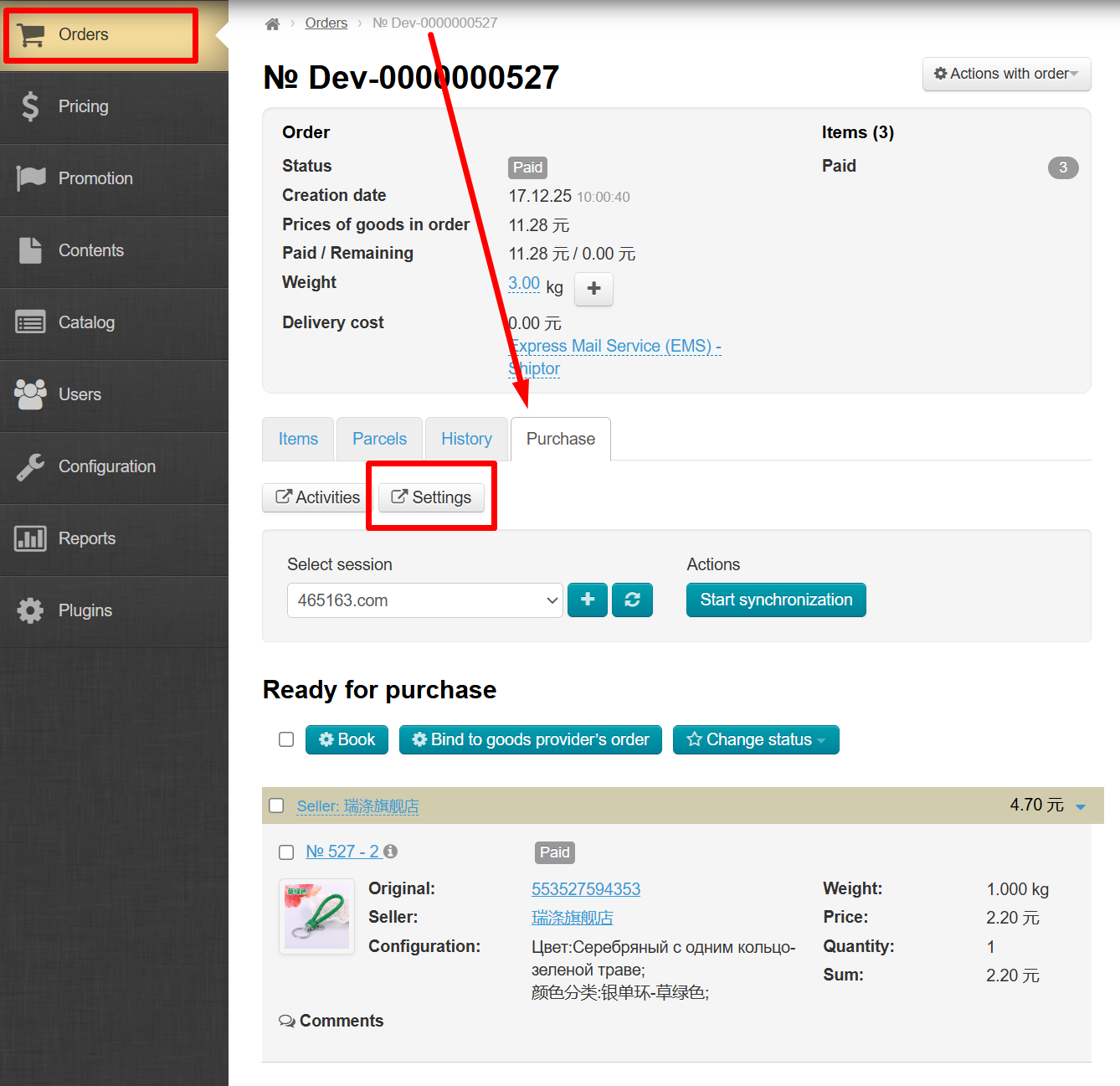
1. Through the order page by clicking "Settings" button on the "Purchase" tab:
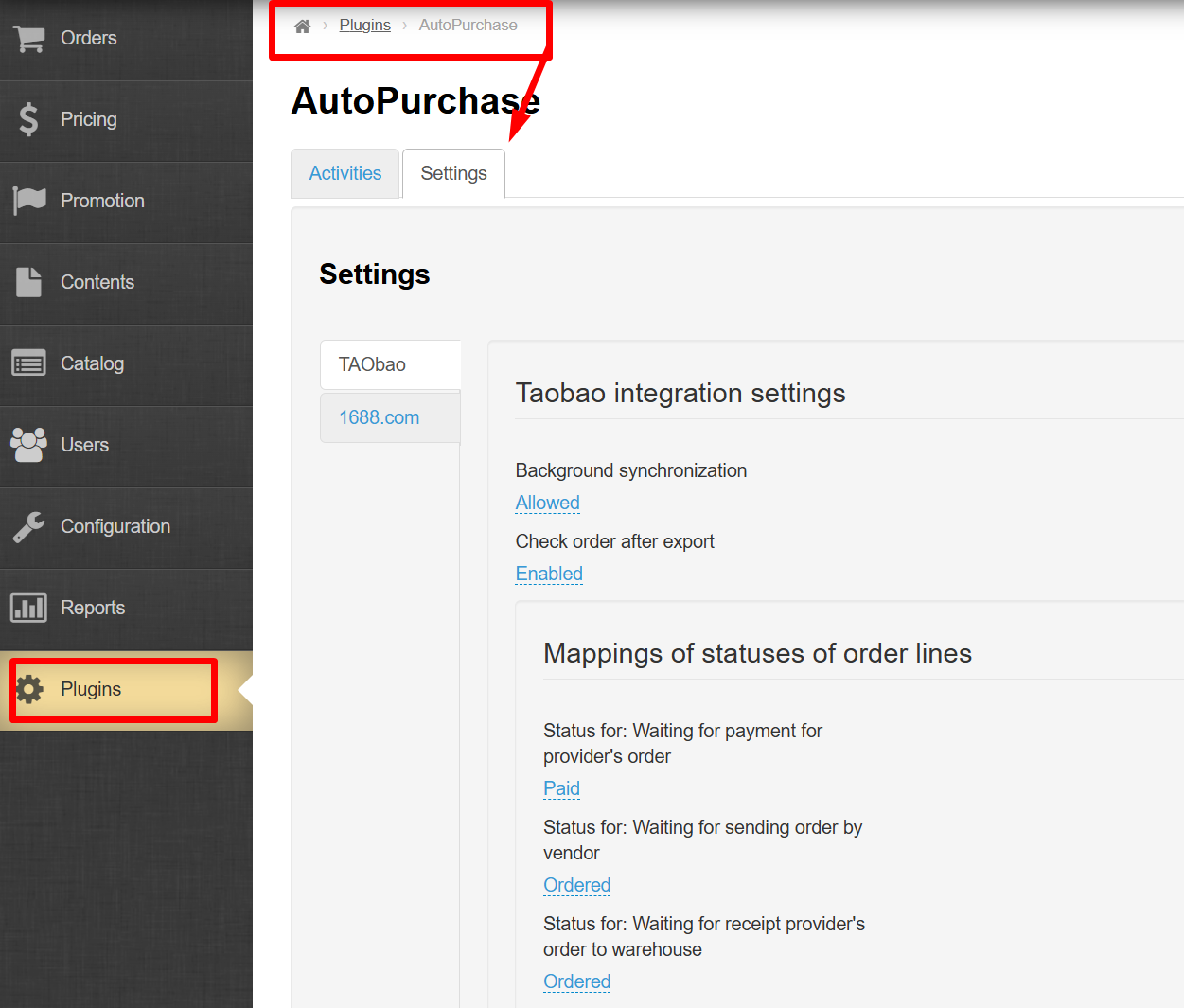
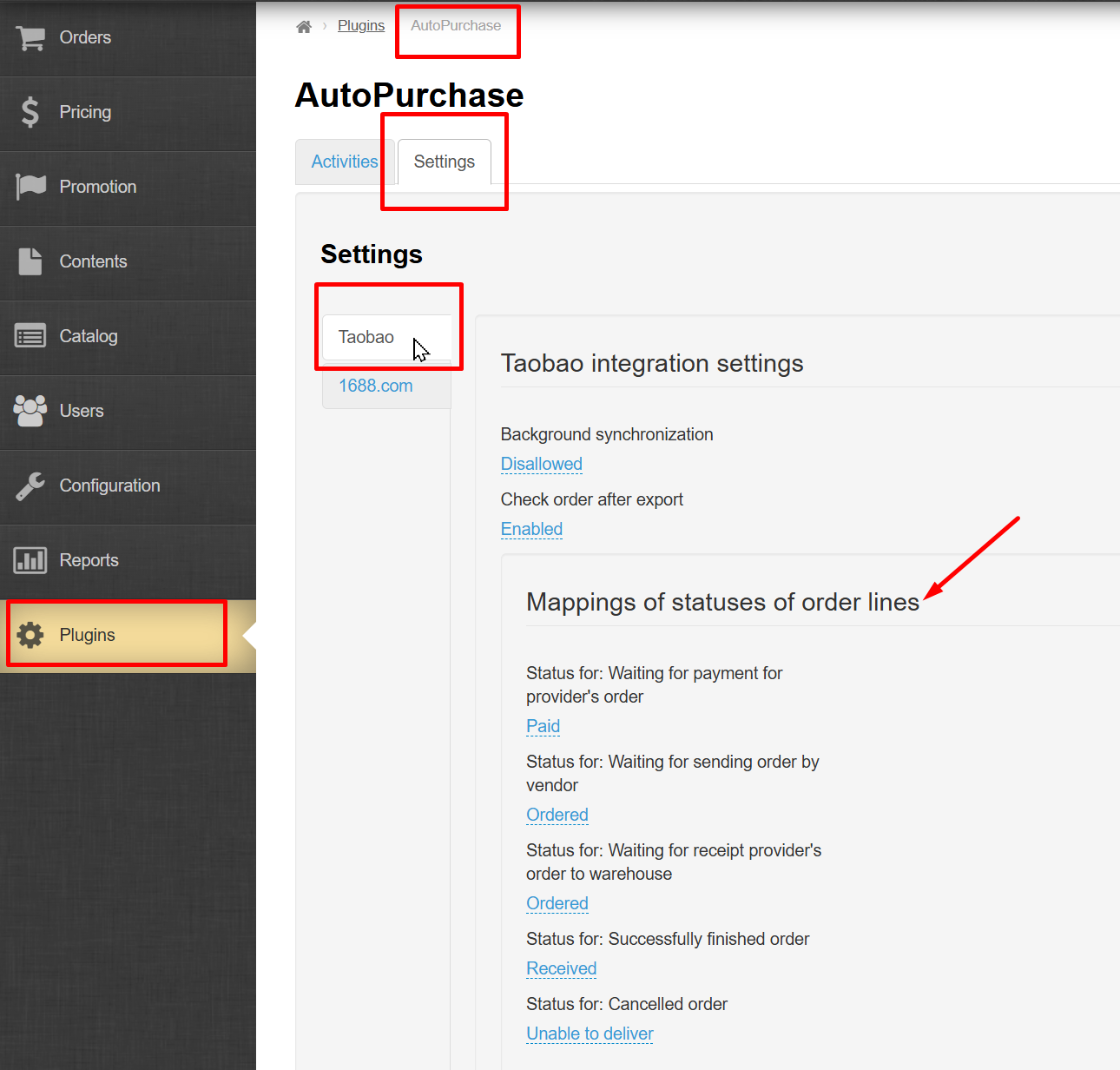
2. Through Plugins → AutoPurchase → Settings
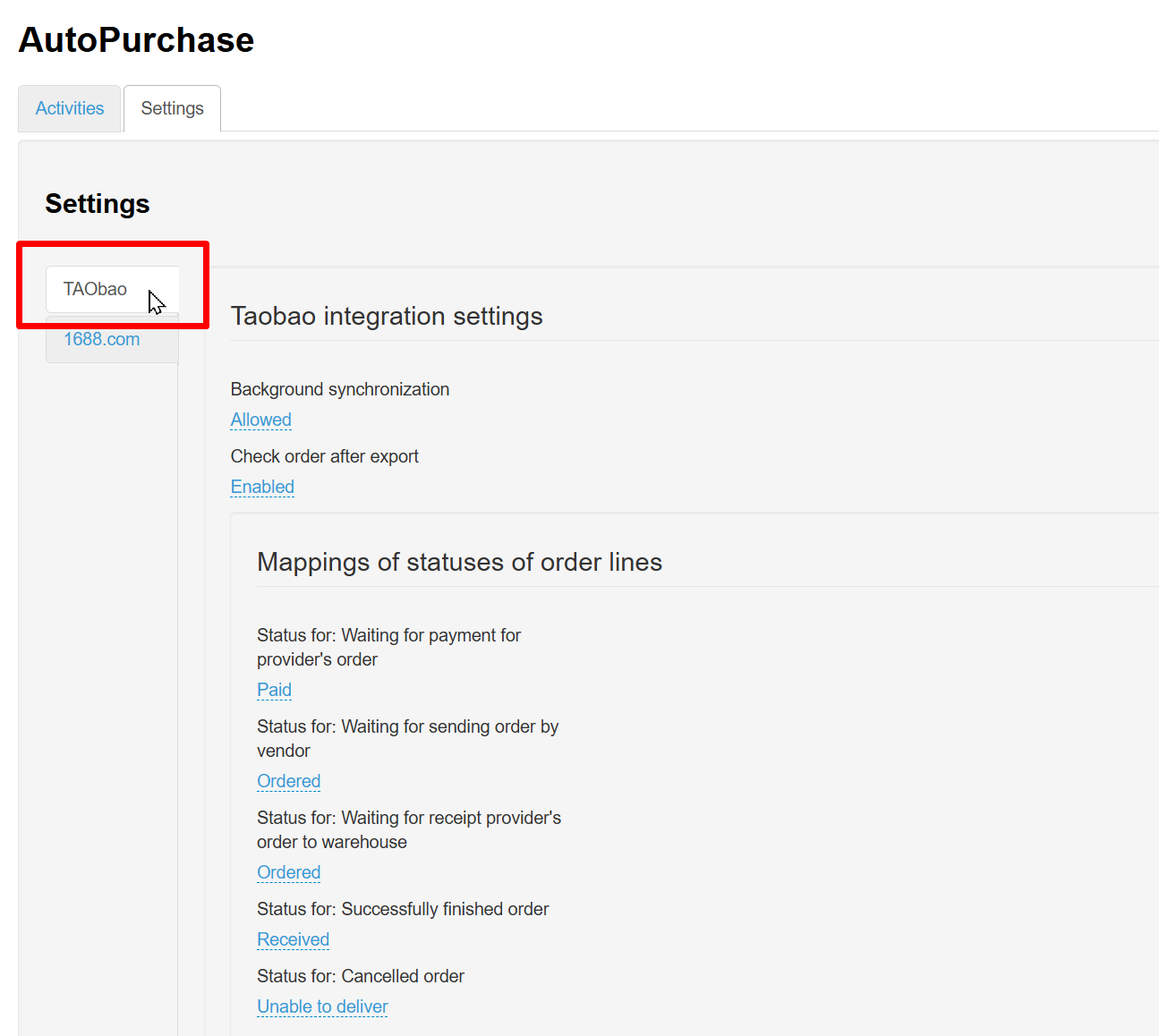
Select Taobao:
Integration Setup
Background synchronization is necessary to update the list of products, prices, and statuses automatically. Disallow background synchronization if you want to update manually.
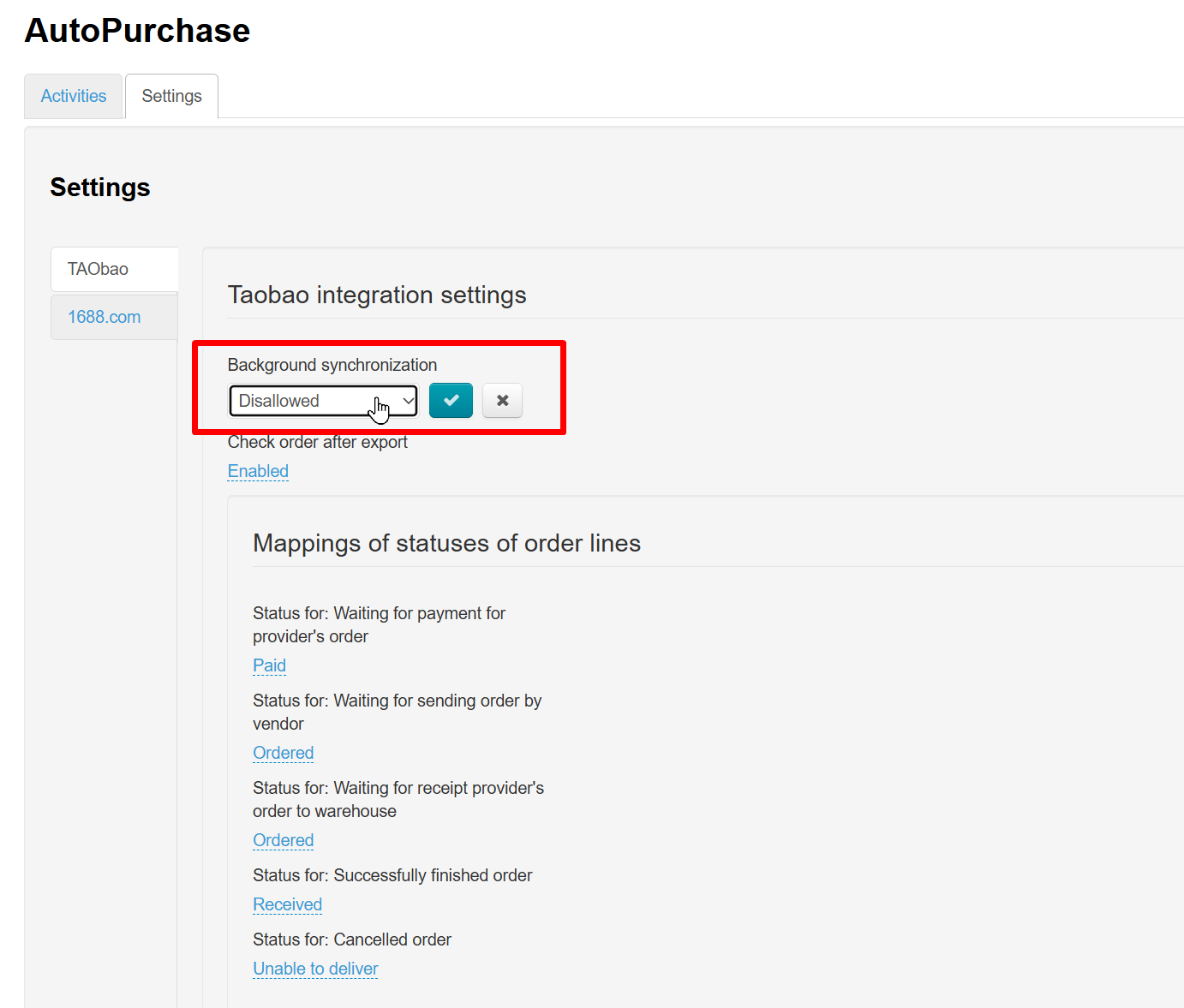
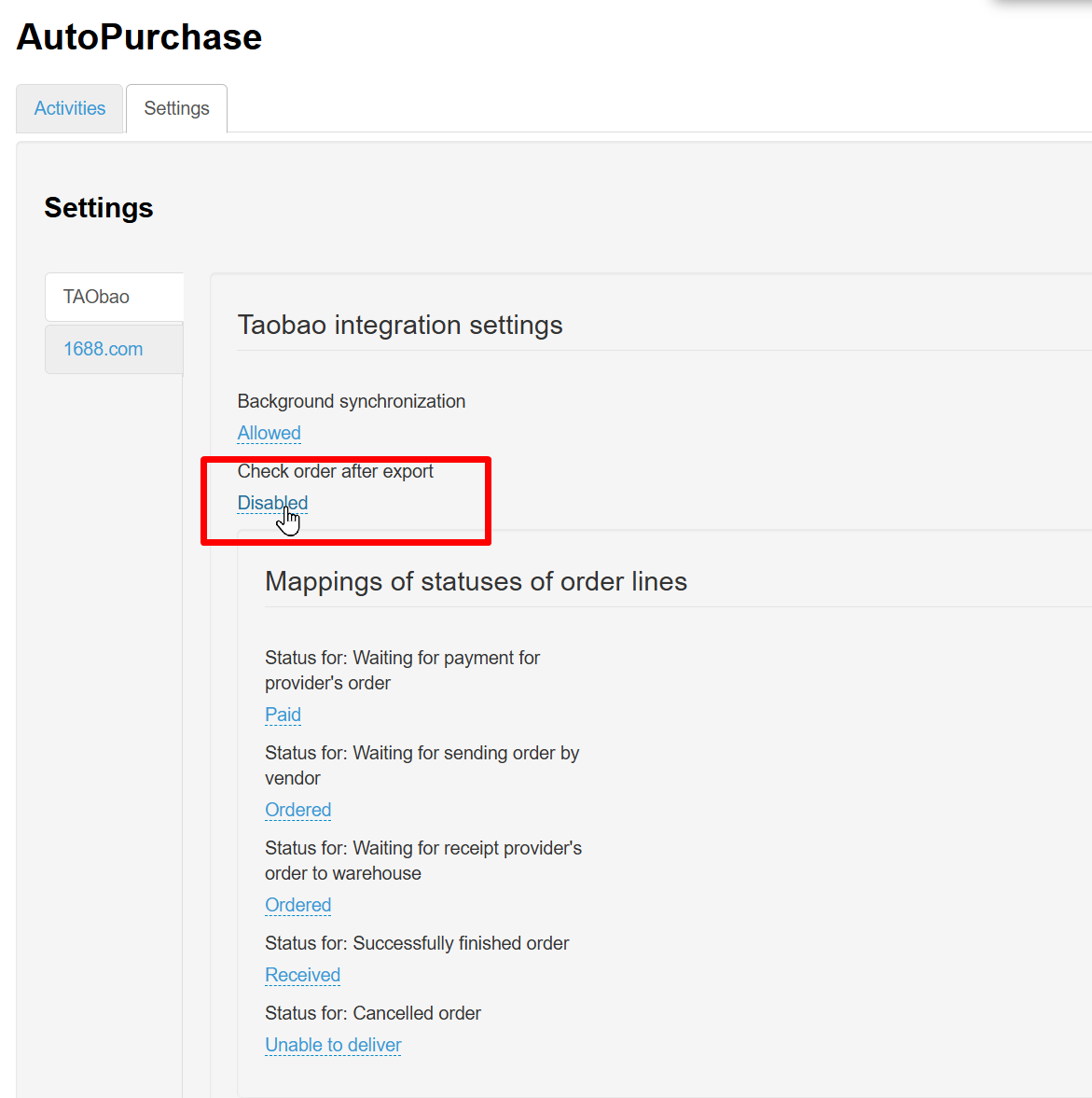
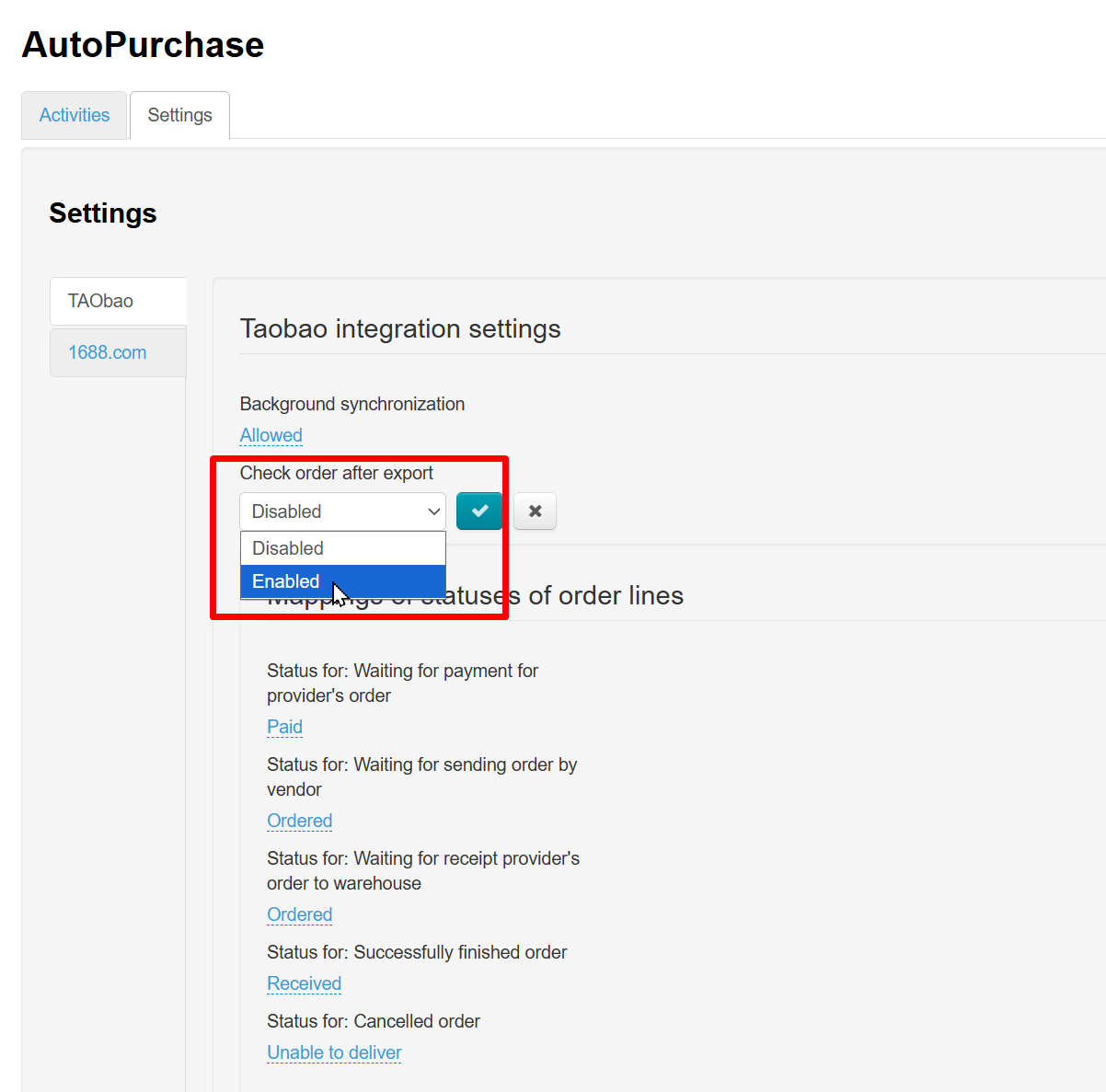
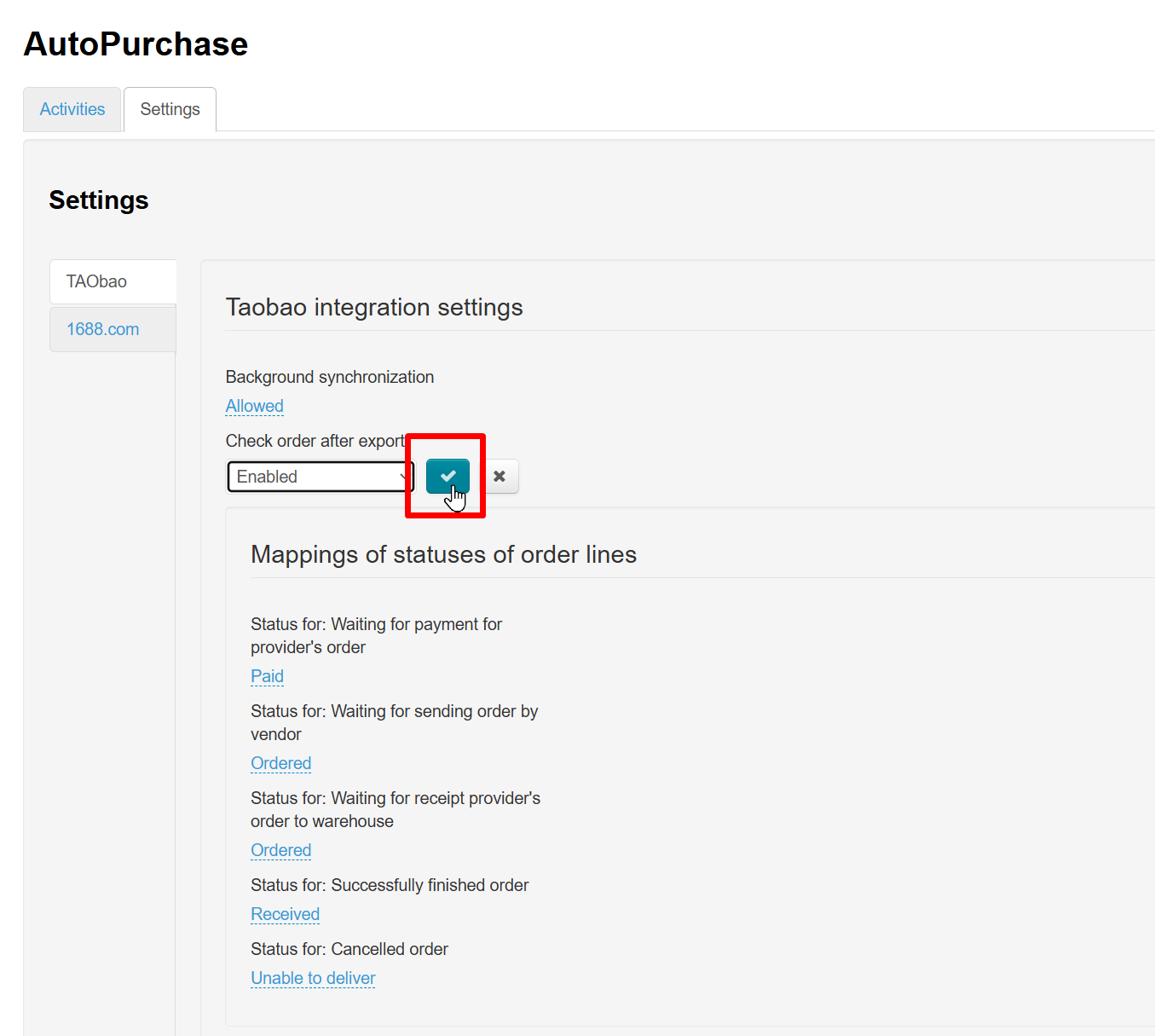
Enable "Check order after export". This is necessary for the module to calculate product purchase price. Essentially, it checks that the items reserved are exactly those specified in the order.
Click the blue dotted line to enable:
Select "Enabled" from drop-down menu:
Save choice clicking check-marked button:
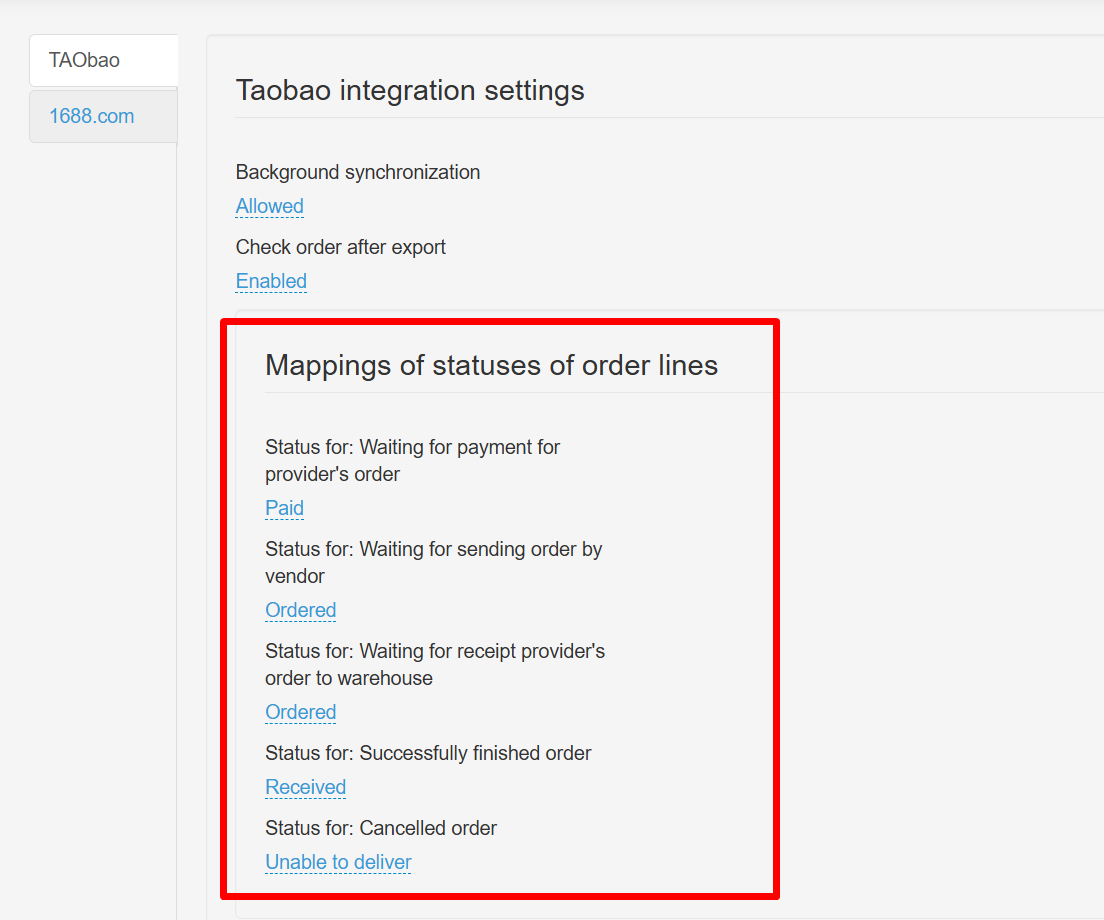
Mapping of Statuses of Order Lines
You can change mapping of statuses for required ones. The default settings are classic options that are suitable for most business models.
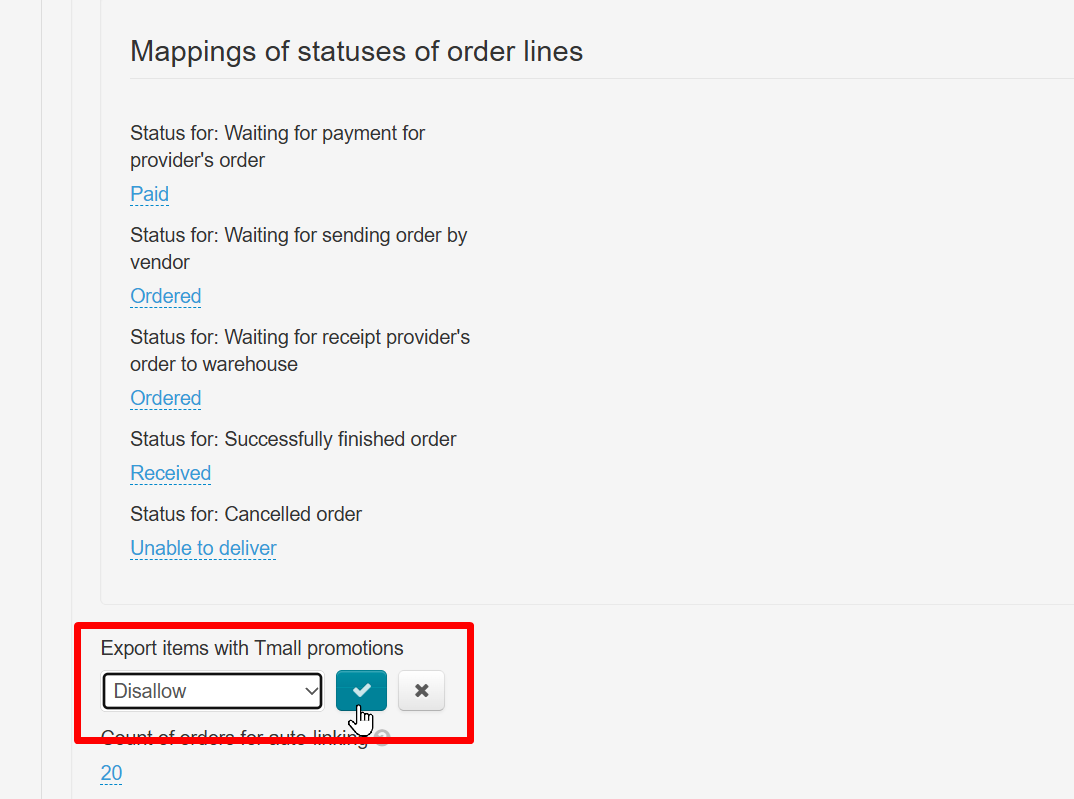
Goods Export with Tmall Promotions
Leave the default option “Allow.” If for some reason you need to prohibit Tmall goods export, change the default setting by selecting “Disallow”
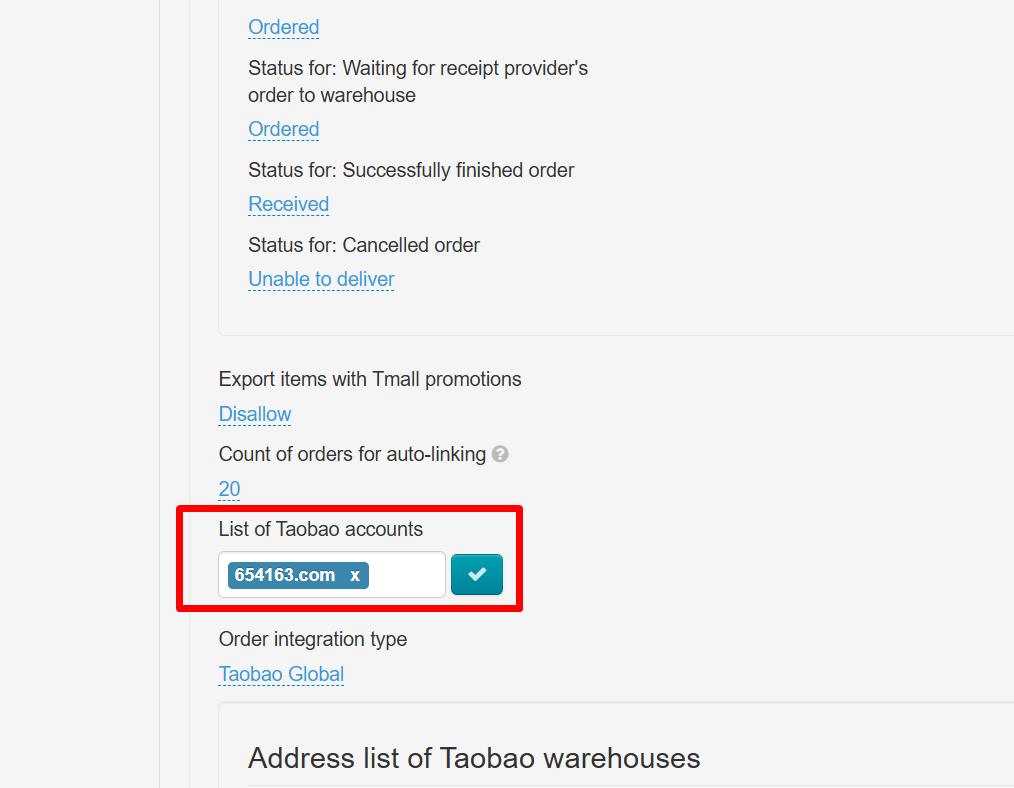
Accounts List
Enter TaobaoGlobal account in the “Account List” field. One account is usually sufficient. If you need several accounts, please contact your manager in Telegram group for advice.
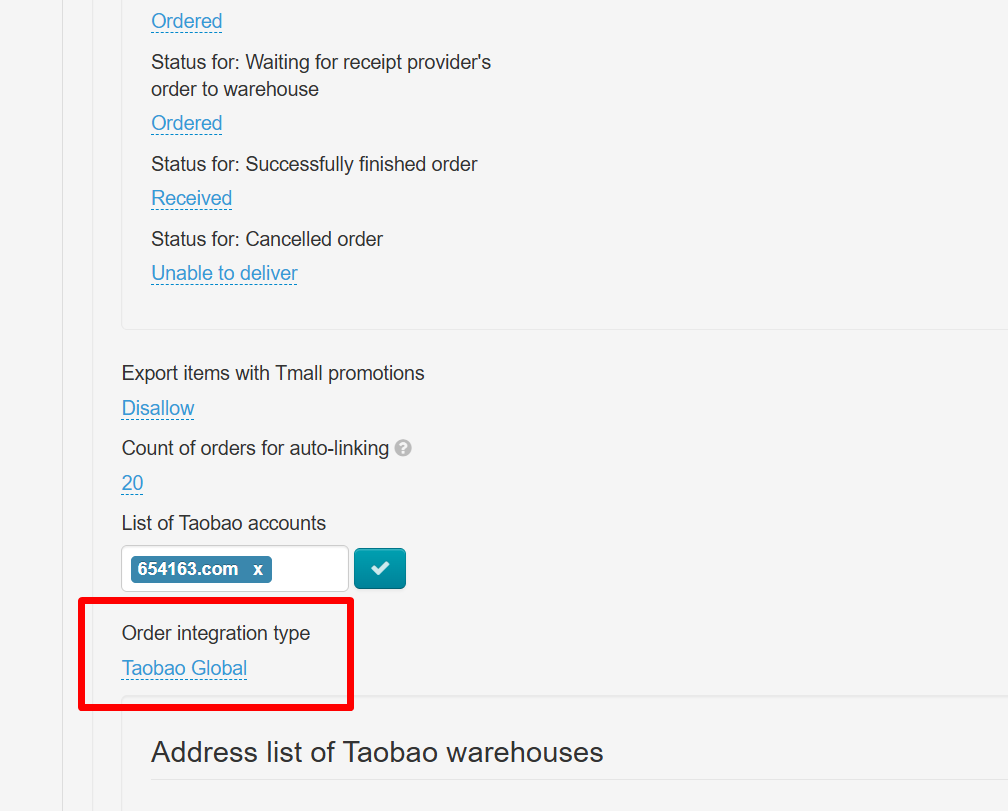
Integration Type
Keep order integration type as TaobaoGlobal
Address List of Warehouses in China
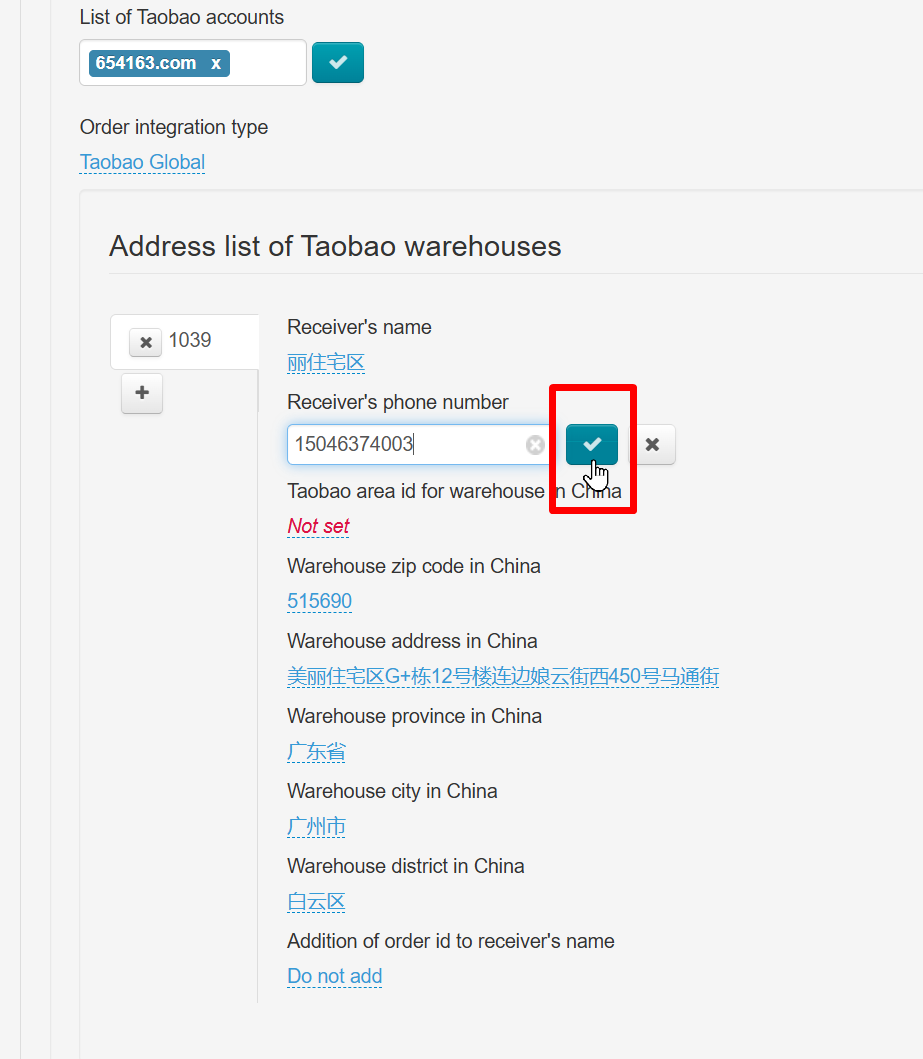
Now fill in the details about the warehouse in China. (If you have several warehouses, each one must be filled in separately).
Click on each field with blue dotted lines and enter the warehouse details.
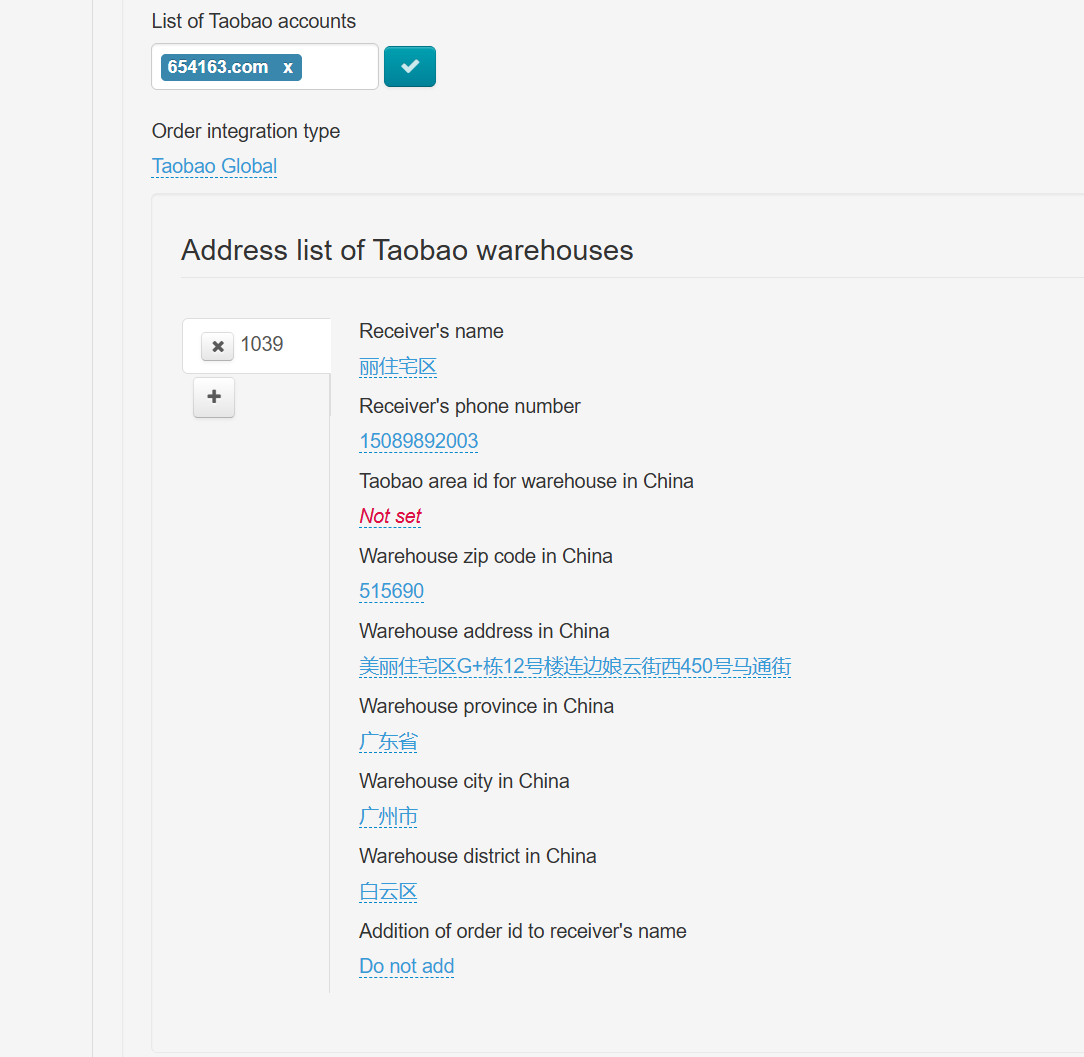
Save data the check mark button next to the filled field:
Automatic Price Confirmation Mode
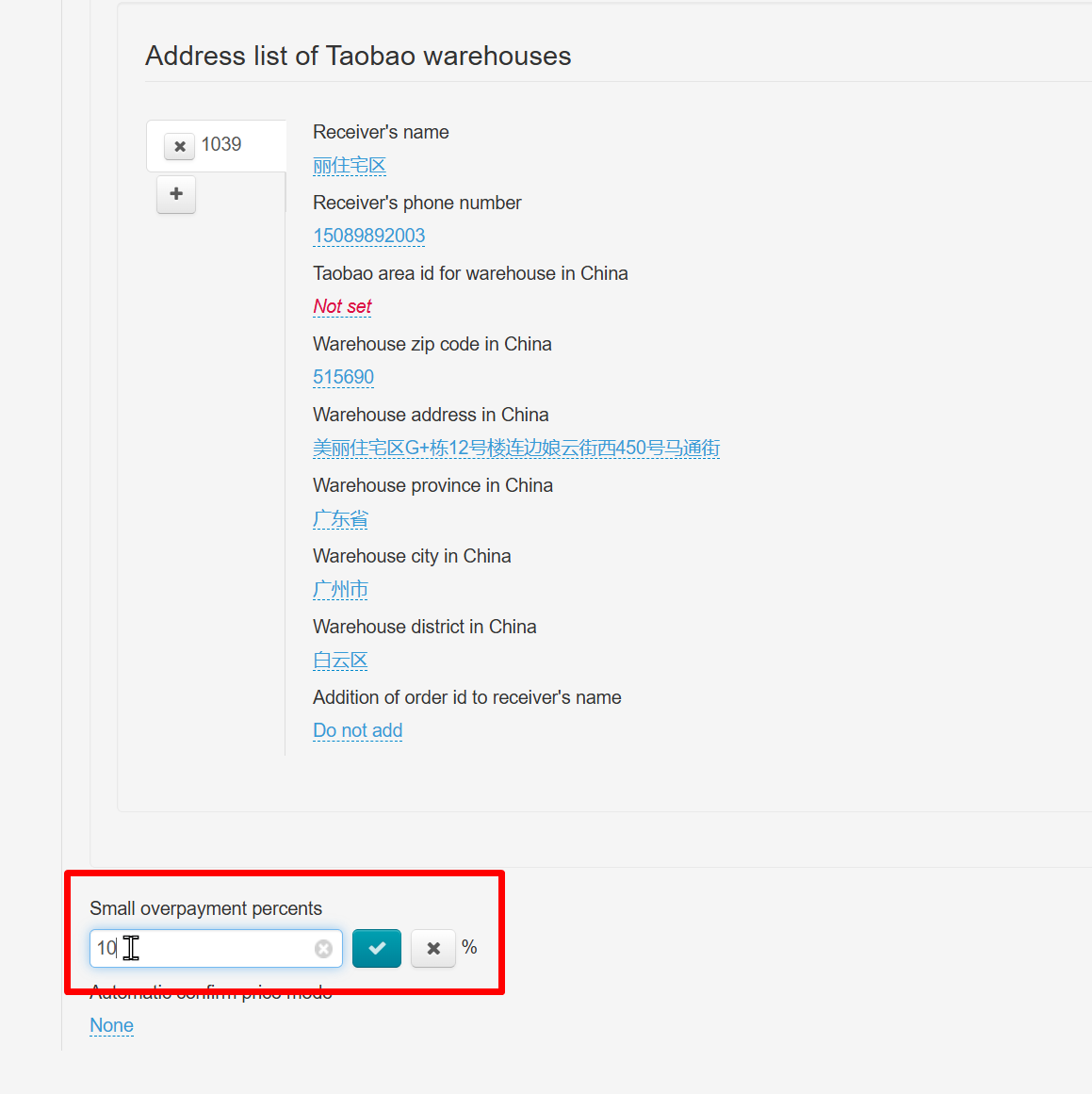
“Threshold percentage between ‘high’ and ‘low’ overpayment” setting. Specify the percentage of acceptable difference between the product price paid by the customer and the purchase price on the marketplace. This value is used for the automatic price confirmation mode (check next setting).
Automatic Confirm Price Mode.
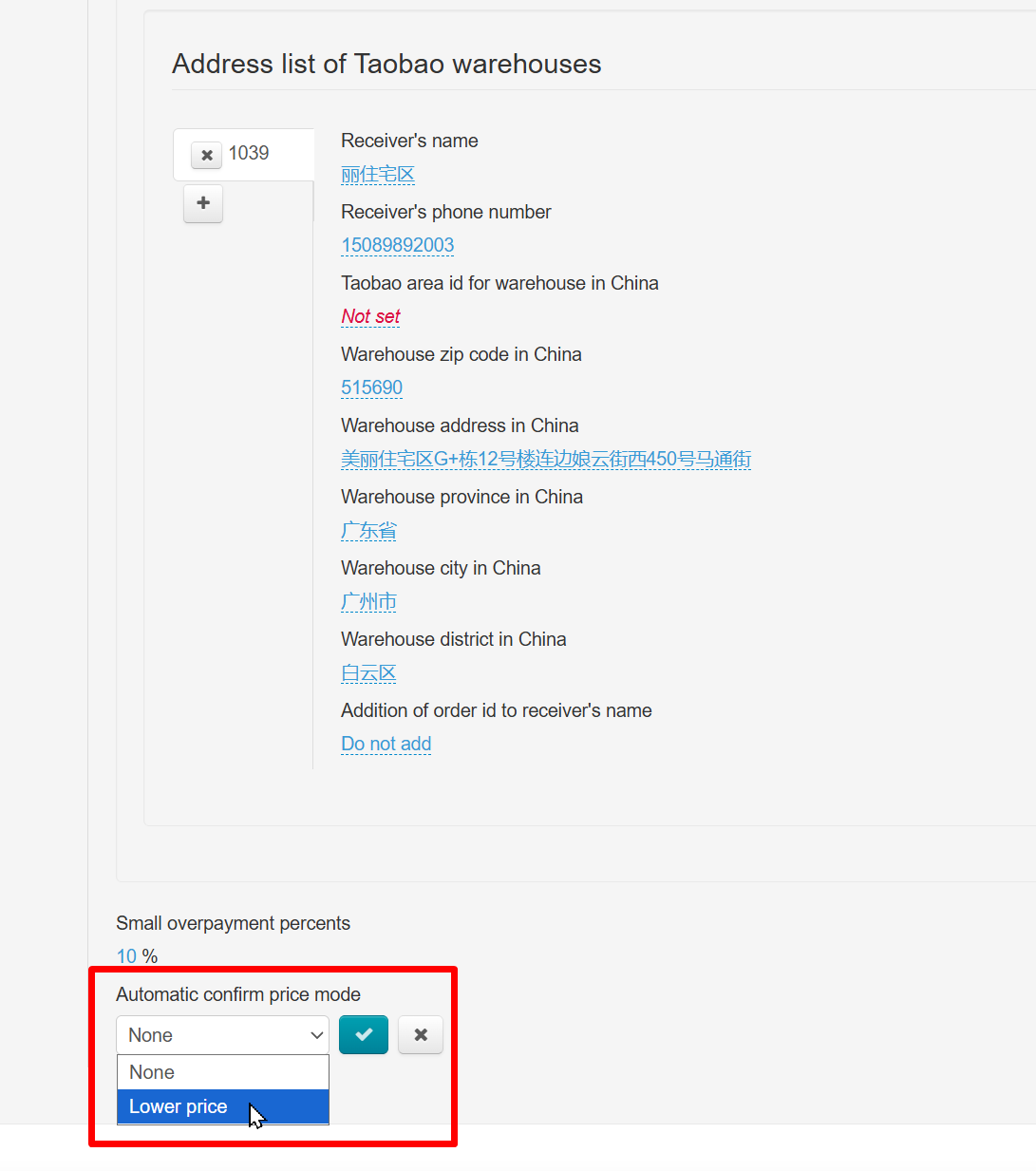
If “Lower price” is selected, all items that meet specified percentage (in the example, this is more expensive within 10%) will be automatically confirmed and sent for purchase. If the item is cheaper than the purchase price, it will also be automatically sent for purchase.
Example. Item costs 10 yuan, threshold percentage is 10%.
Item costs 8 yuan — we buy it (because it is less than the cost).
Item costs 10 yuan — we buy it (because it is equal to the cost).
The item costs 11 yuan — we buy it (because the 10% overpayment is taken into account)
The item costs 12 yuan — we wait for manual purchase, because the difference is 20%
If “no” is selected, then all items will wait for manual purchase confirmation.
Add Session to OT Box
It's required to add sessions to the list to start using.
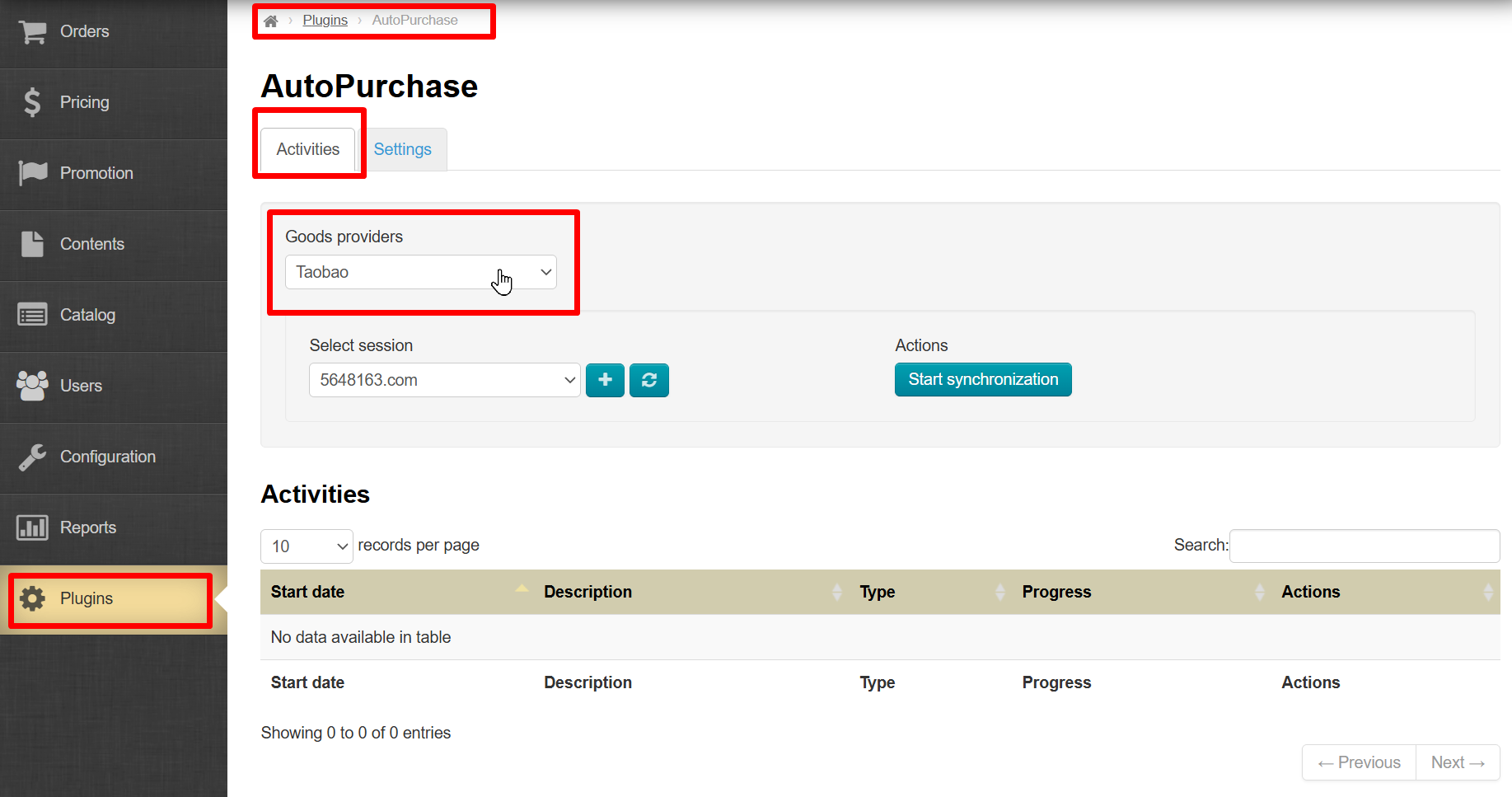
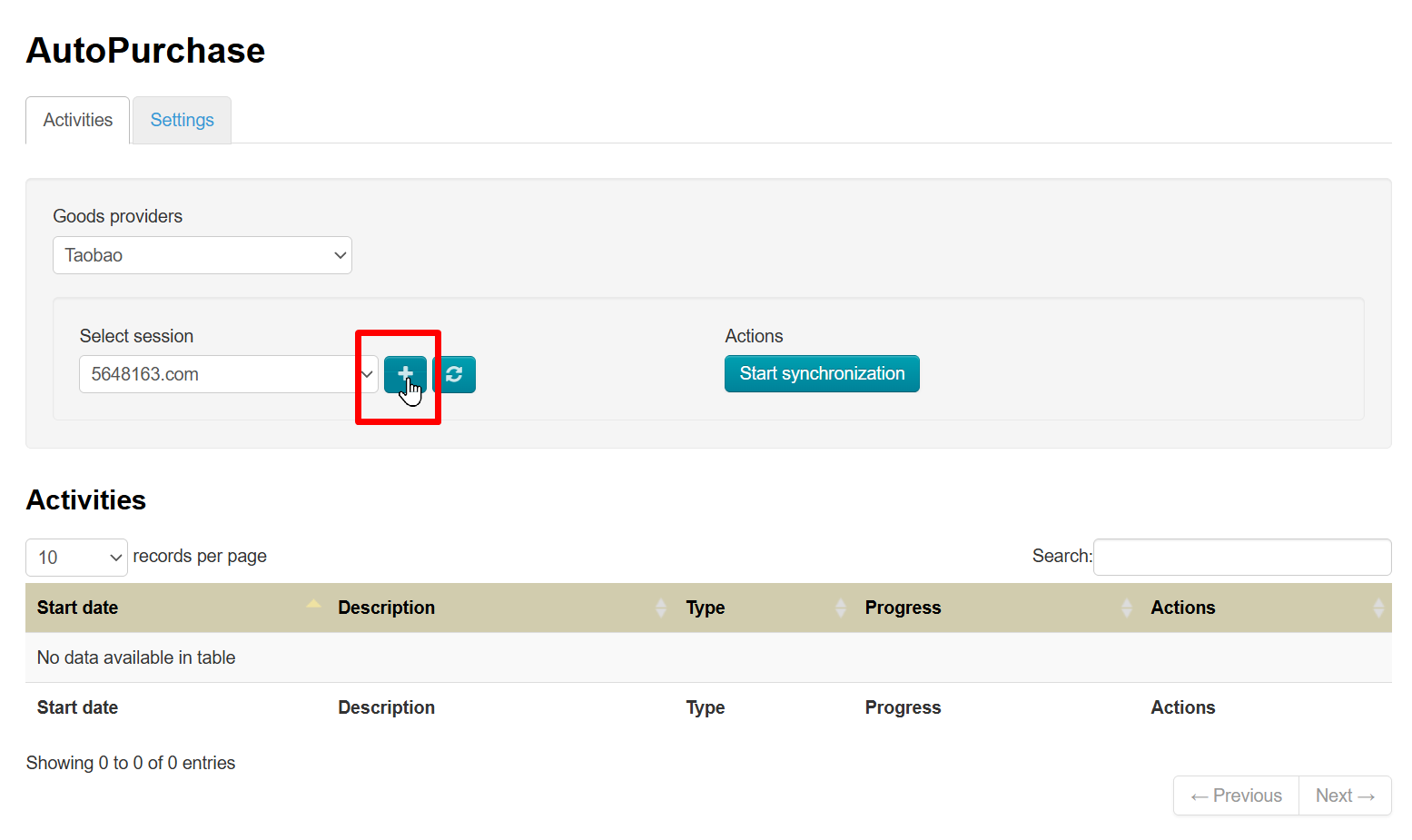
Select Taobao provider on the page Plugins → AutoPurchase → Activities
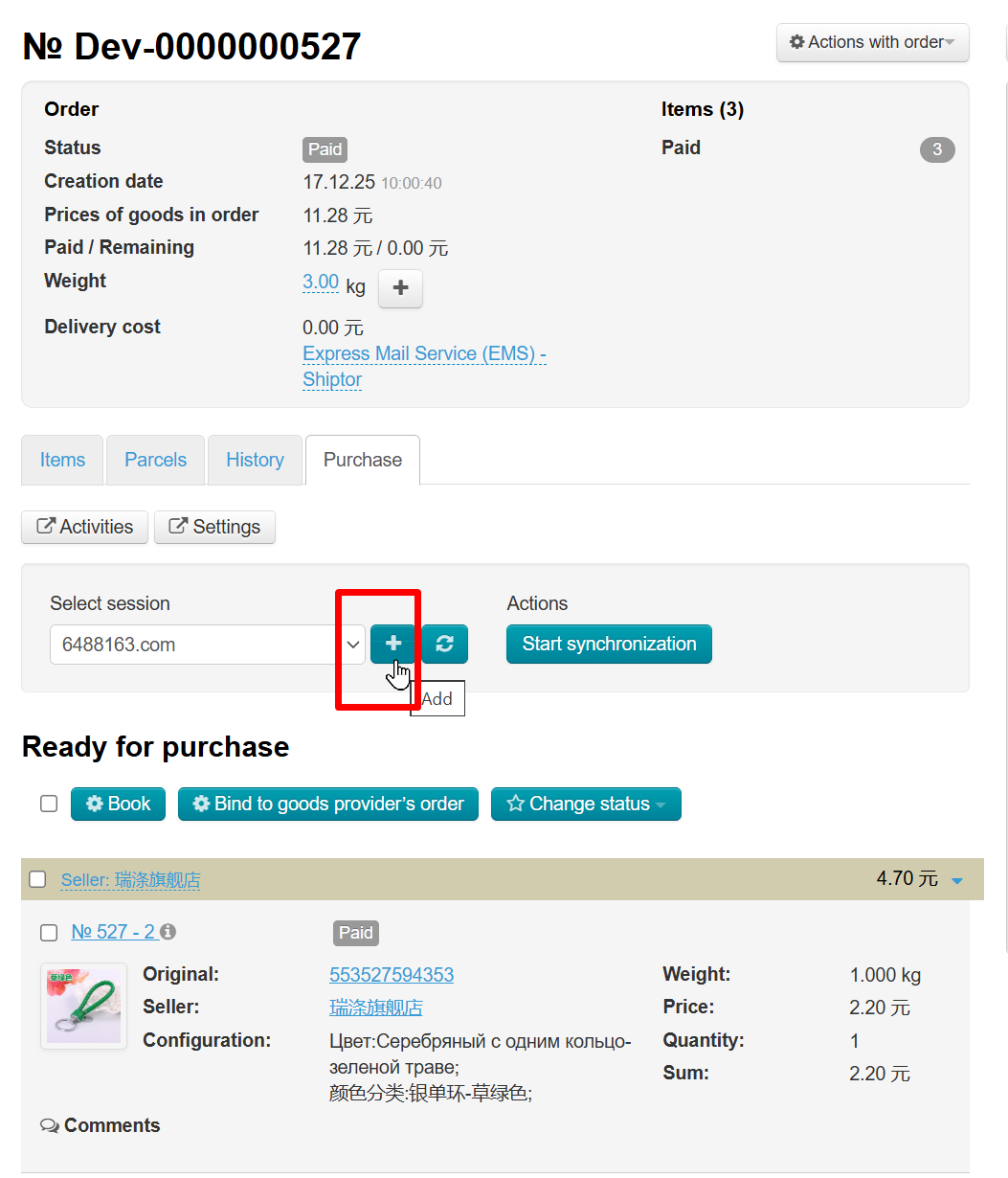
Click plus button to add login from your personal account on Taobao website. This can be done either in the module settings or on the “Purchase” tab in the order details (here, the product provider is selected automatically depending on which provider the order was placed with):
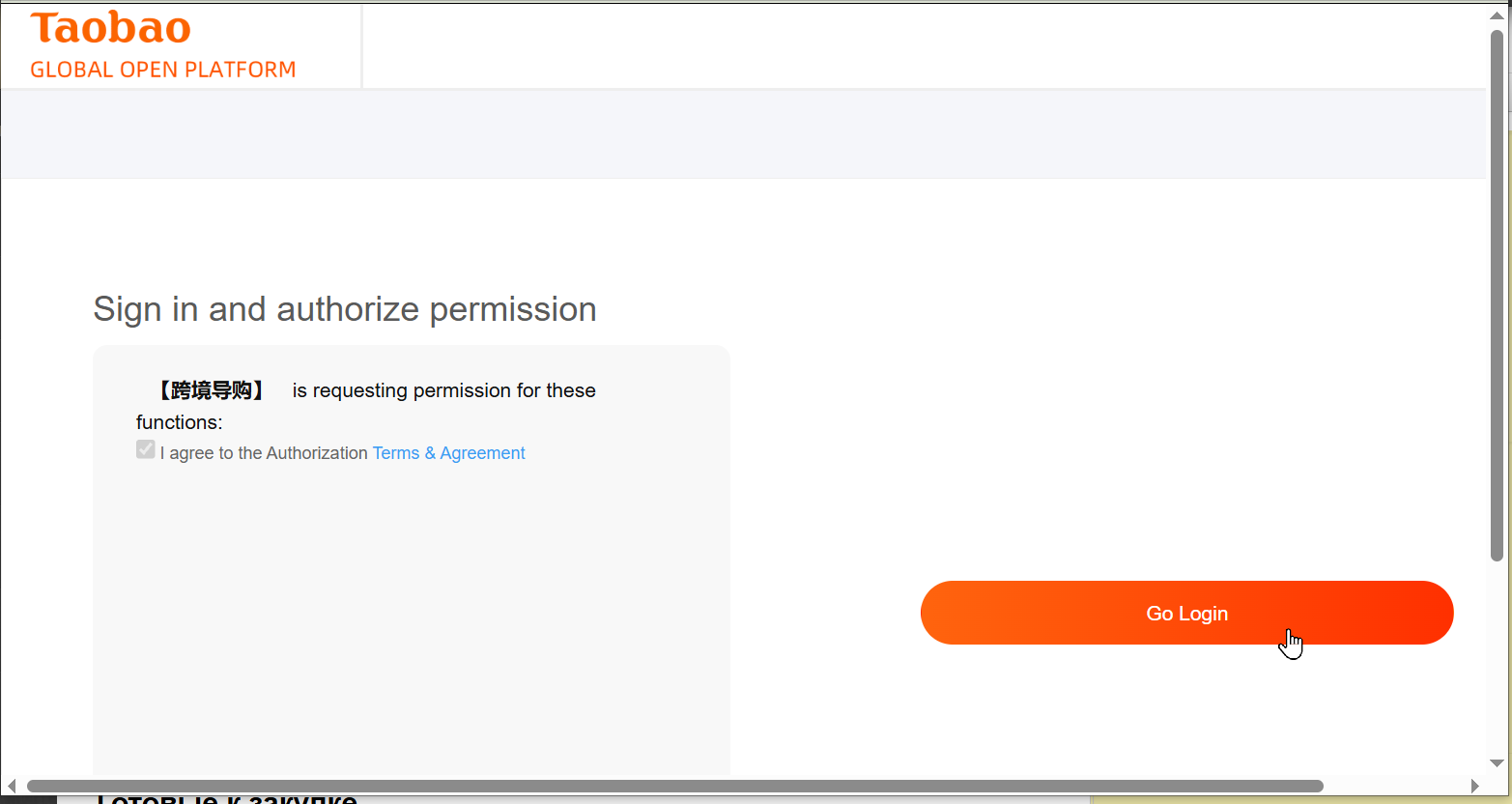
An authorization pop-up window should appear after clicking (if this does not happen, check whether pop-up windows are allowed by your browser for this site):
Enter login and password from Taobao Global website:
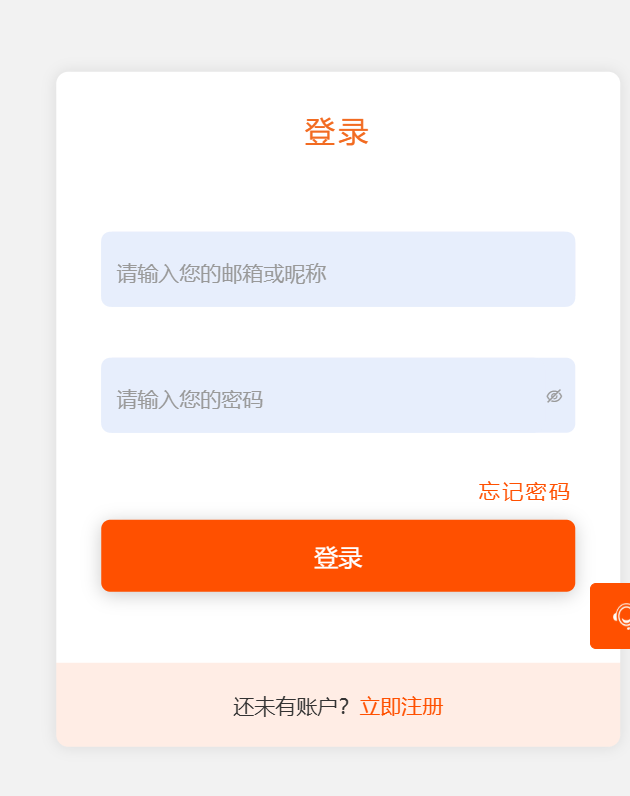
Your login will appear in sessions list once you log in on provider website.
Setup is complete.
Integration Setup with 1688.com
Registration on Marketplace
Register on 1688.com
Fill in the information in your personal account after registration:
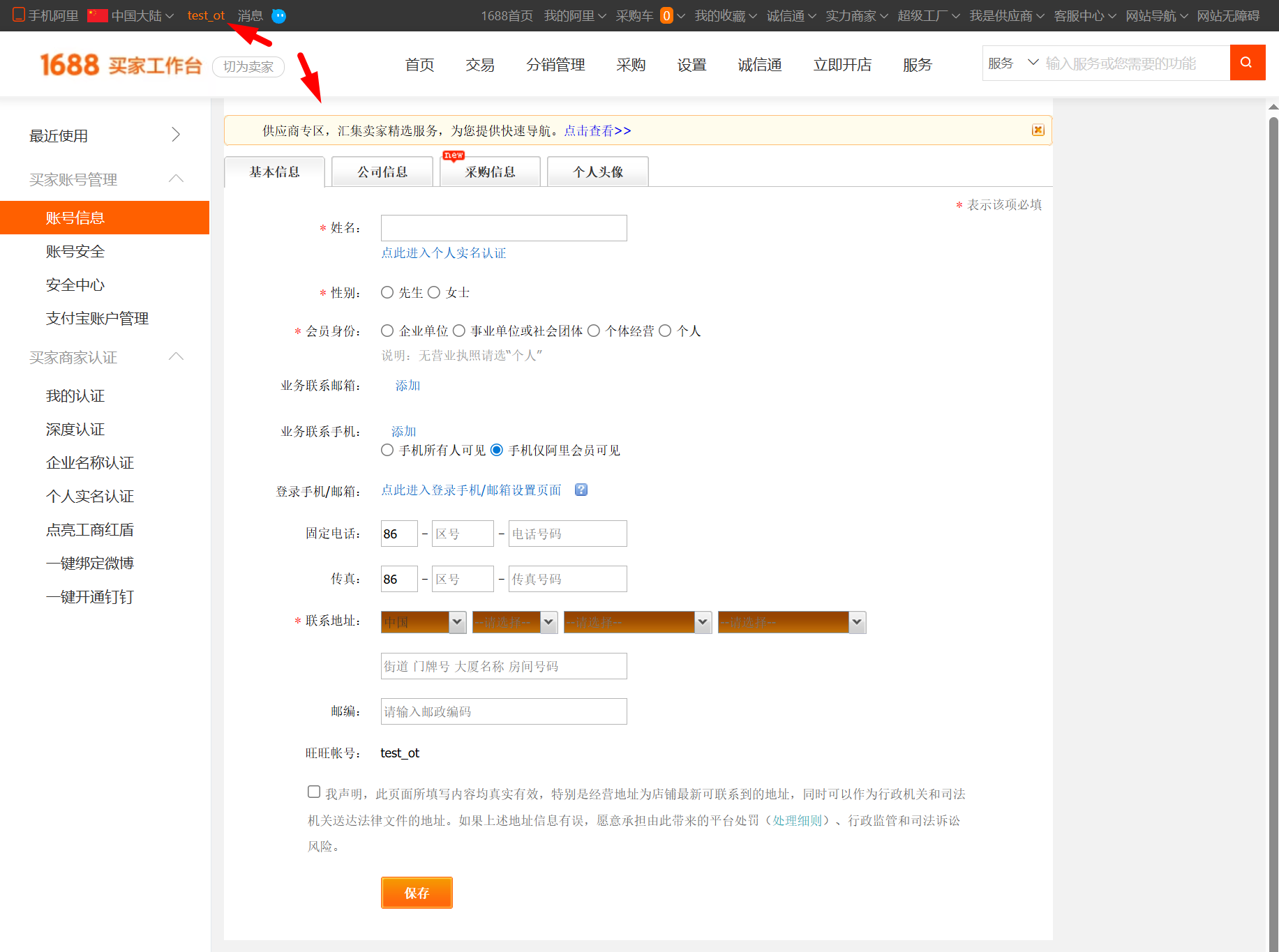
You will need the following warehouse and recipient details (all in Chinese) to use the AutoPurchase module (order synchronization):
- Recipient name
- Mobile phone number
- Phone number
- Postal code
- Province
- City
- District/neighborhood
- Address
Key for Autopurchase
A special key is required for Autopurchase to work with 1688.com marketplace. To obtain key, please contact support manager in a Telegram group.
Autopurchase Setup in OT Admin Panel
You can set up module by 2 ways.
1. Through the order page by clicking "Settings" button on the "Purchase" tab:
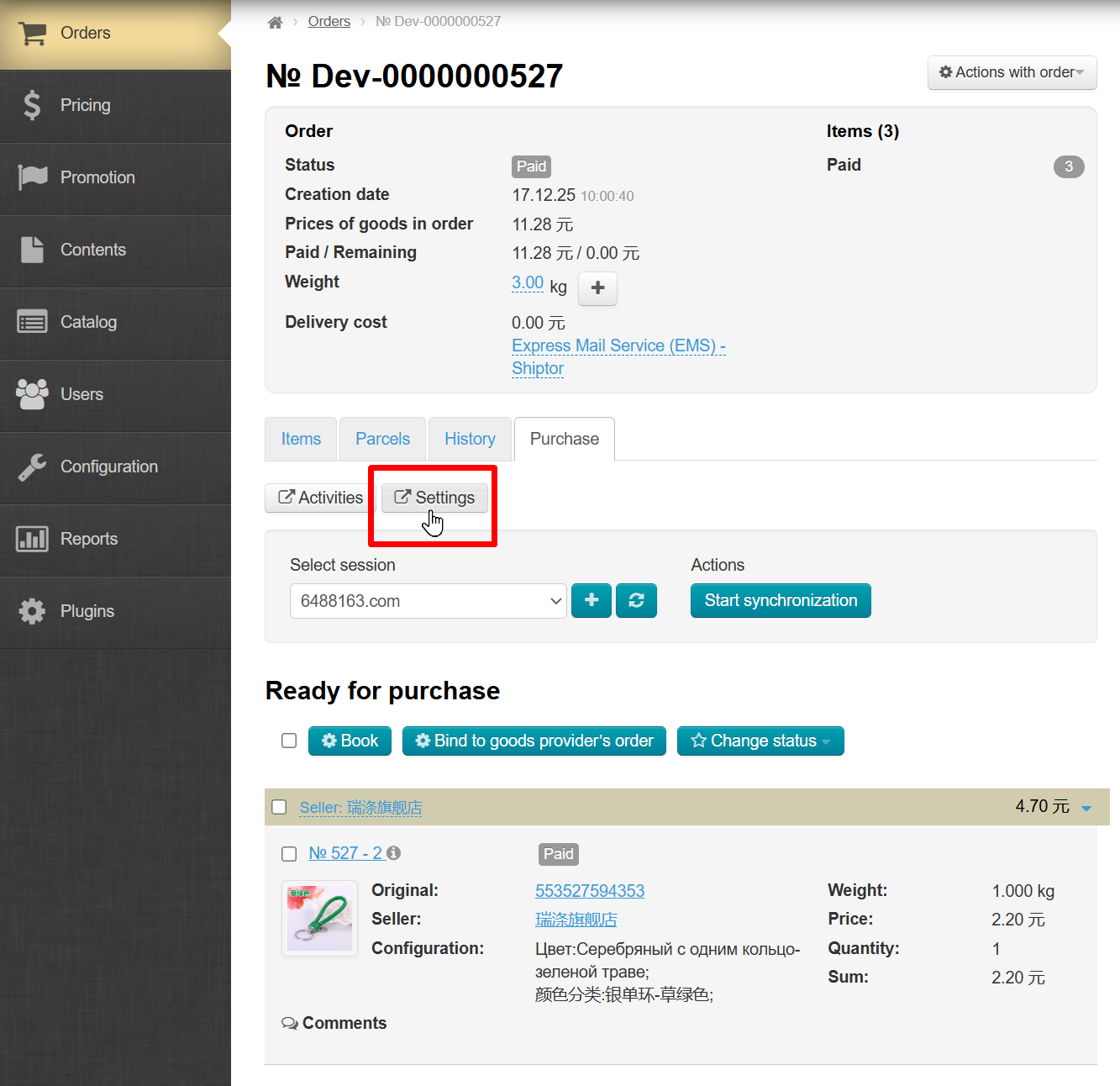
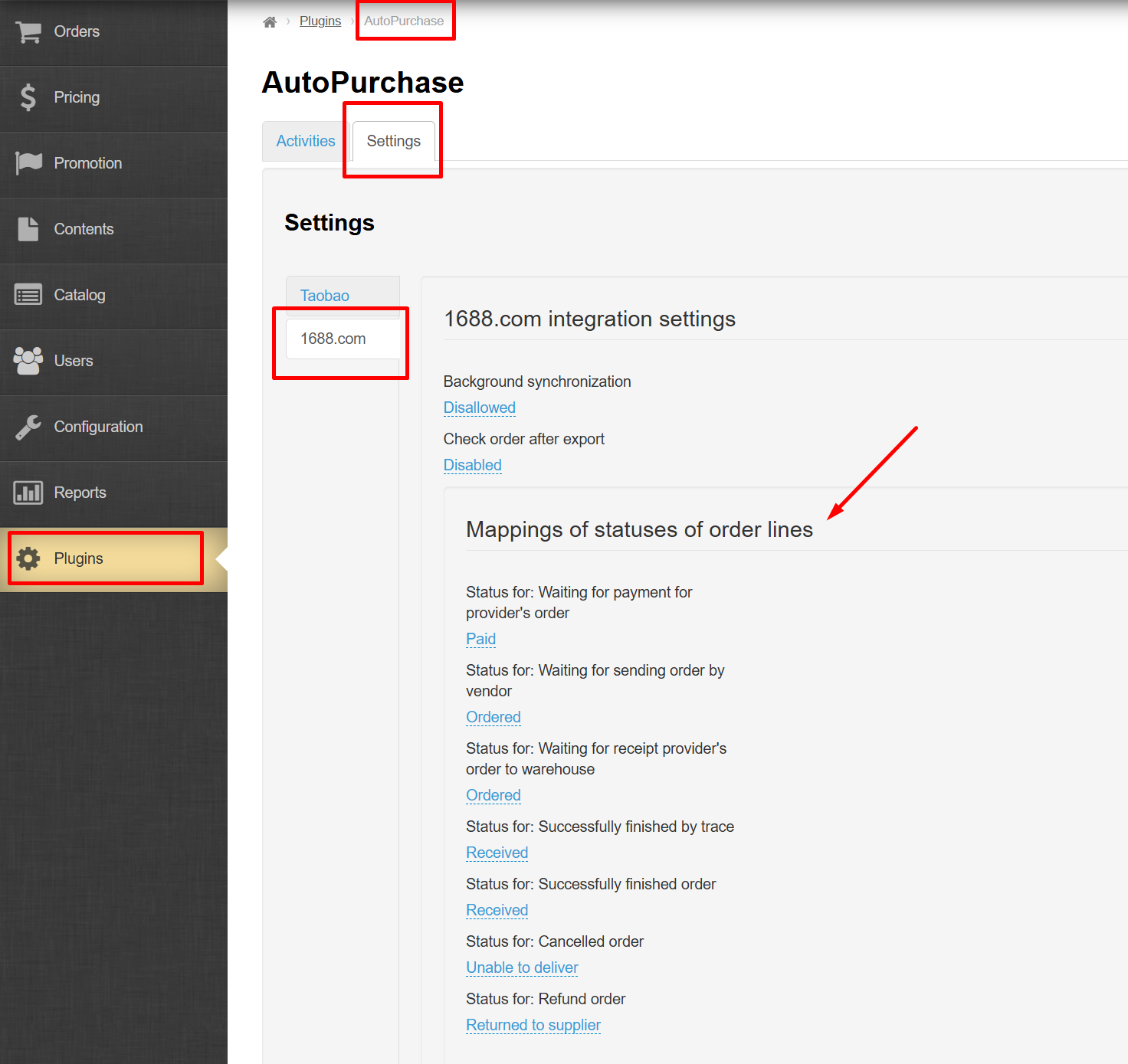
2. Through Plugins → AutoPurchase → Settings
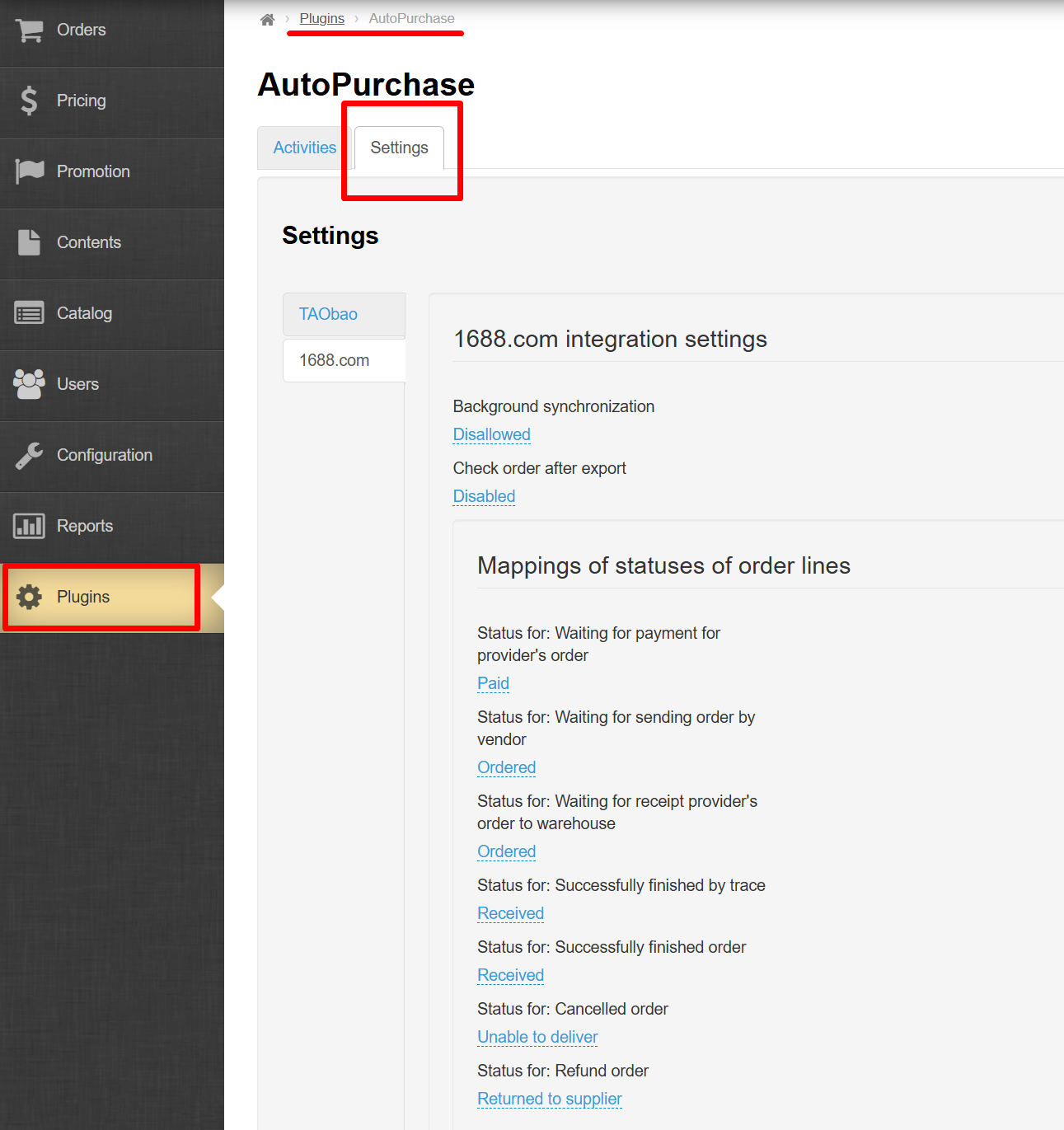
Select 1688.com
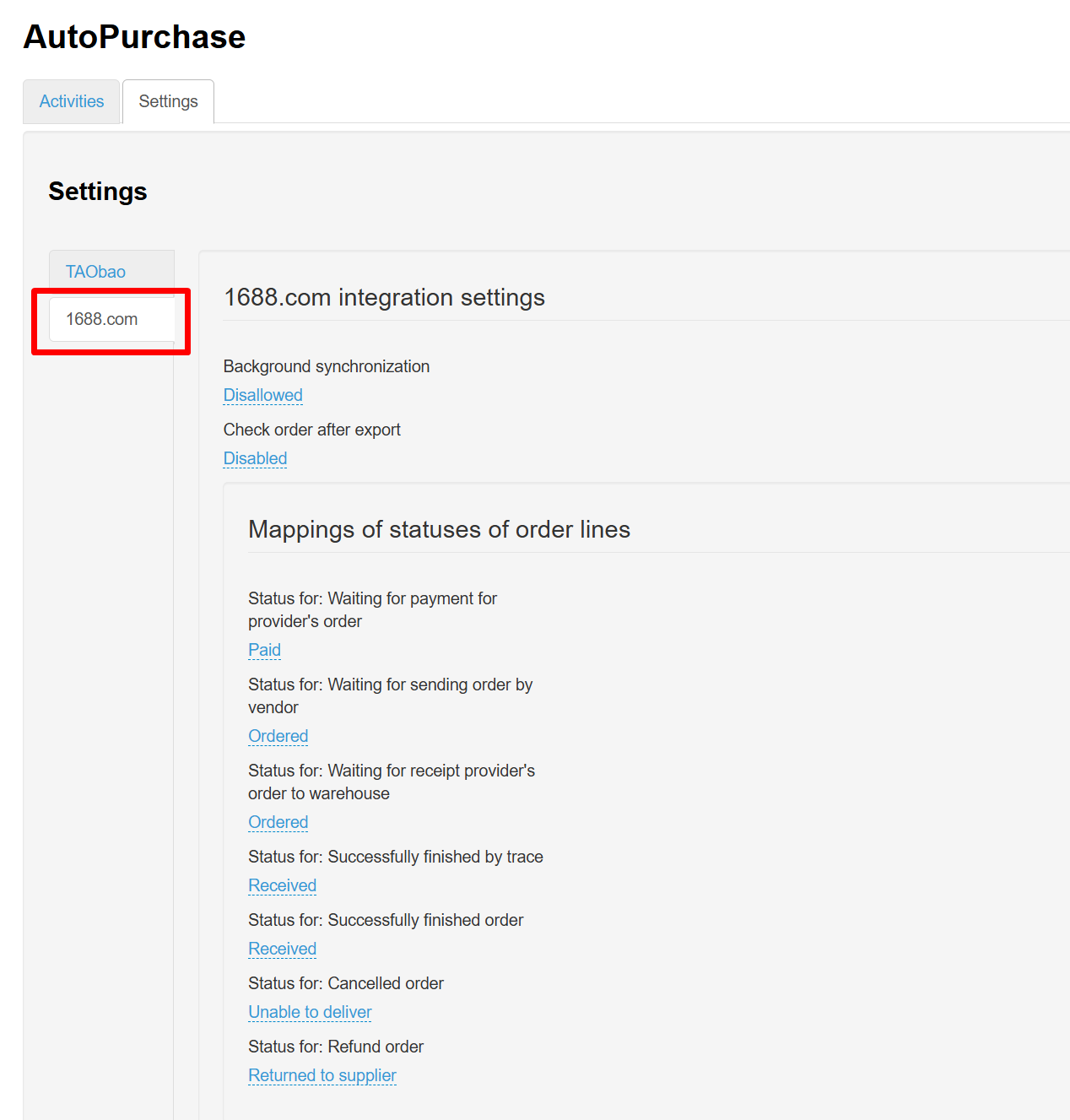
Integration Setup
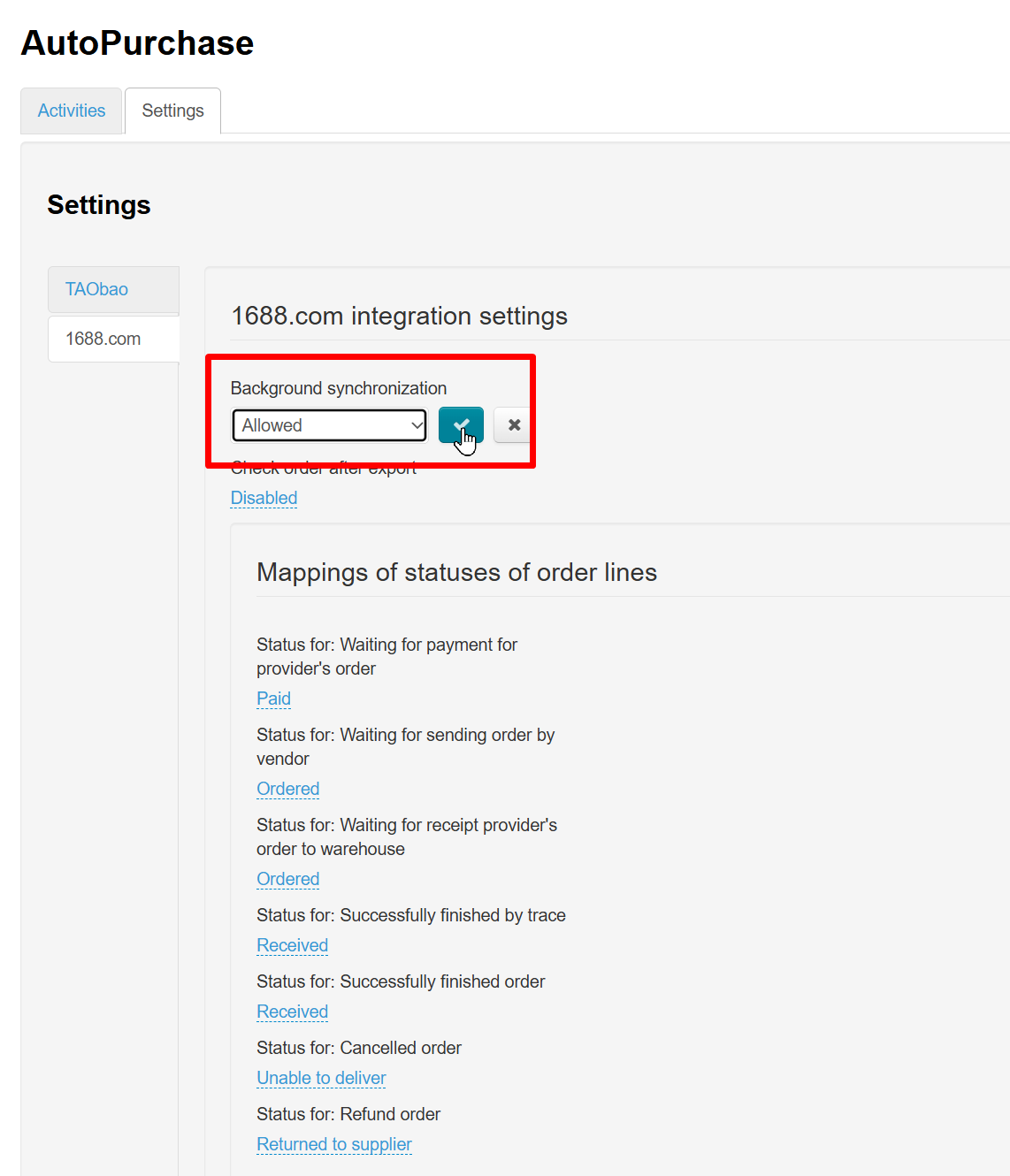
Allow background synchronization of orders to update the list of products, prices, and statuses automatically. Disallow background synchronization if you want to update manually.
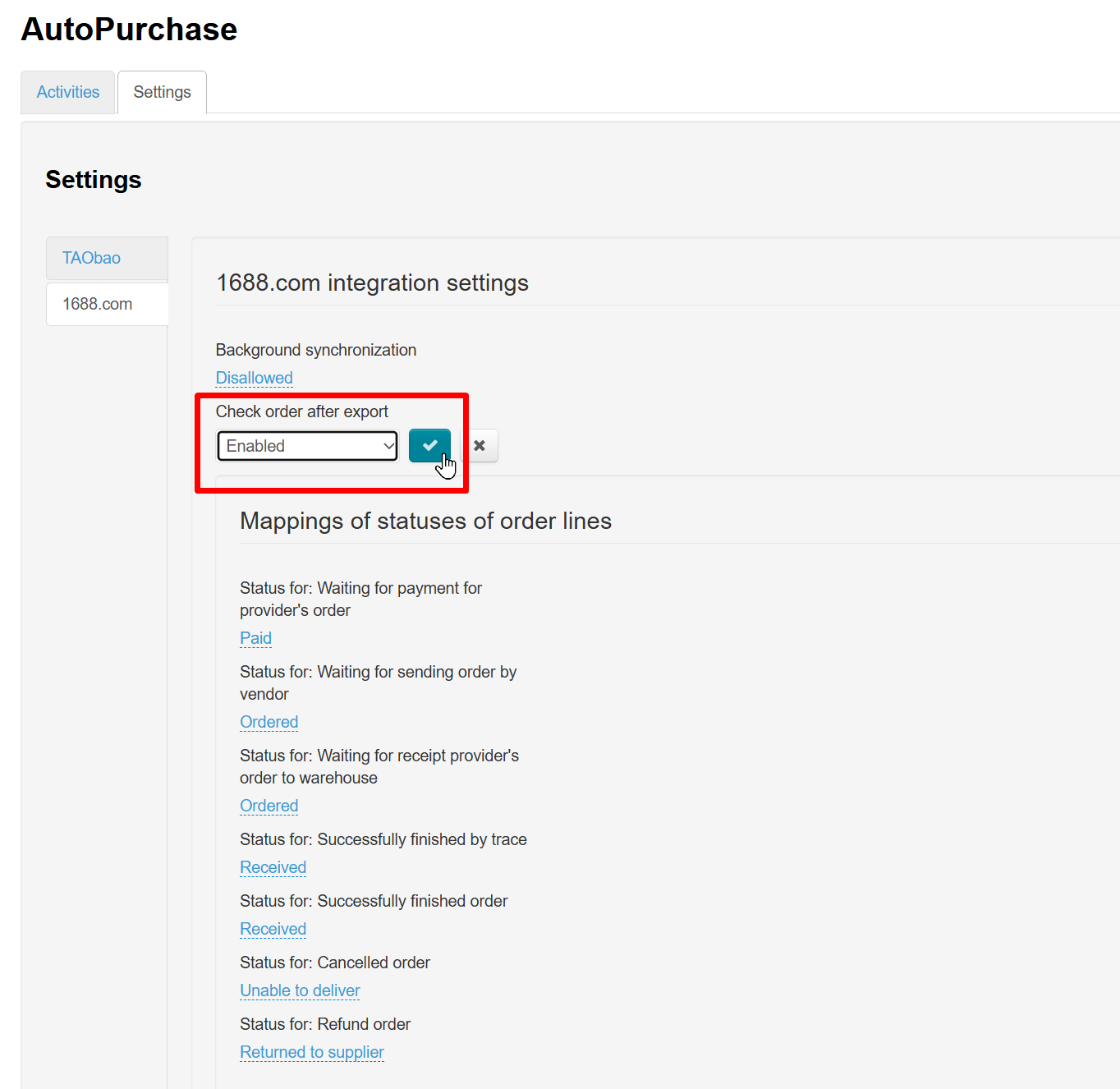
Enable "Check order after export". This is necessary for the module to calculate product purchase price. Essentially, it checks that the items reserved are exactly those specified in the order.
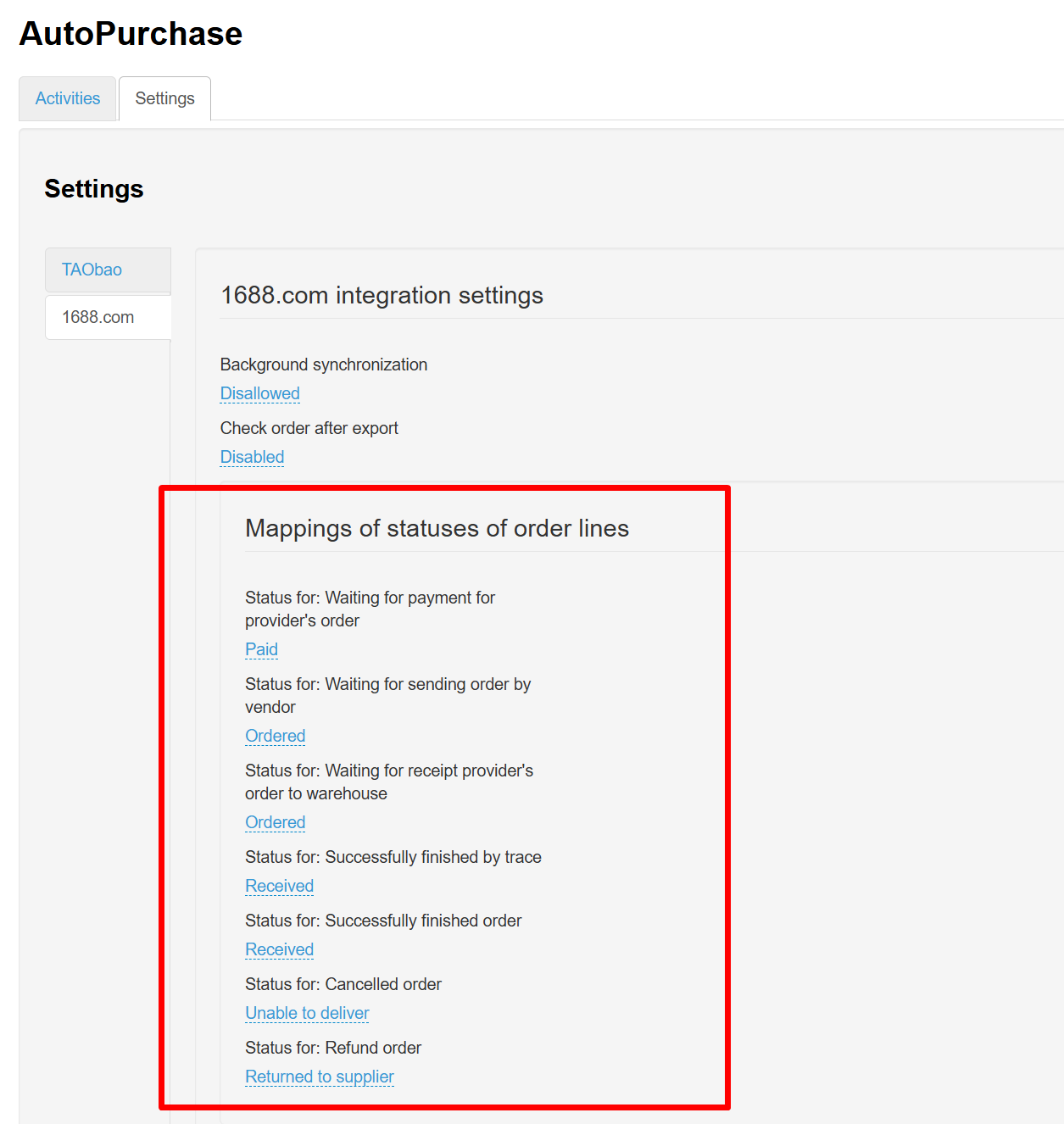
Mapping of Statuses of Order Lines
You can change mapping of statuses for required ones. The default settings are classic options that are suitable for most business models.
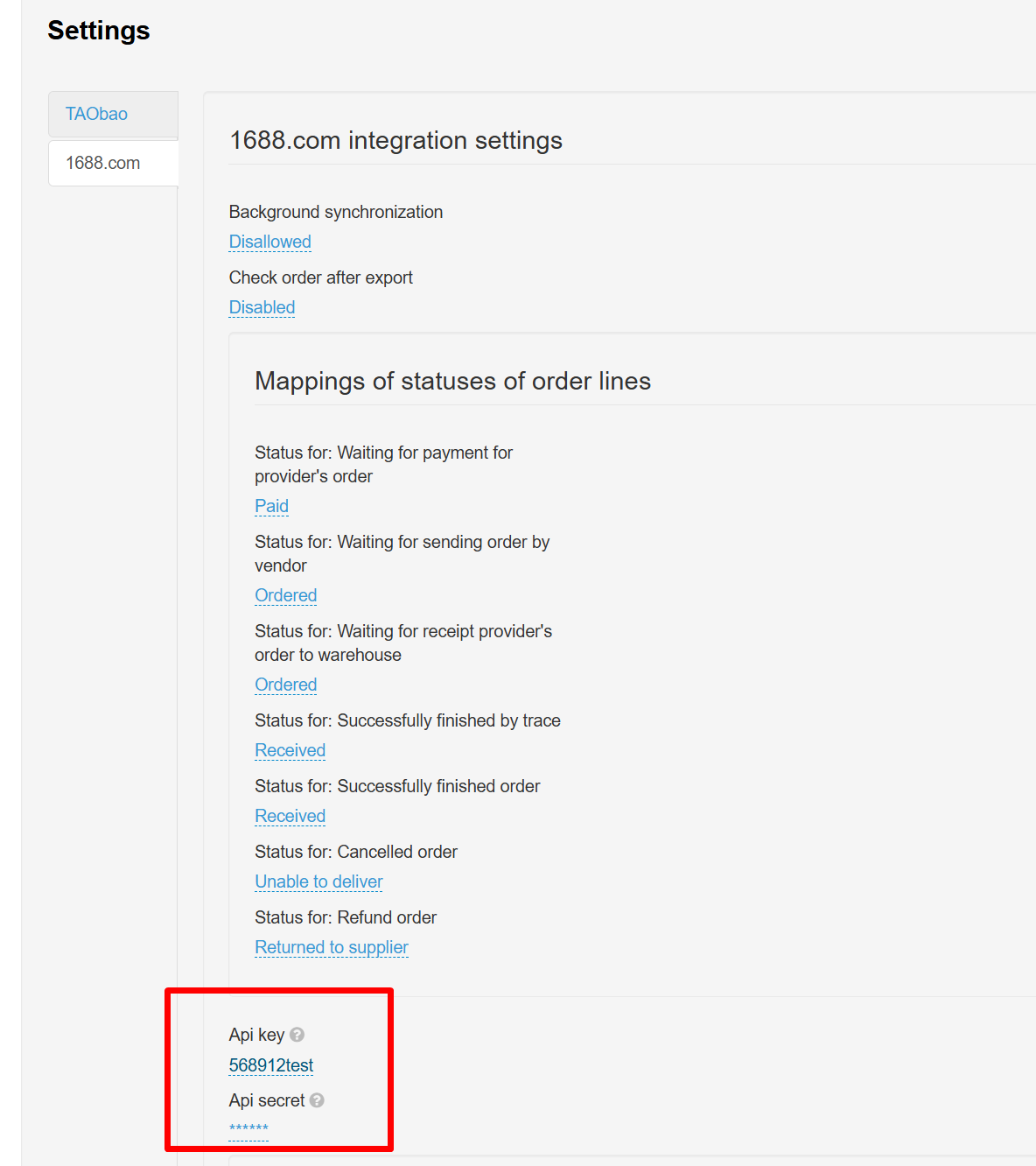
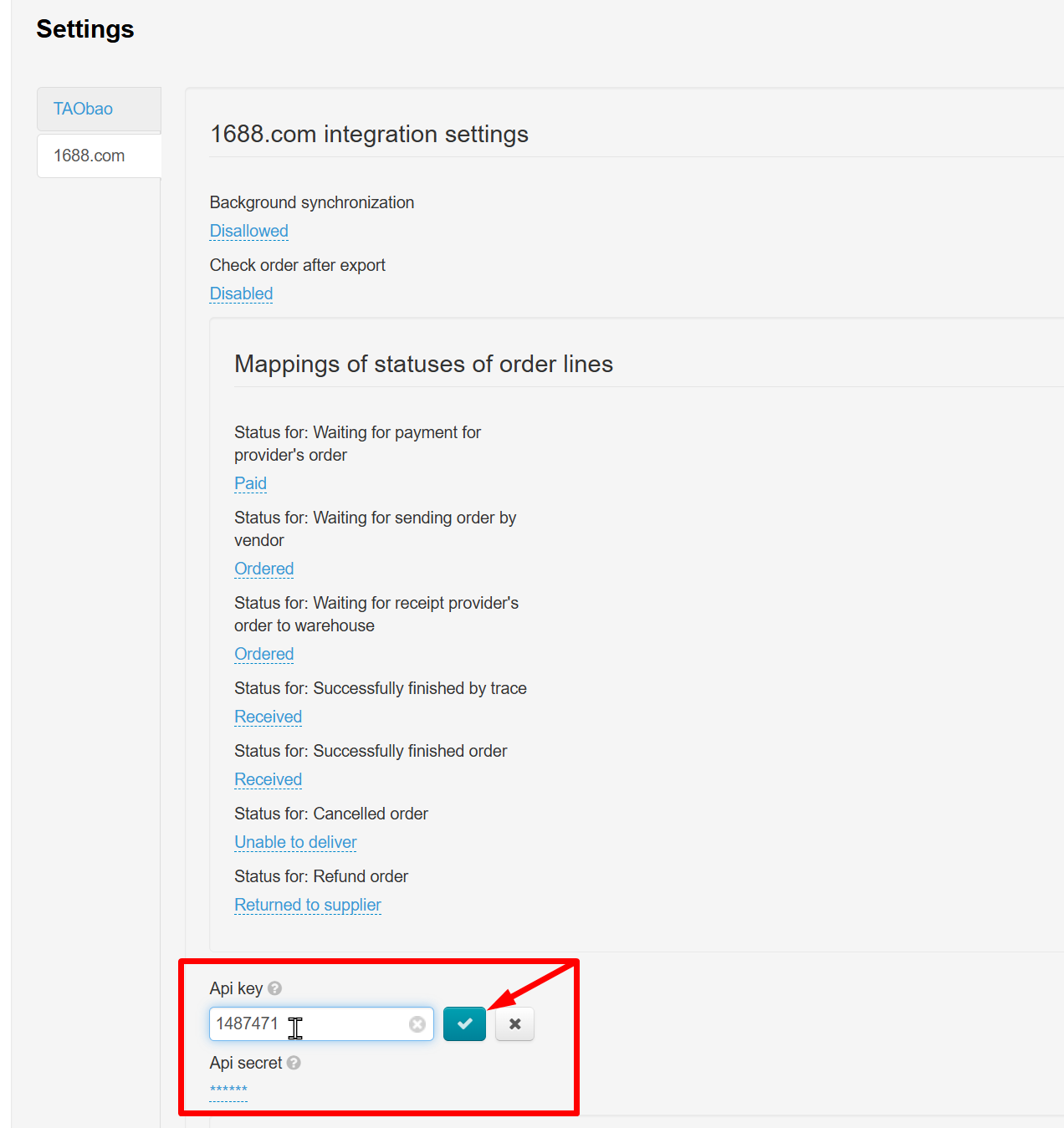
Key for Autopurchase
Enter the key you received from managers in your Telegram group. Add API Key (instance key). Secret field will be filled in automatically.
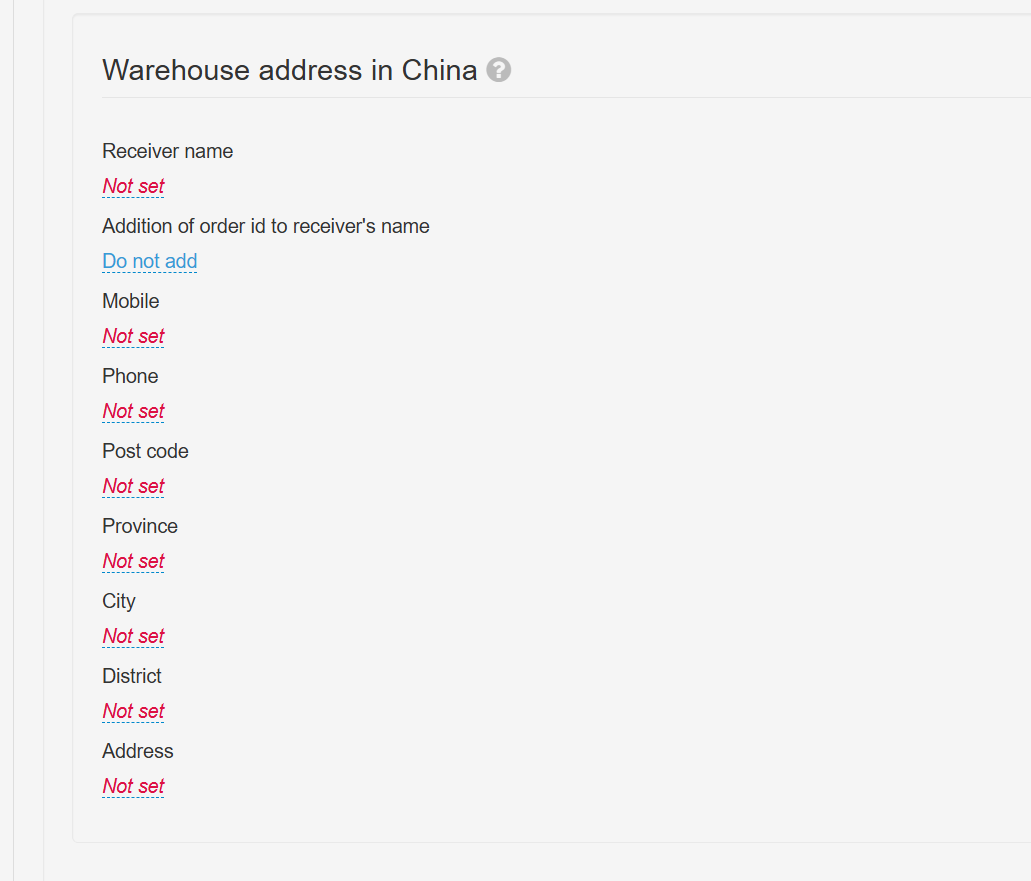
Warehouse Address in China
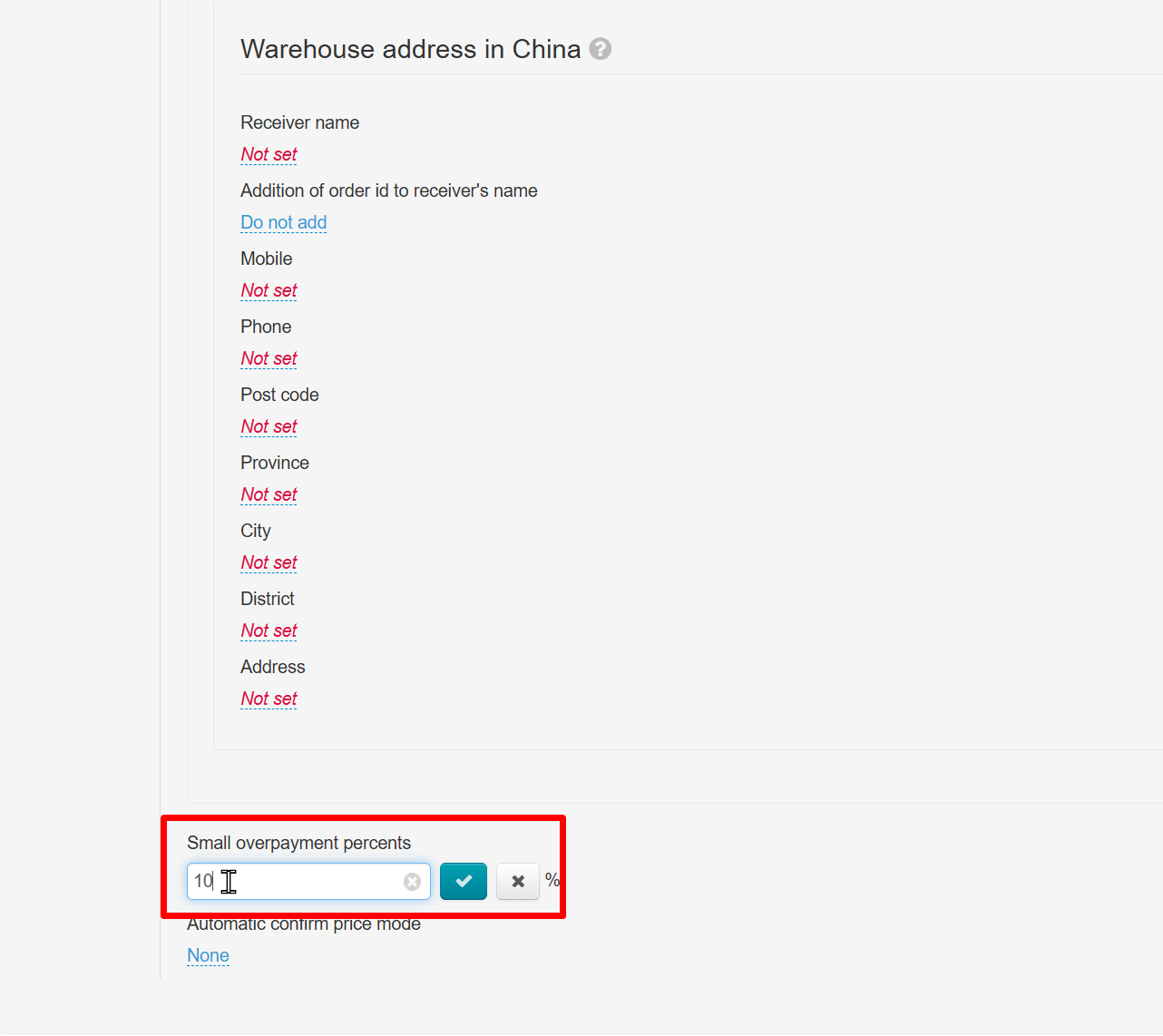
Automatic Price Confirmation Mode
“Threshold percentage between ‘high’ and ‘low’ overpayment” setting. Specify the percentage of acceptable difference between the product price paid by the customer and the purchase price on the marketplace. This value is used for the automatic price confirmation mode (check next setting).
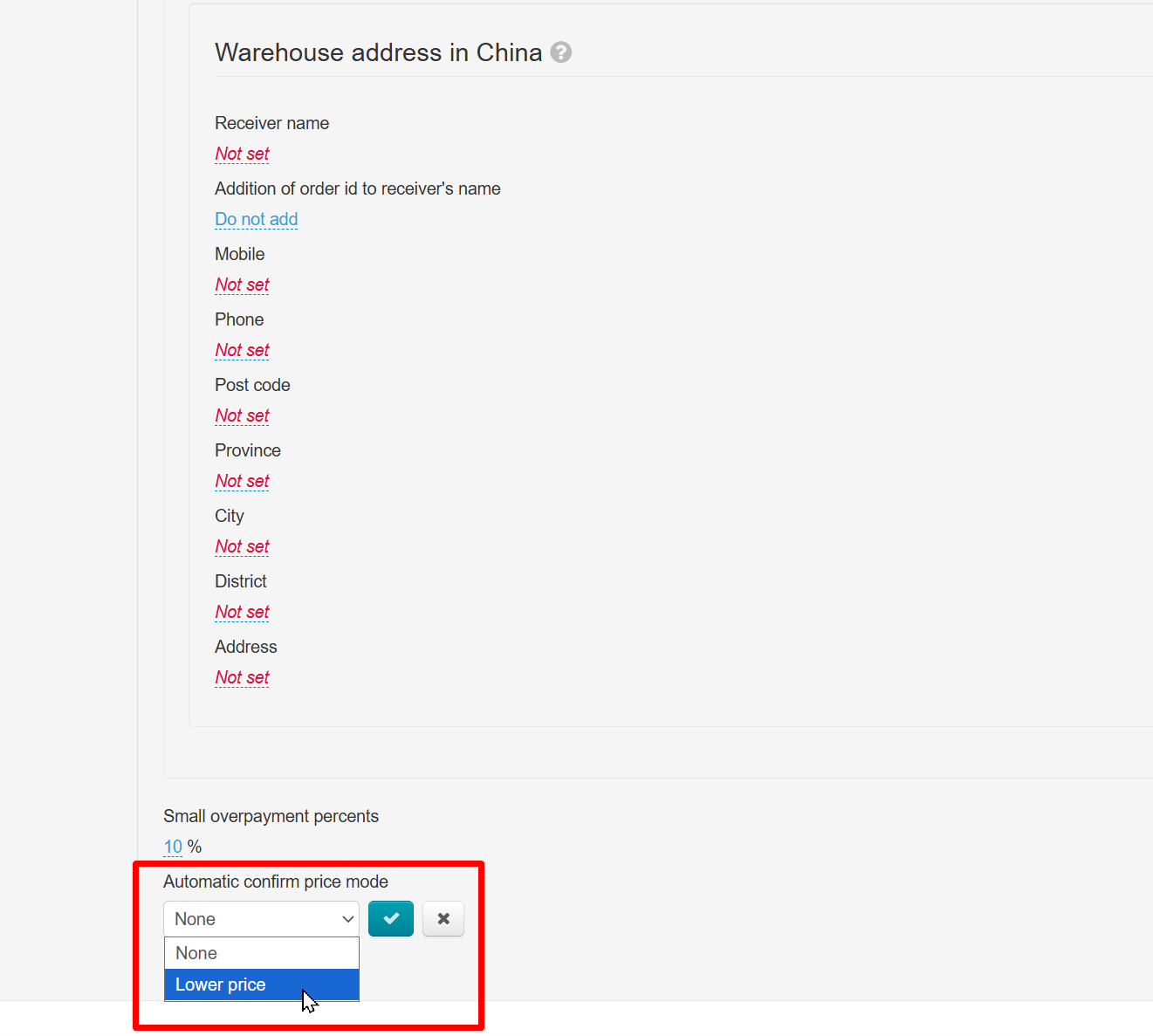
Automatic Confirm Price Mode.
If “Lower price” is selected, all items that meet specified percentage (in the example, this is more expensive within 10%) will be automatically confirmed and sent for purchase. If the item is cheaper than the purchase price, it will also be automatically sent for purchase.
Example. Item costs 10 yuan, threshold percentage is 10%.
Item costs 8 yuan — we buy it (because it is less than the cost).
Item costs 10 yuan — we buy it (because it is equal to the cost).
The item costs 11 yuan — we buy it (because the 10% overpayment is taken into account)
The item costs 12 yuan — we wait for manual purchase, because the difference is 20%
If “no” is selected, then all items will wait for manual purchase confirmation.
Add Session to OT Box
It's required to add sessions to the list to start using.
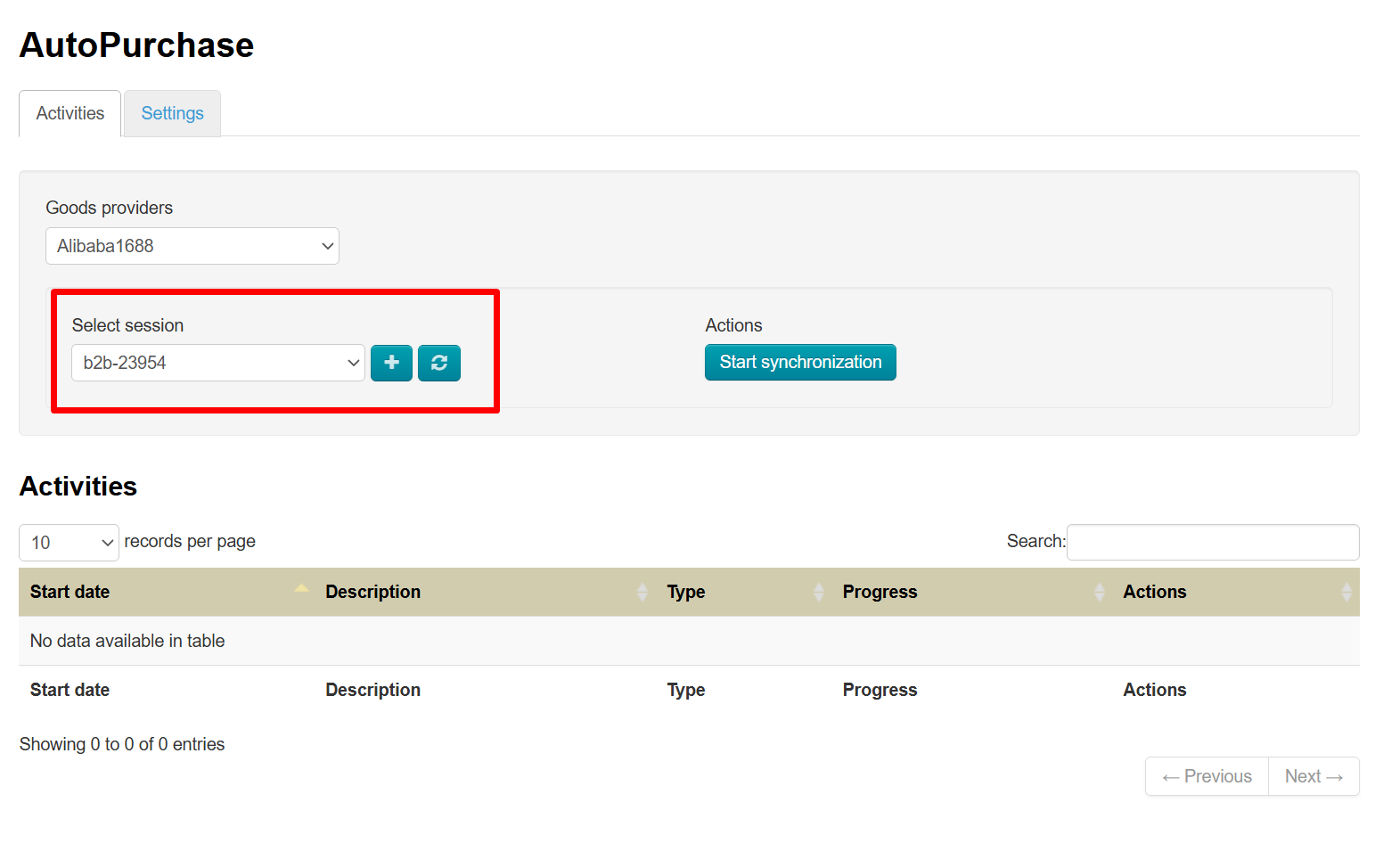
Select 1688.com provider on the page Plugins → AutoPurchase → Activities
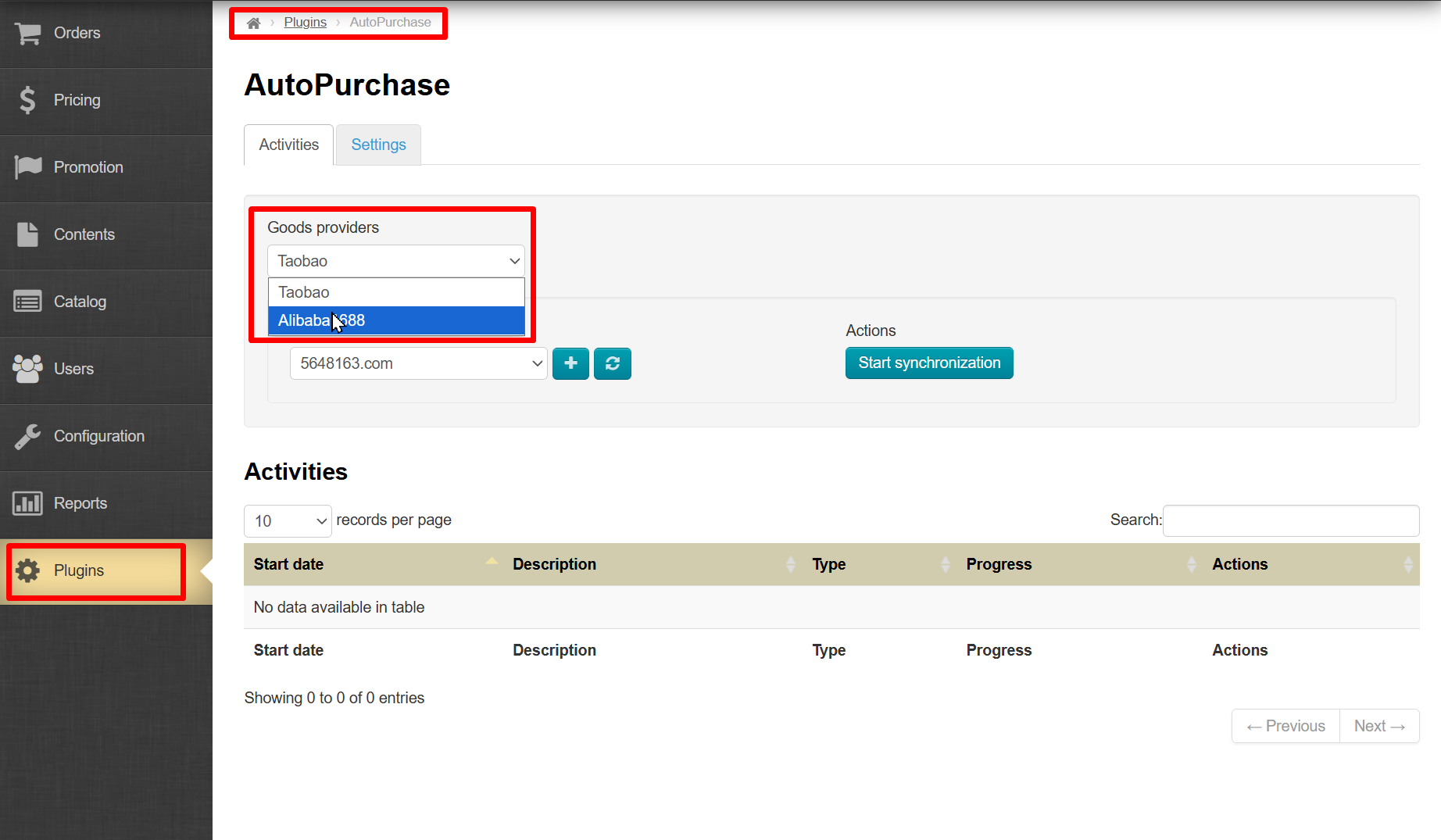
Click plus button to add login from your personal account on 1688.com website. This can be done either in the module settings or on the “Purchase” tab in the order details (here, the product provider is selected automatically depending on which provider the order was placed with):
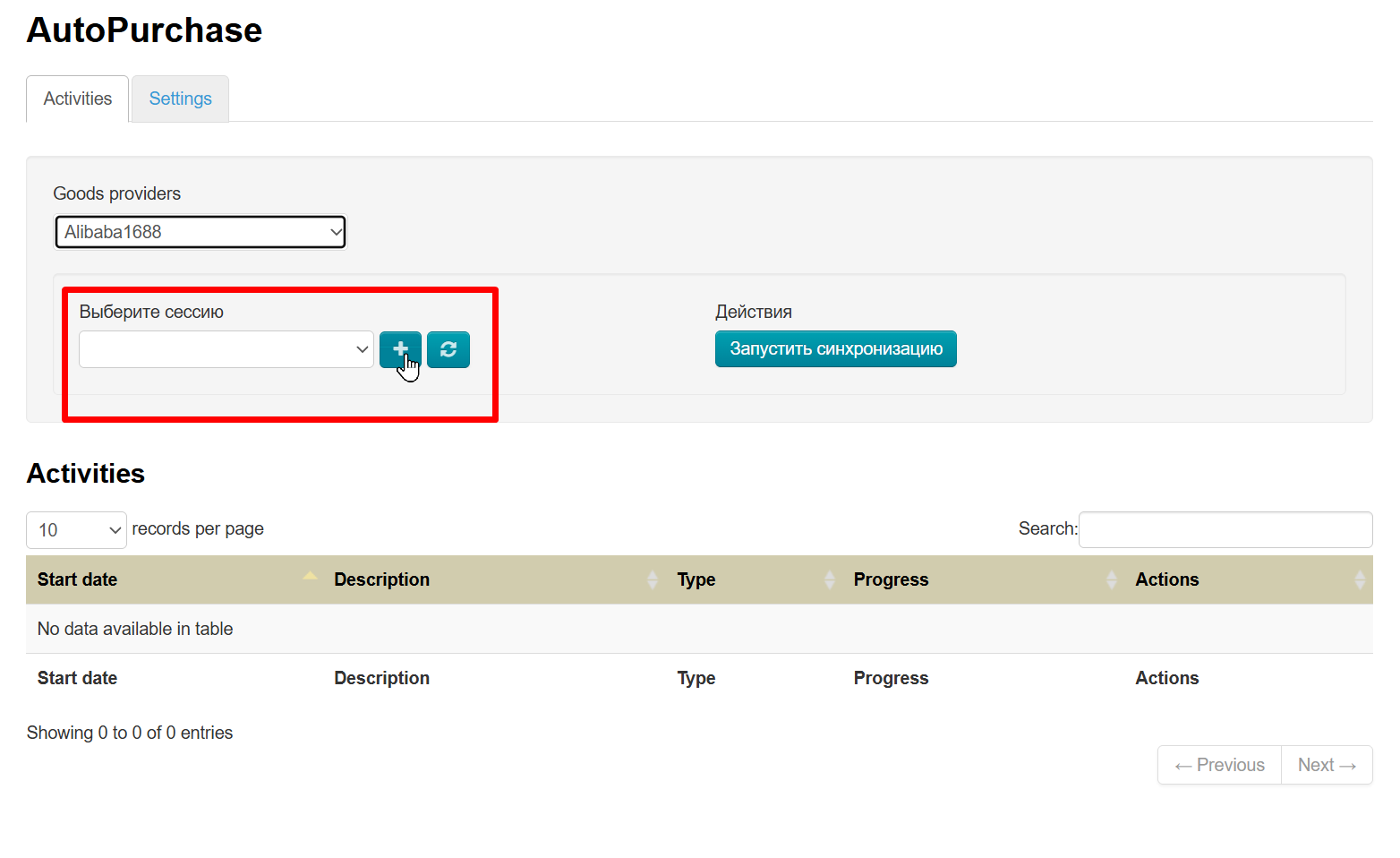
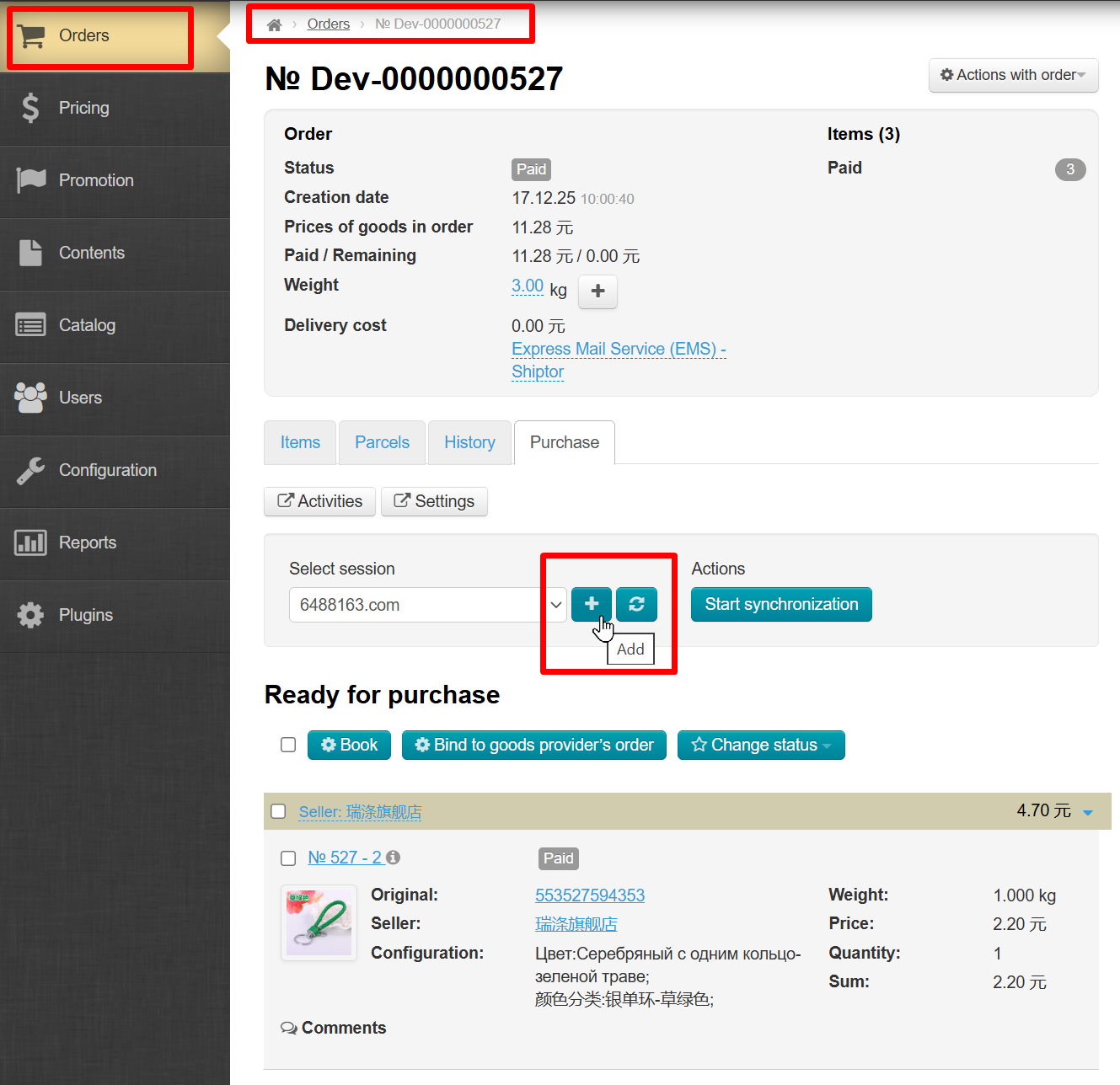
An authorization pop-up window should appear after clicking (if this does not happen, check whether pop-up windows are allowed by your browser for this site):
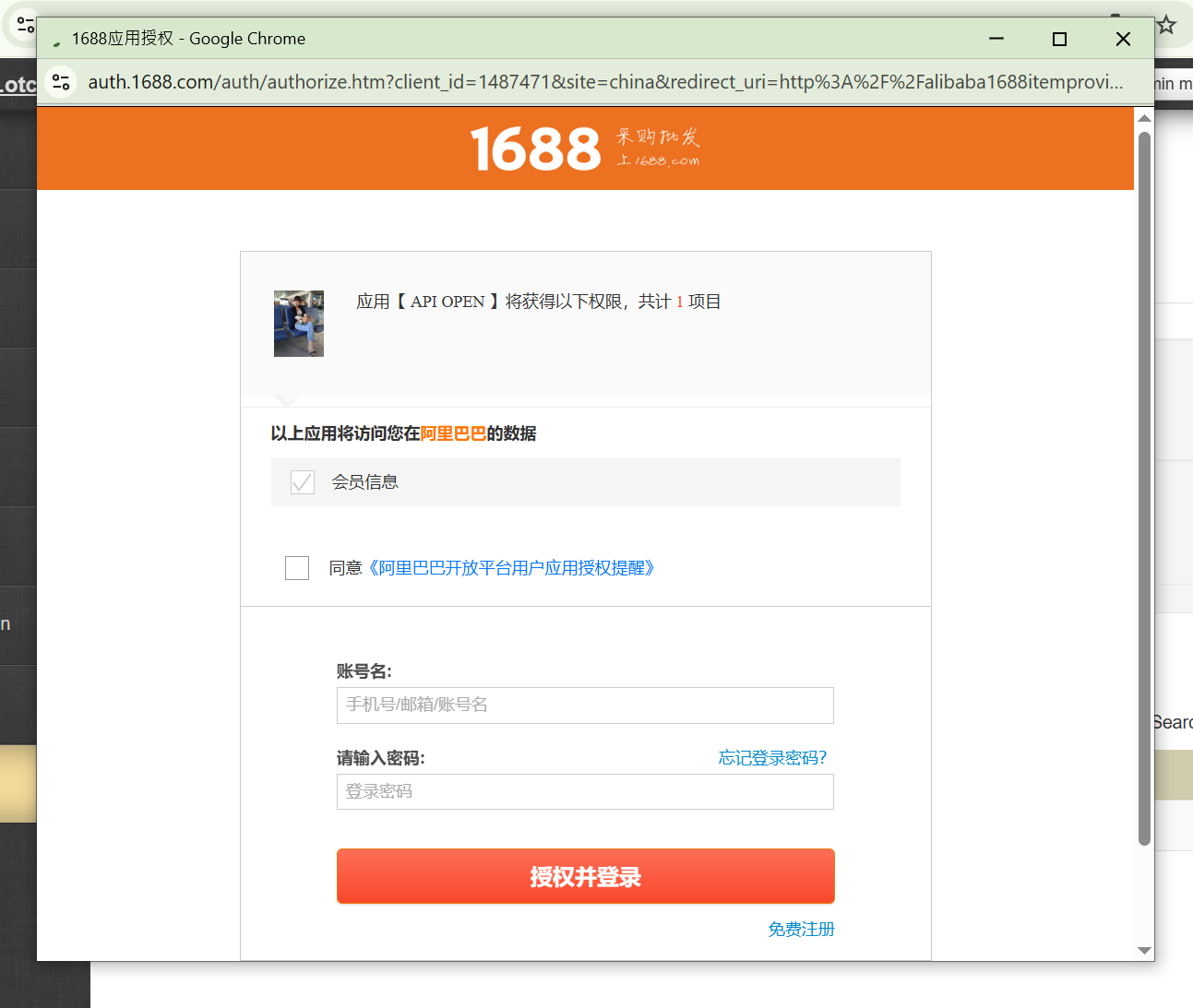
Your login will appear in sessions list once you log in on provider website.
Setup is complete.
Using the Module
Description
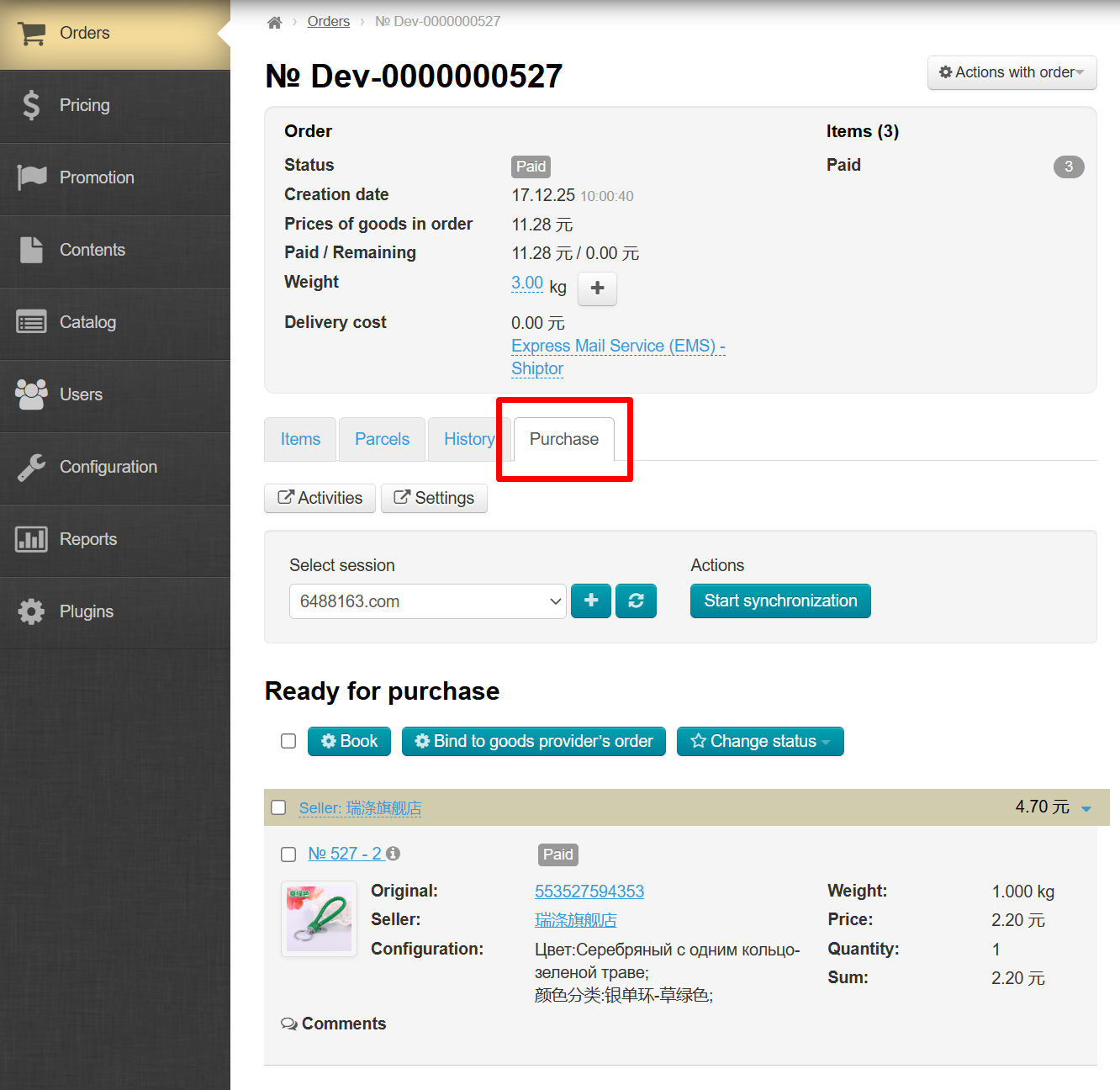
This module is used for processing orders. For more information on general order processing, see the article: Order Page. The "Purchase" tab appears after "Autopurchase" module connection.
Go to Orders page and open "Purchase" tab:
Autopurchase module form is located directly below the tab title:
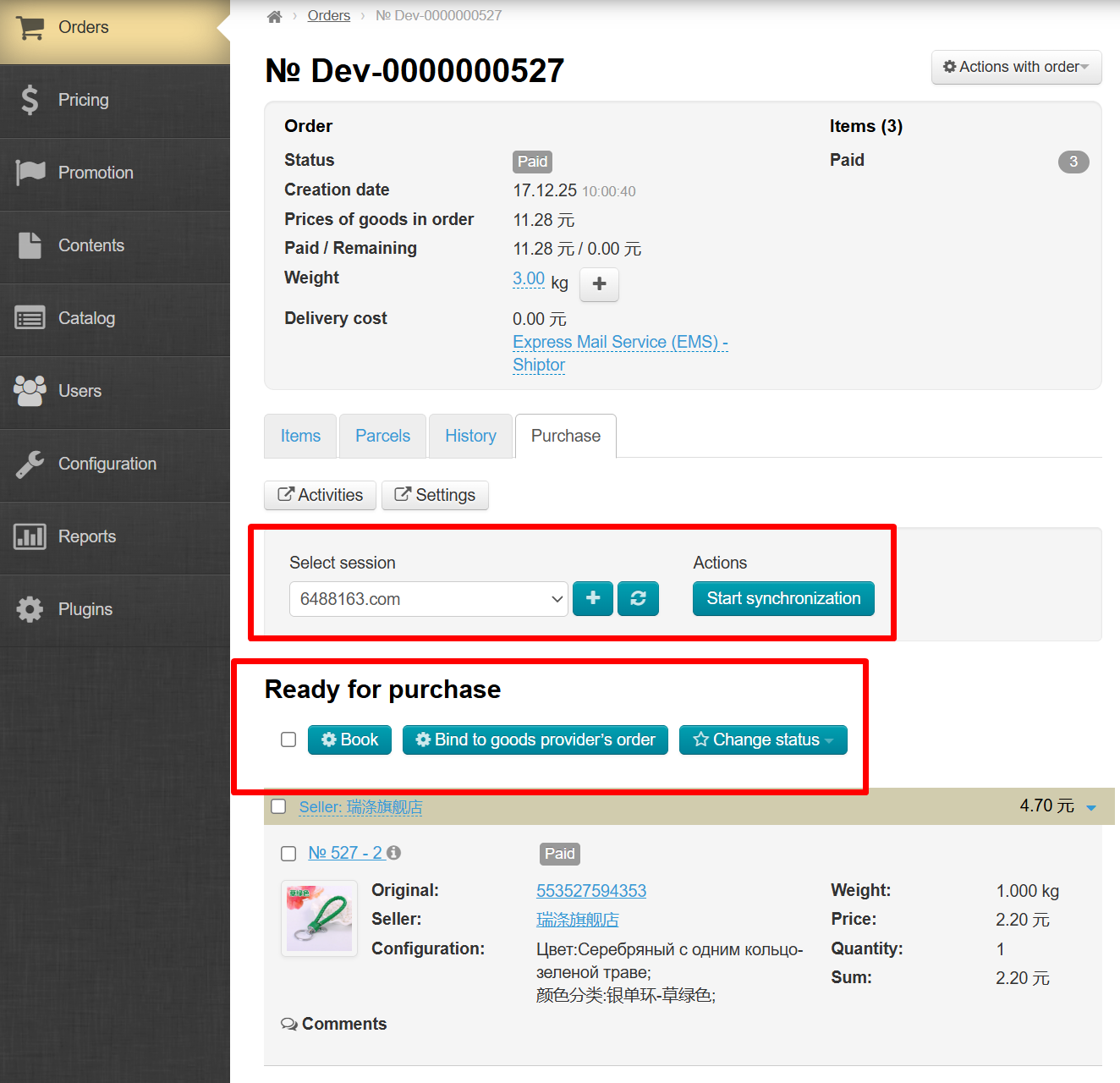
Product provider is selected automatically during purchase, depending on which provider was selected for the order. Therefore, there will be no problems with choosing a provider.
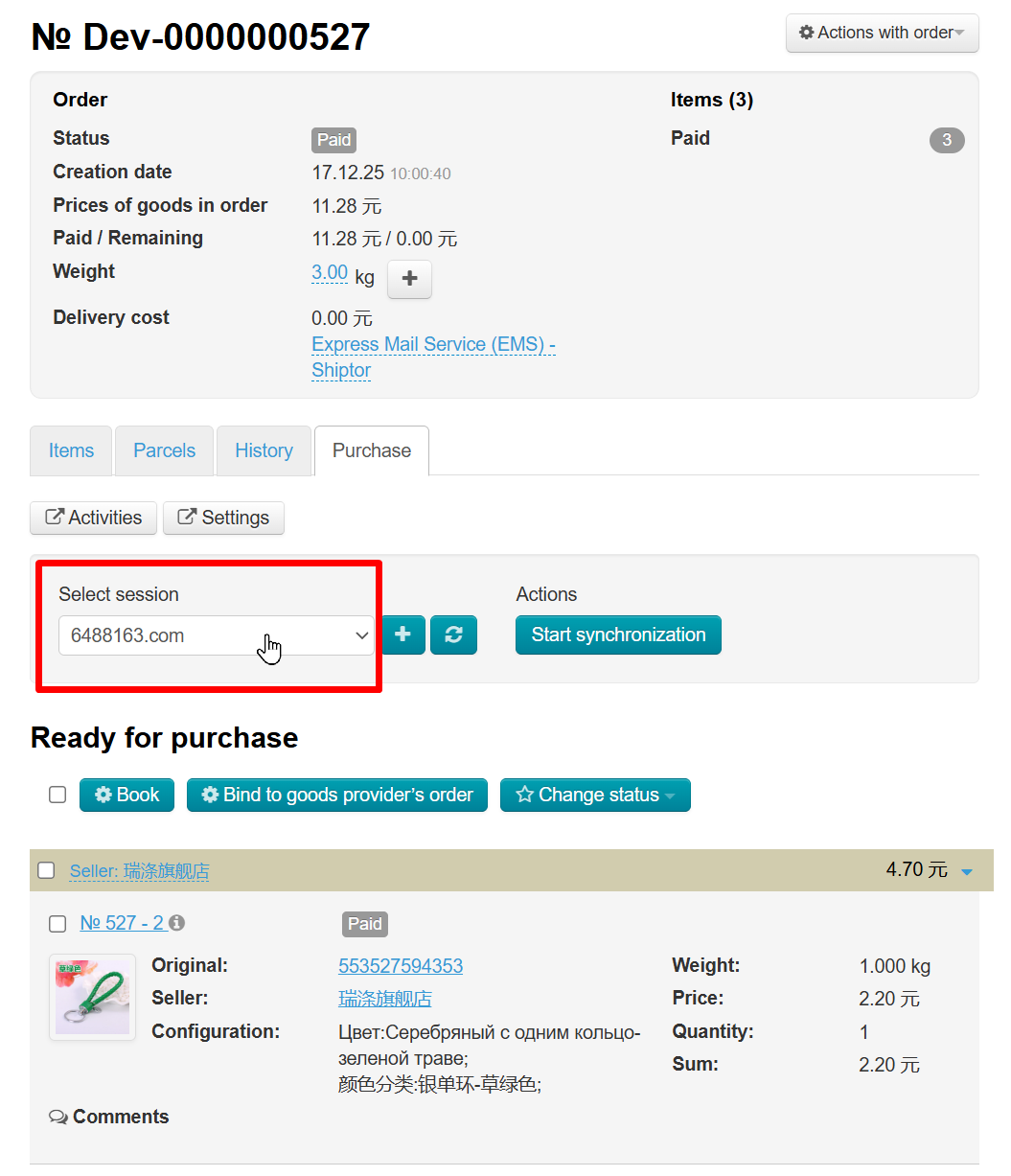
Before booking or placing an order for goods, decide which login on the product provider's website will be used to carry out transaction (no choice is required if there is only one login).
The session login is selected in the “Session Selection” form with a mouse click:
Recalculate Goods/Delivery Price
When working with items in an order, you can specify the original cost of the item and shipping. This data is stored by Autopurchase module and can be used for recalculation.
To use the price recalculation feature, open the item card and the “Items” tab.
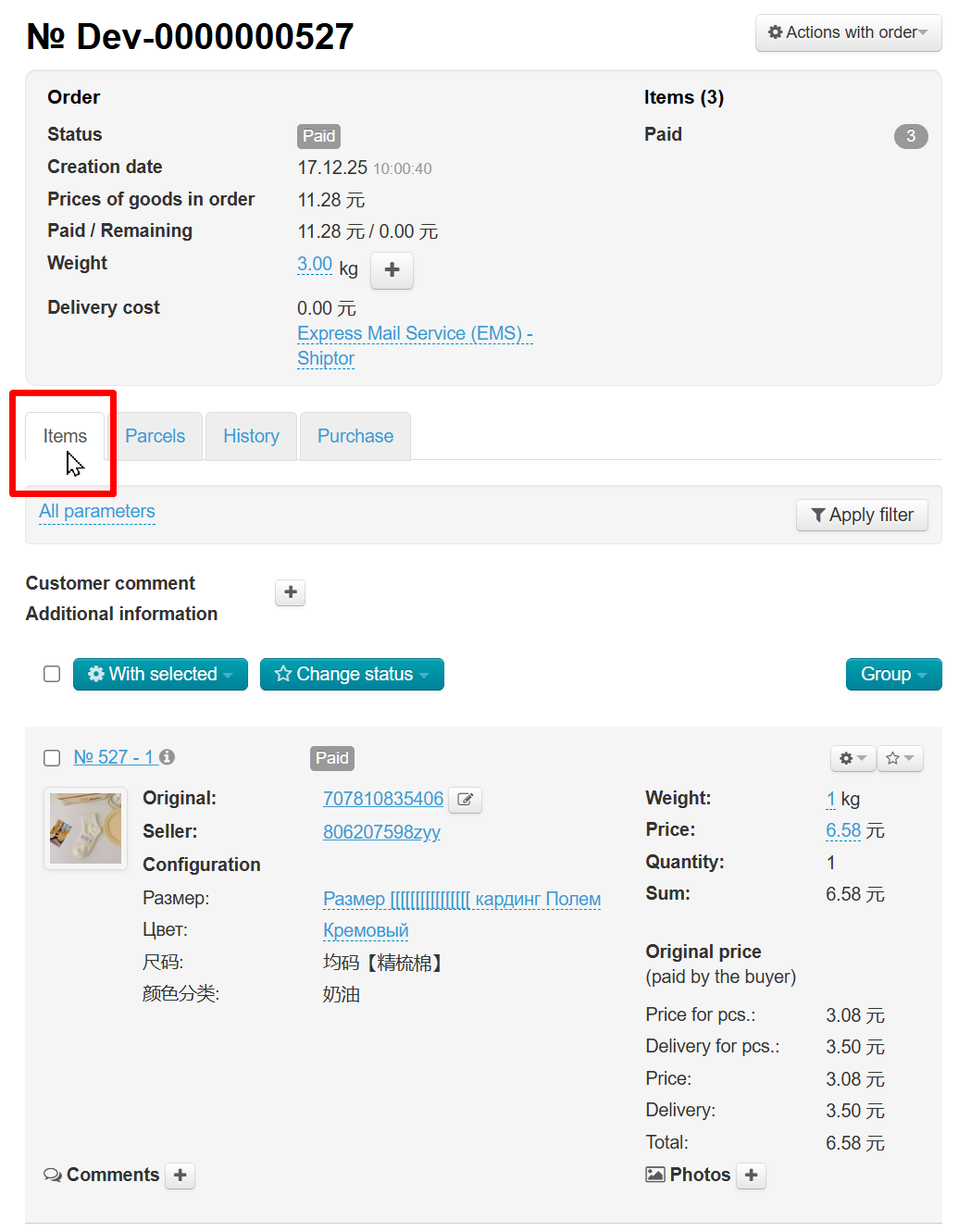
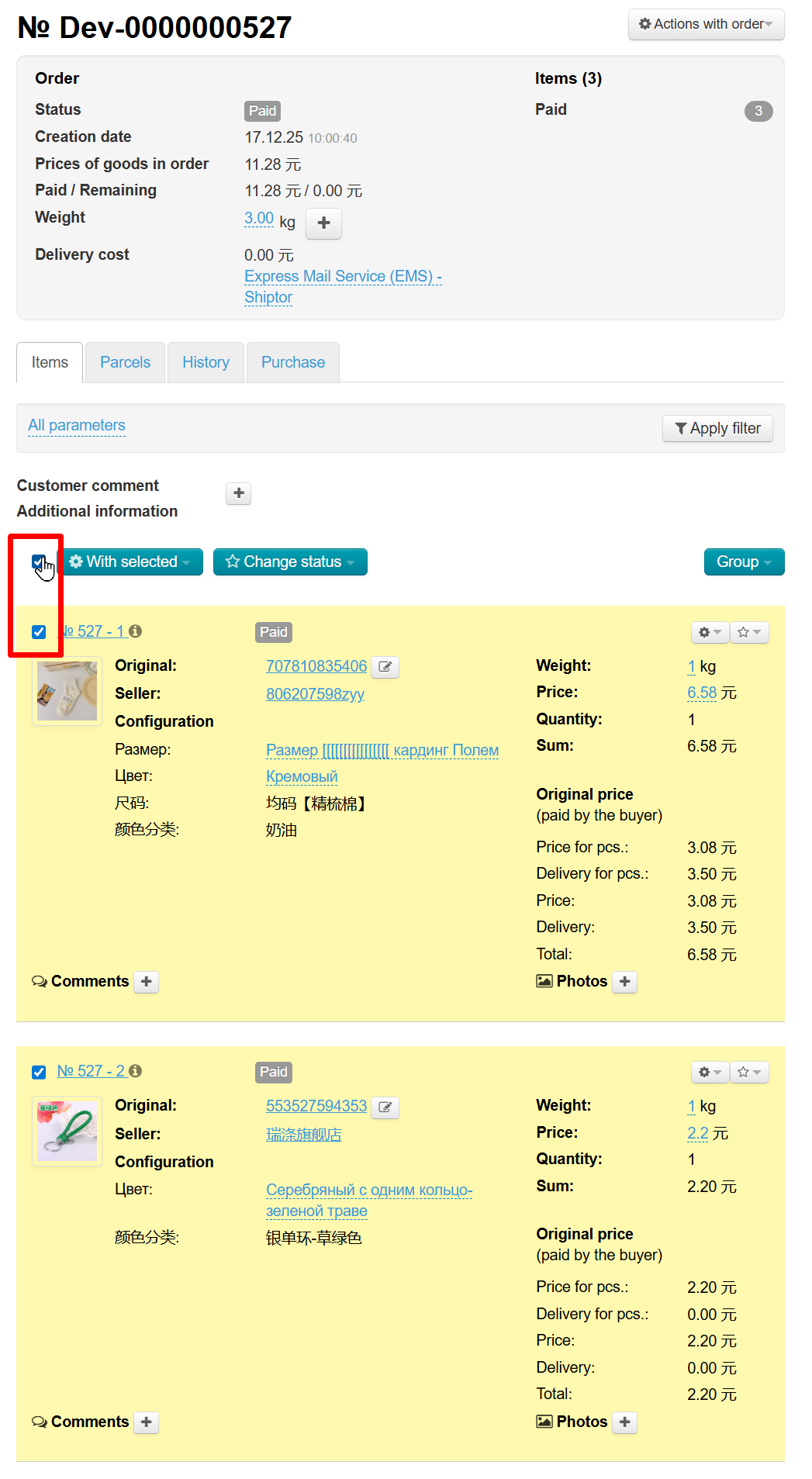
Select the products for which the price needs to be recalculated with a mouse click.
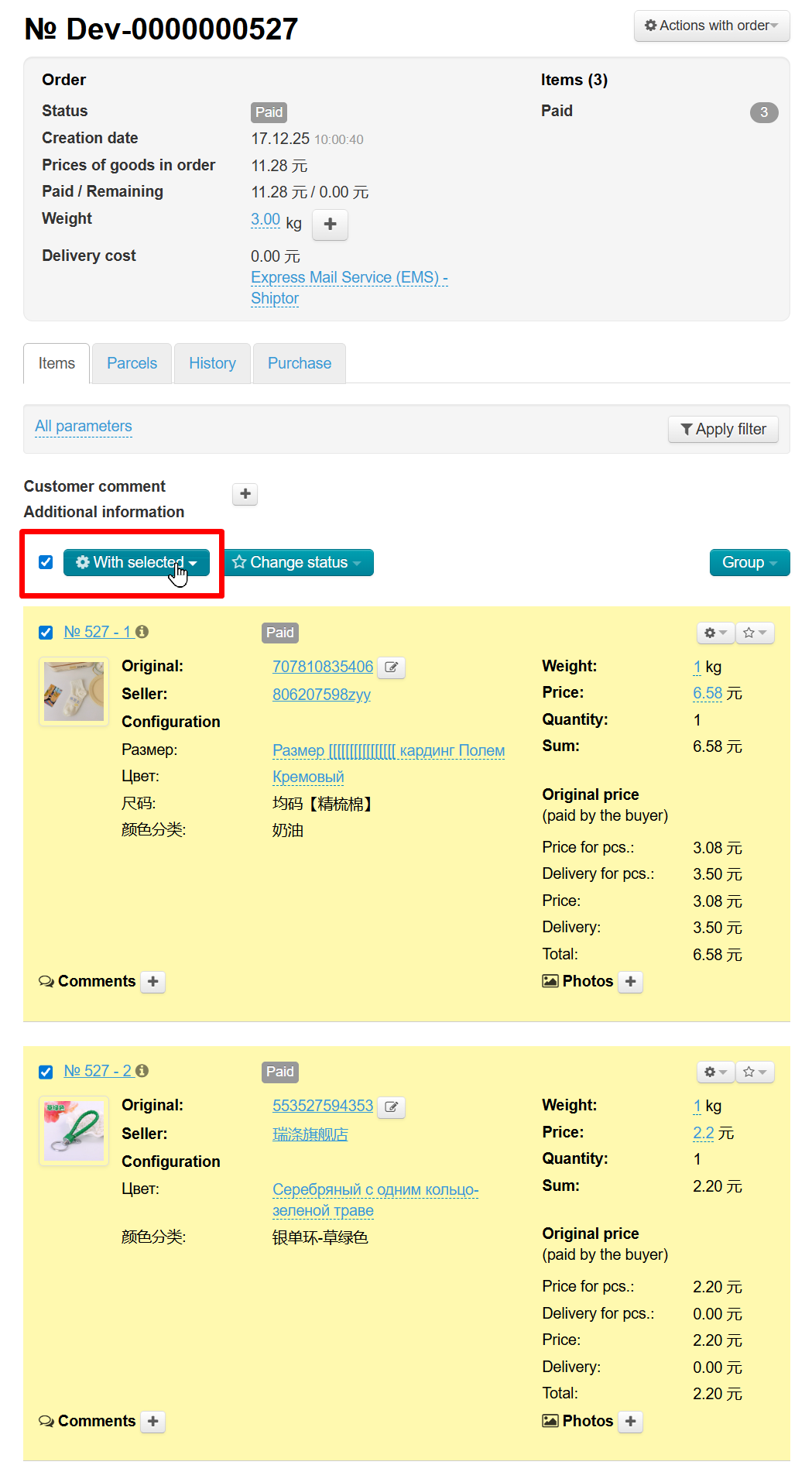
Click “With selected” button to open the drop-down list of actions.
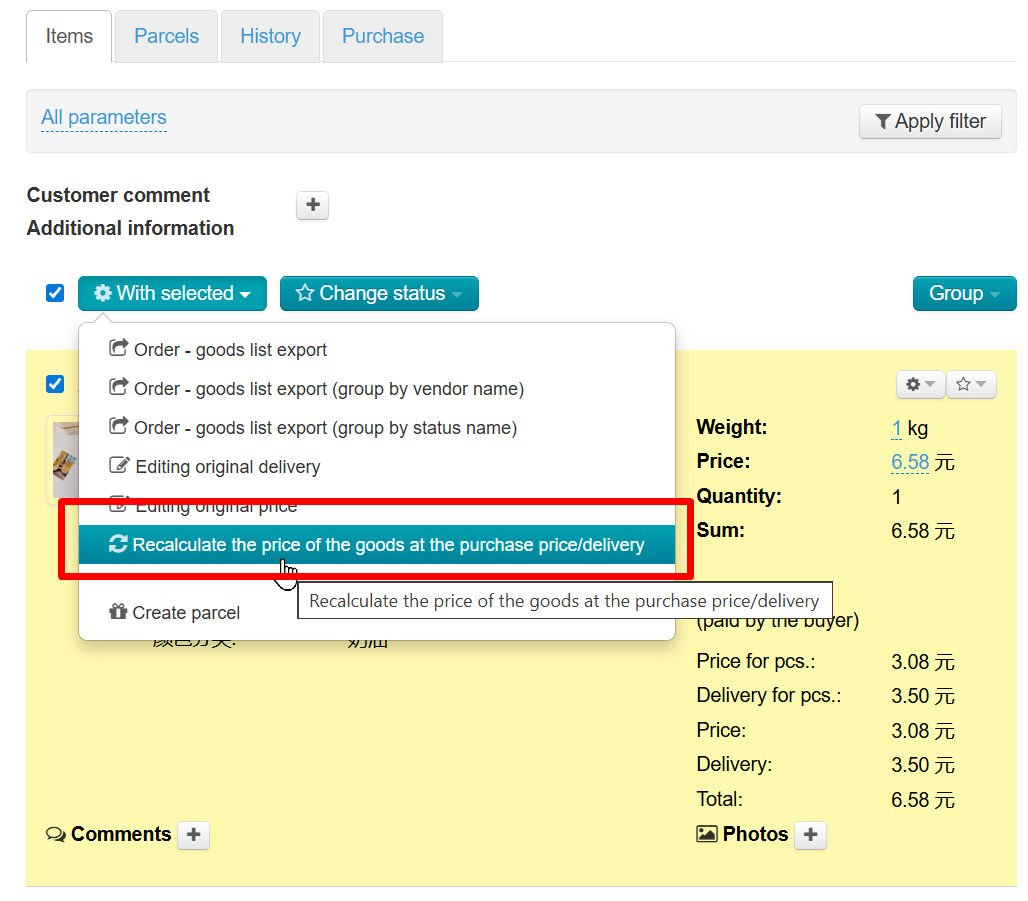
In the drop-down list, click “Recalculate the price of the goods at the purchase price/delivery”.
In the window that appears, select using a mouse click what to recalculate: the price, the delivery cost or both. Both options are selected by default.
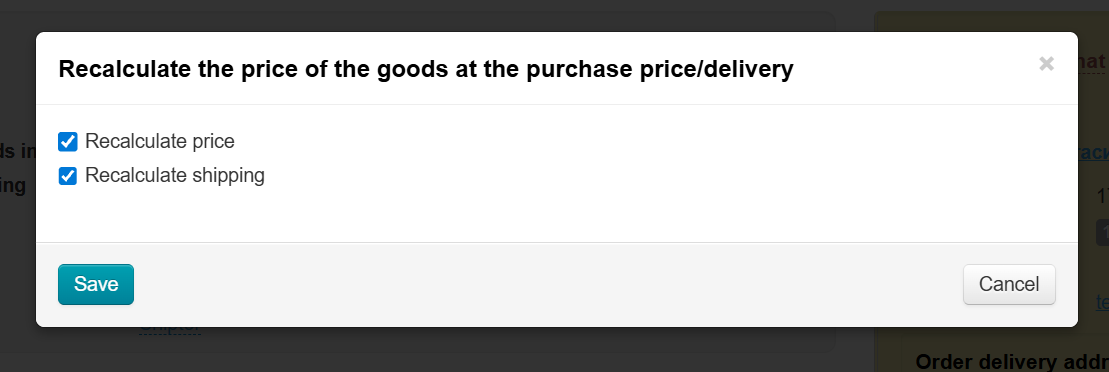
Click “Save” to recalculate.
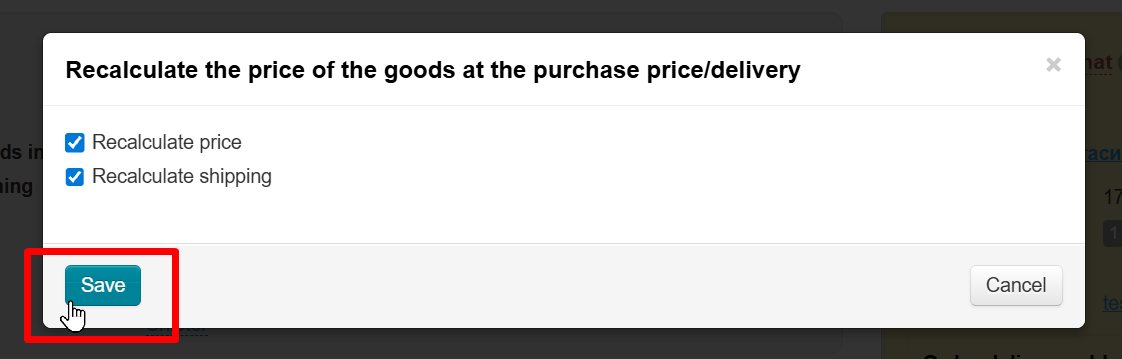
The recalculation will be performed after saving.
It is important to remember that before editing prices, you must obtain customer's confirmation that they agree with the new product price (original shipping cost is added to the product price).
Booking
Note!
There is a limit on the number of booking, which depends on how often and how much you purchase. Sometimes the inability to book a product depends on this limiitation.
To book a product, select it from the list of available products. Click the white box to the left of the product to select it:
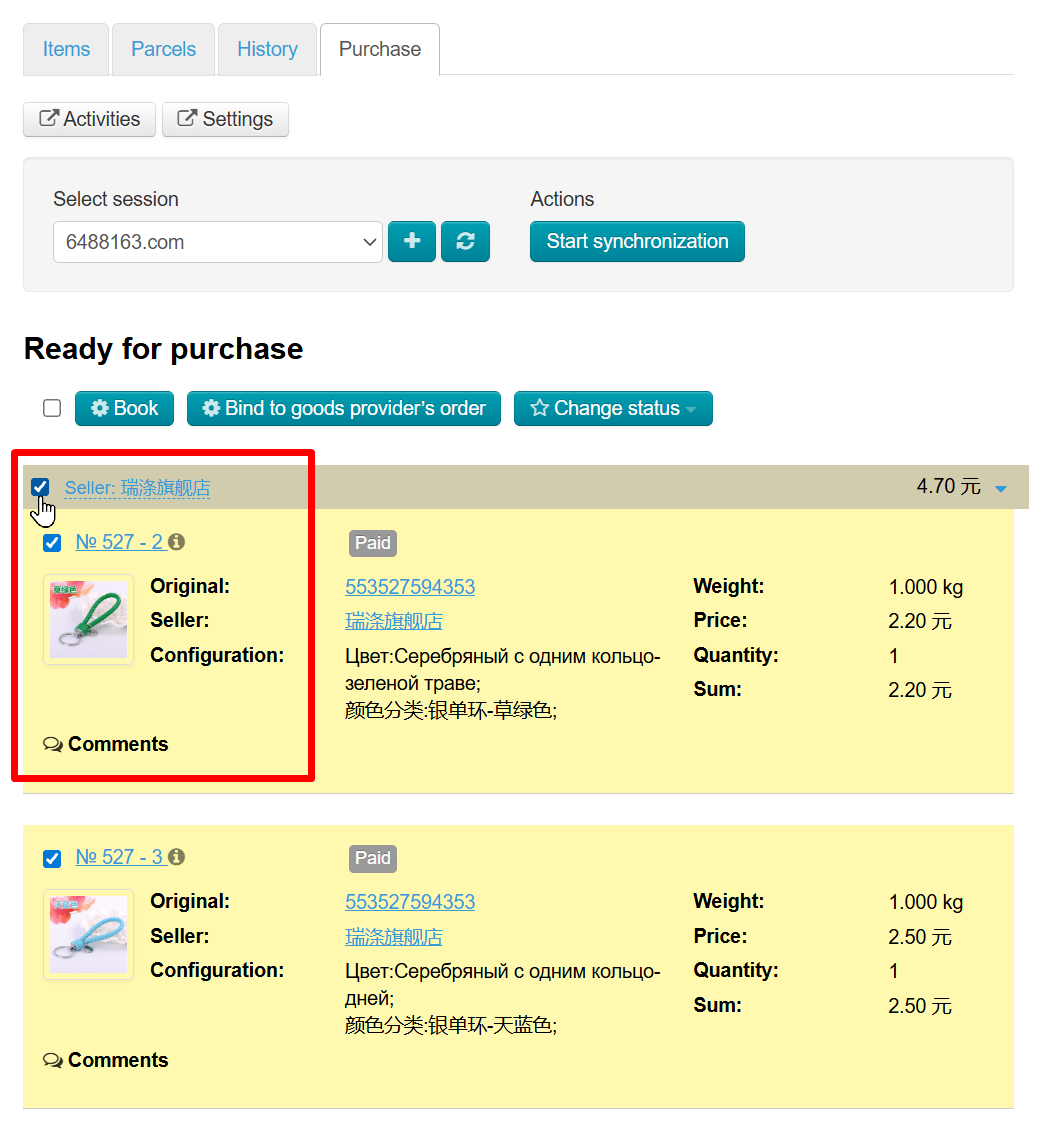
Click "Book" button once the products are selected (highlighted in yellow):
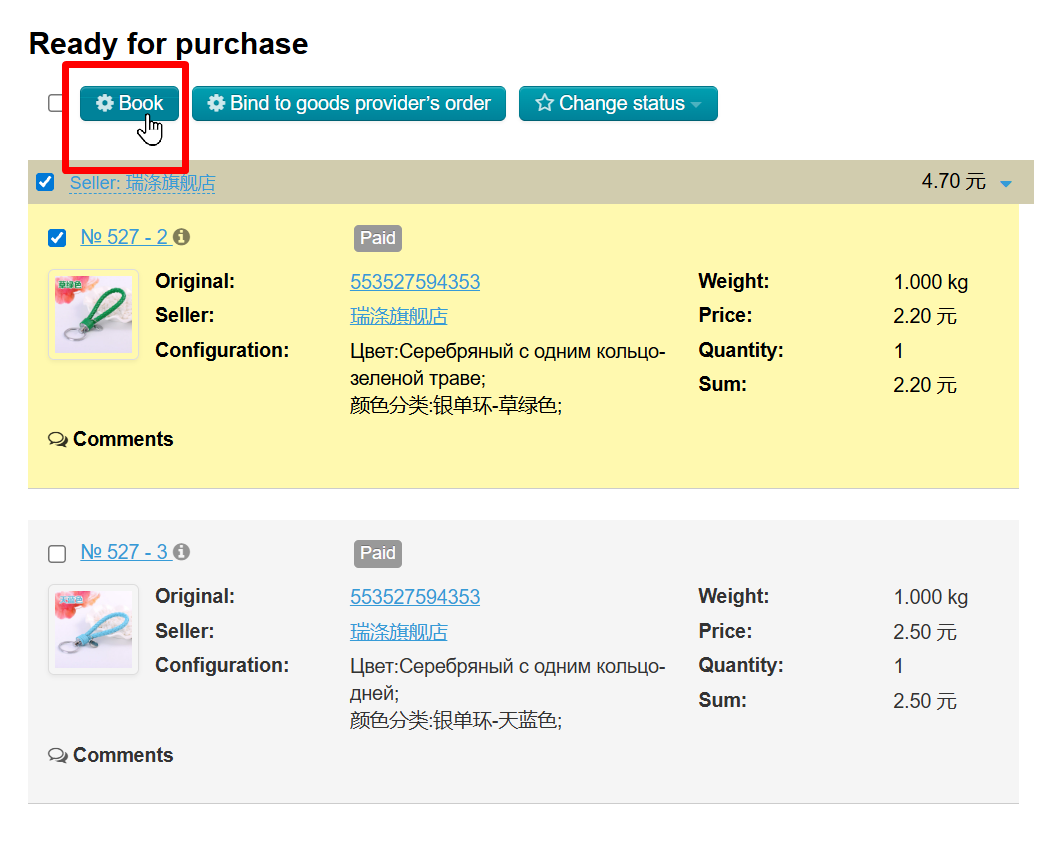
Activity information window will appear after clicking “Book” button:
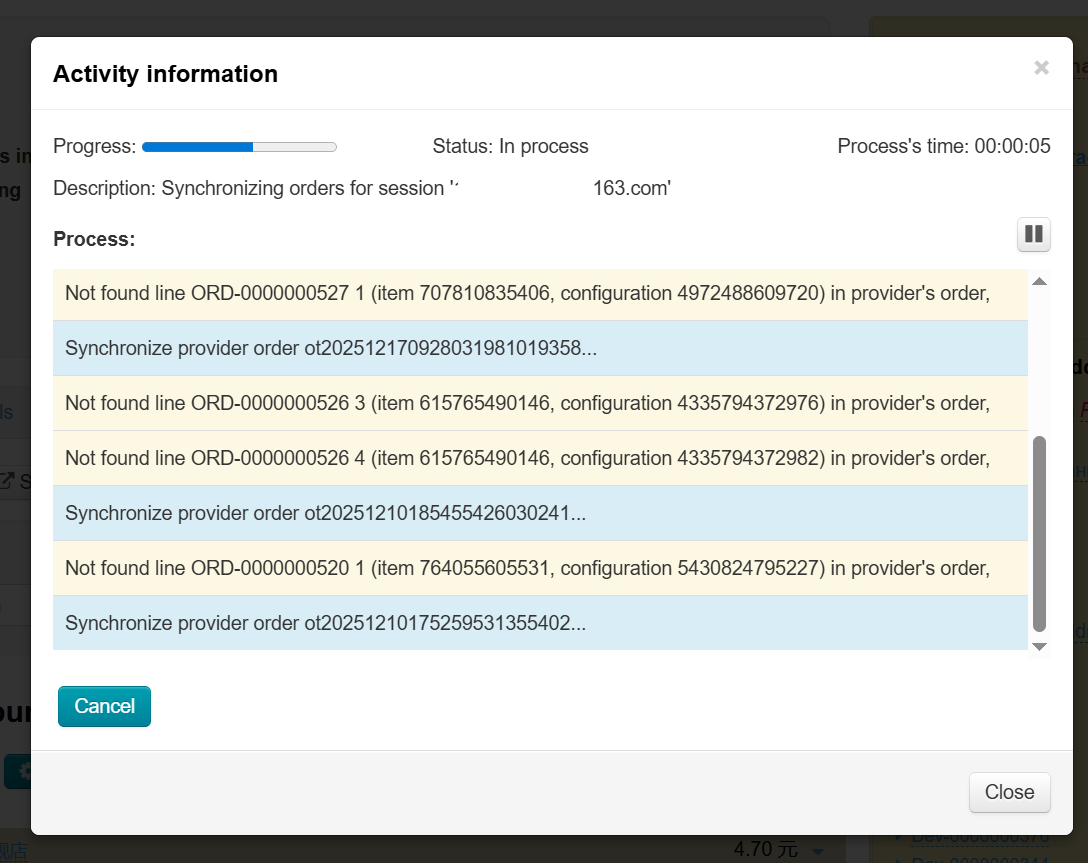
Two fields highlighted in green indicate:
Found order lines… — the number of orders found in the OT system for synchronization.
Found provider orders… — the number of orders found on Taobao (in your account) for synchronization.
Errors that may occur during reservation are highlighted in red.
Closing the window does not affect the booking process. Everything happens in the background, so you can close it. You can view it later on the “Activities” page:
Activities Page
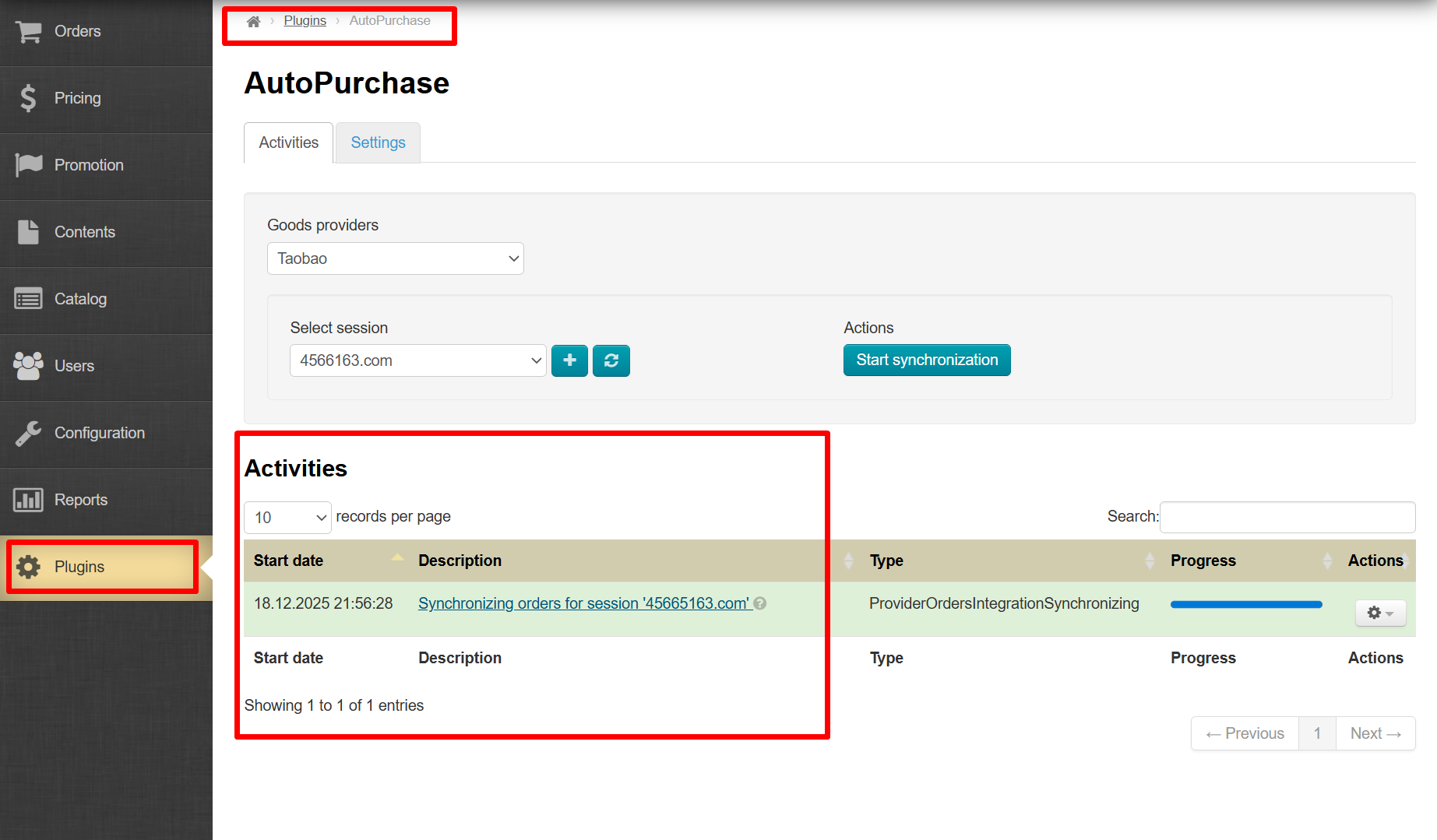
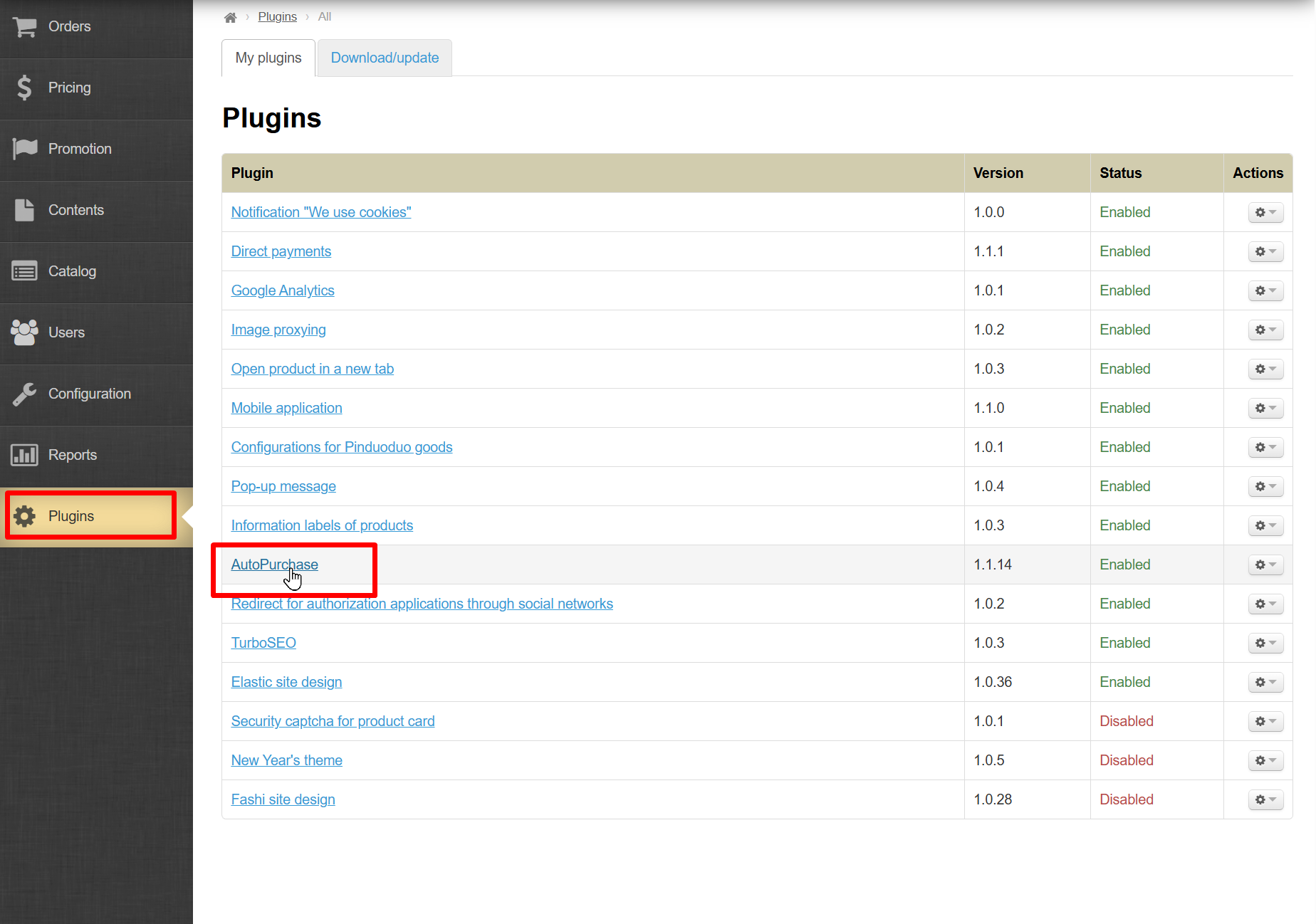
To view an ongoing booking or synchronization progress, go to the “Plugins” section in the main side menu.
Select “Autopurchase” from the list and click on it.
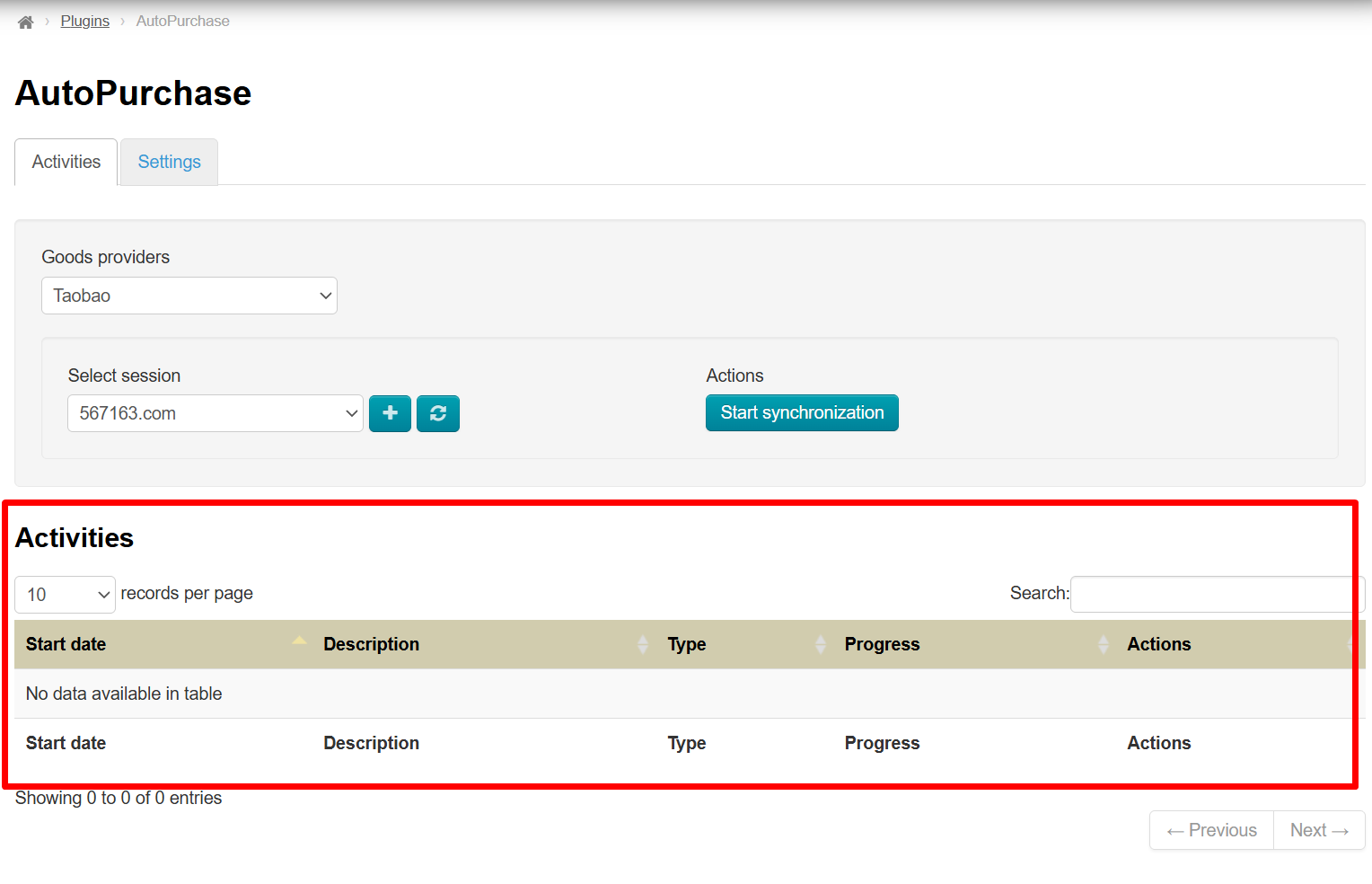
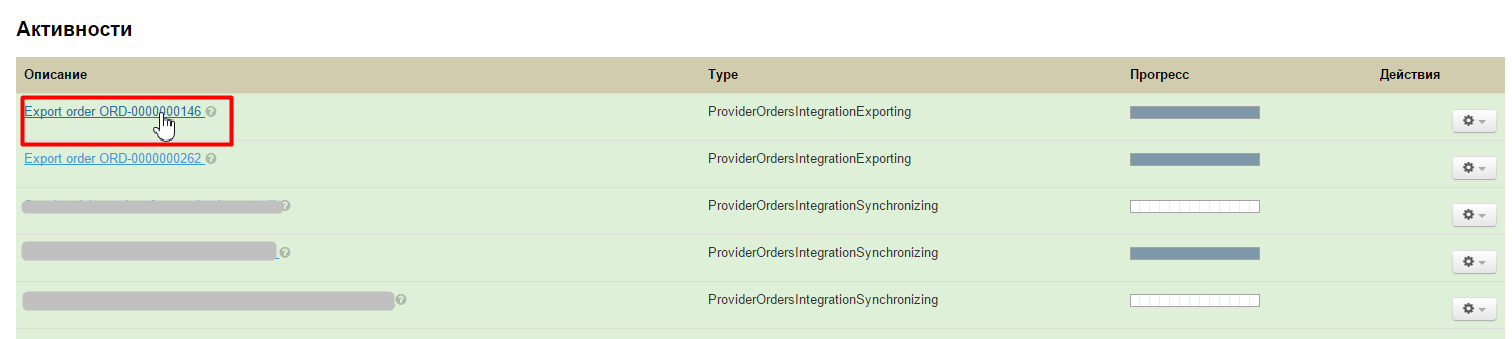
A list of ongoing and finished activities will open:
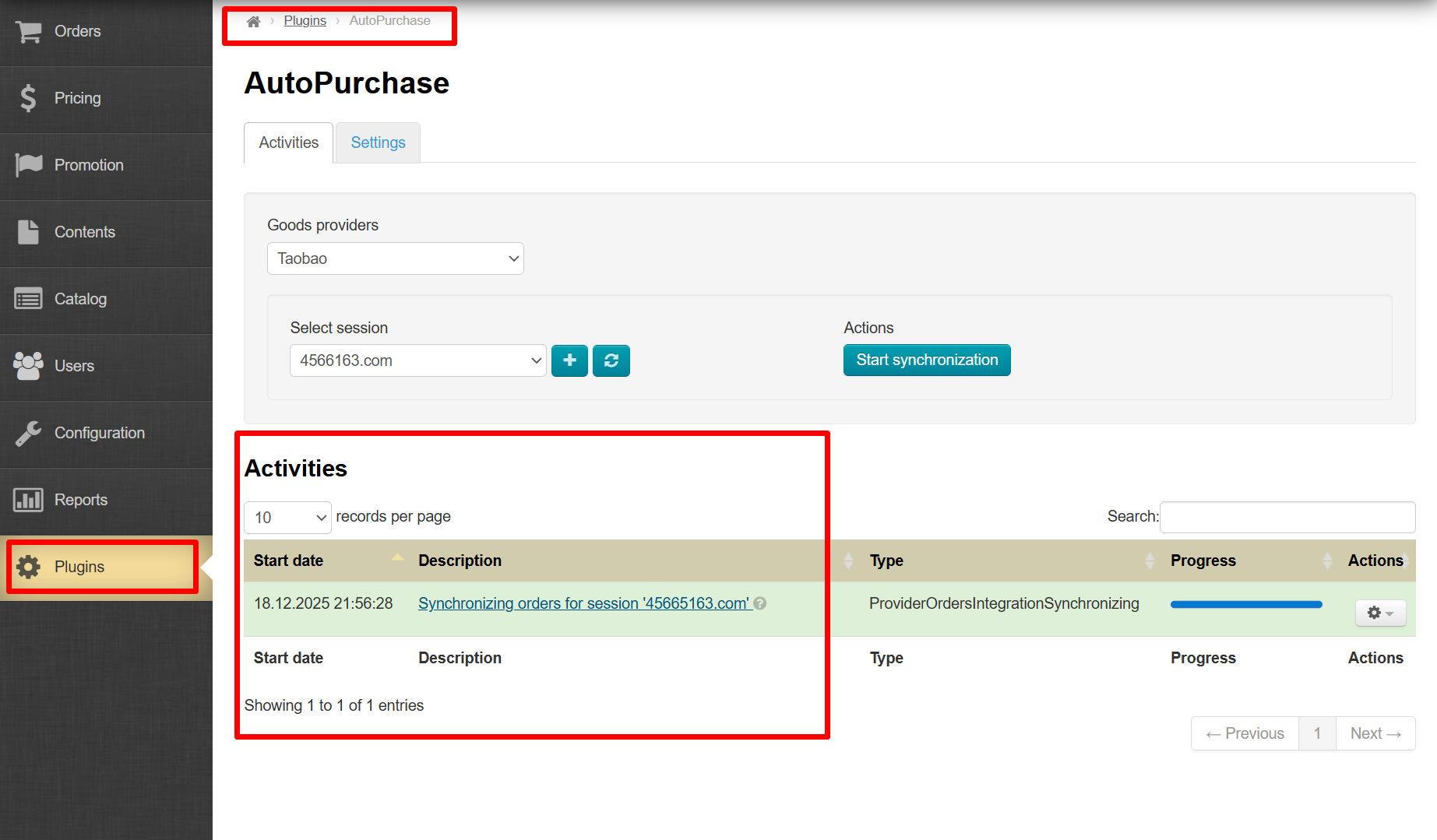
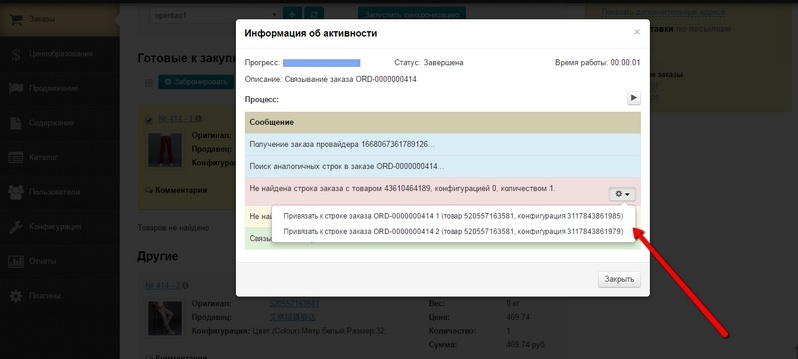
Check the Activities page periodically to see if there are activities requiring the administrator’s attention. If there are, open such activities and select one of the buttons suggested by the system (for example, during order booking, if the product configuration in the order is outdated, the system will offer: “Cancel this product,” “Skip this product,” or “Abort booking”).
The activities list is gradually cleared. Therefore, if you haven’t had any purchases for a while, the activities list will look like this:
Click “Activities” to open it:
In the “Activity information” window, there are buttons that allow you to select which product to link.
Cancel Booking
If you need to manually cancel booking:
Select the products in the “Goods purchase” section in the order card:
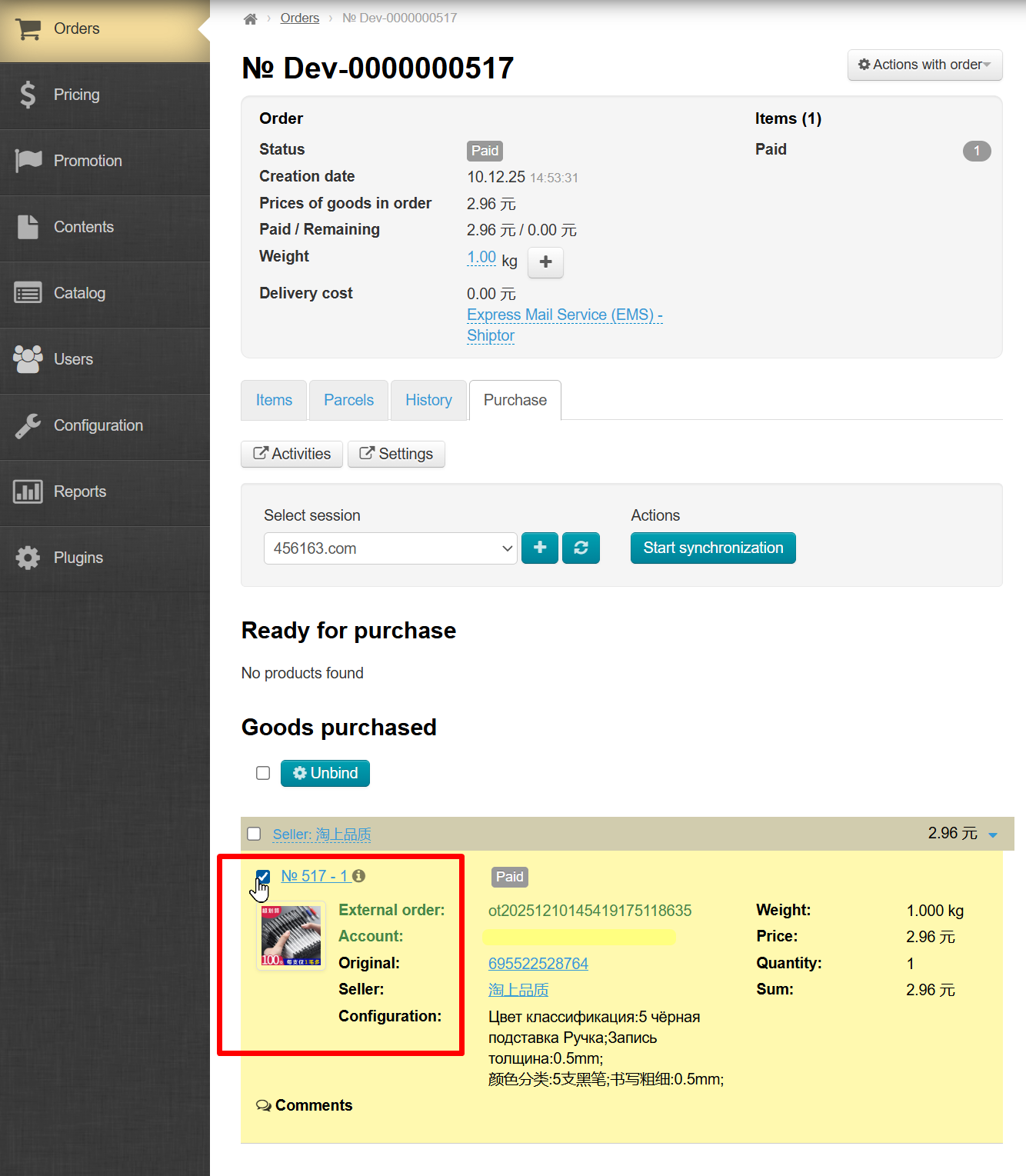
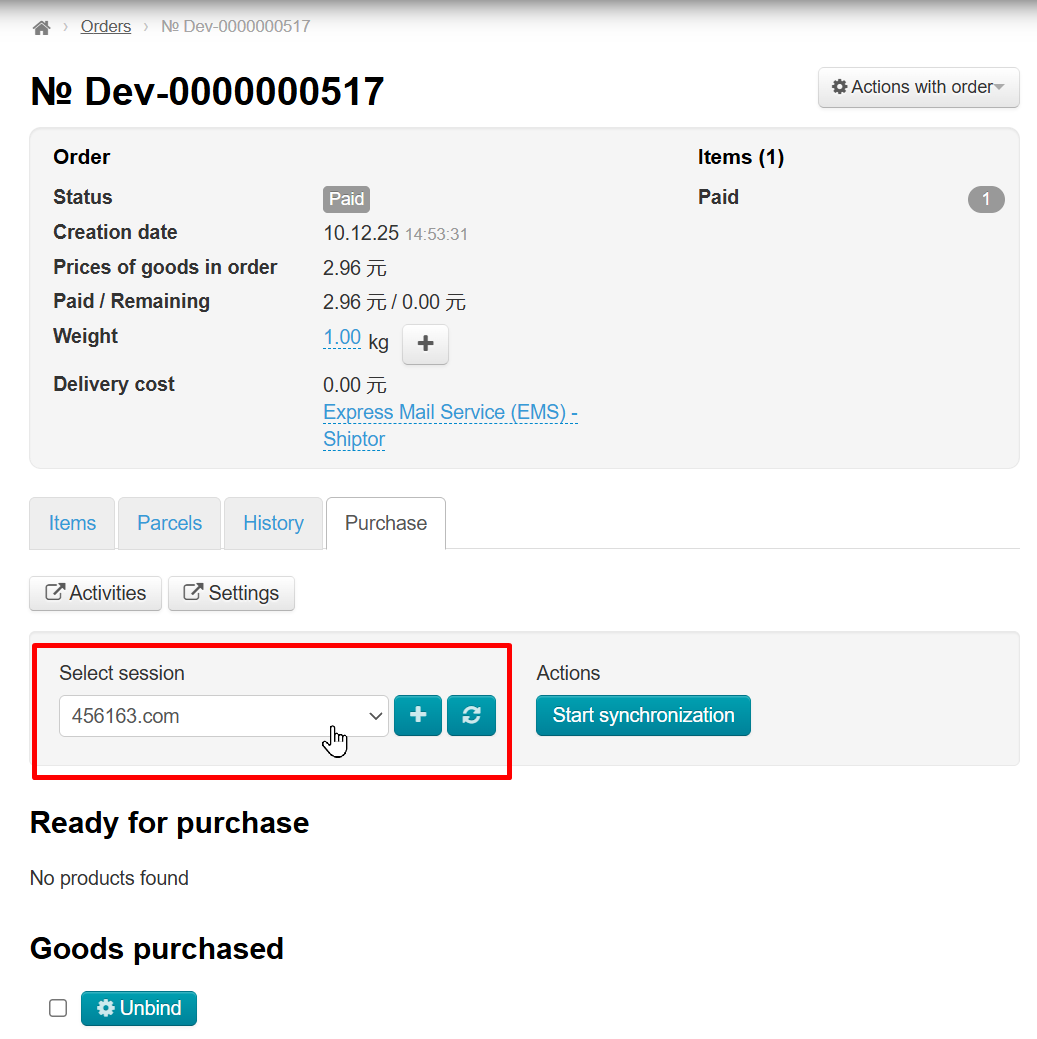
Select the account name in which these products are booked:
Click "Unbind" button
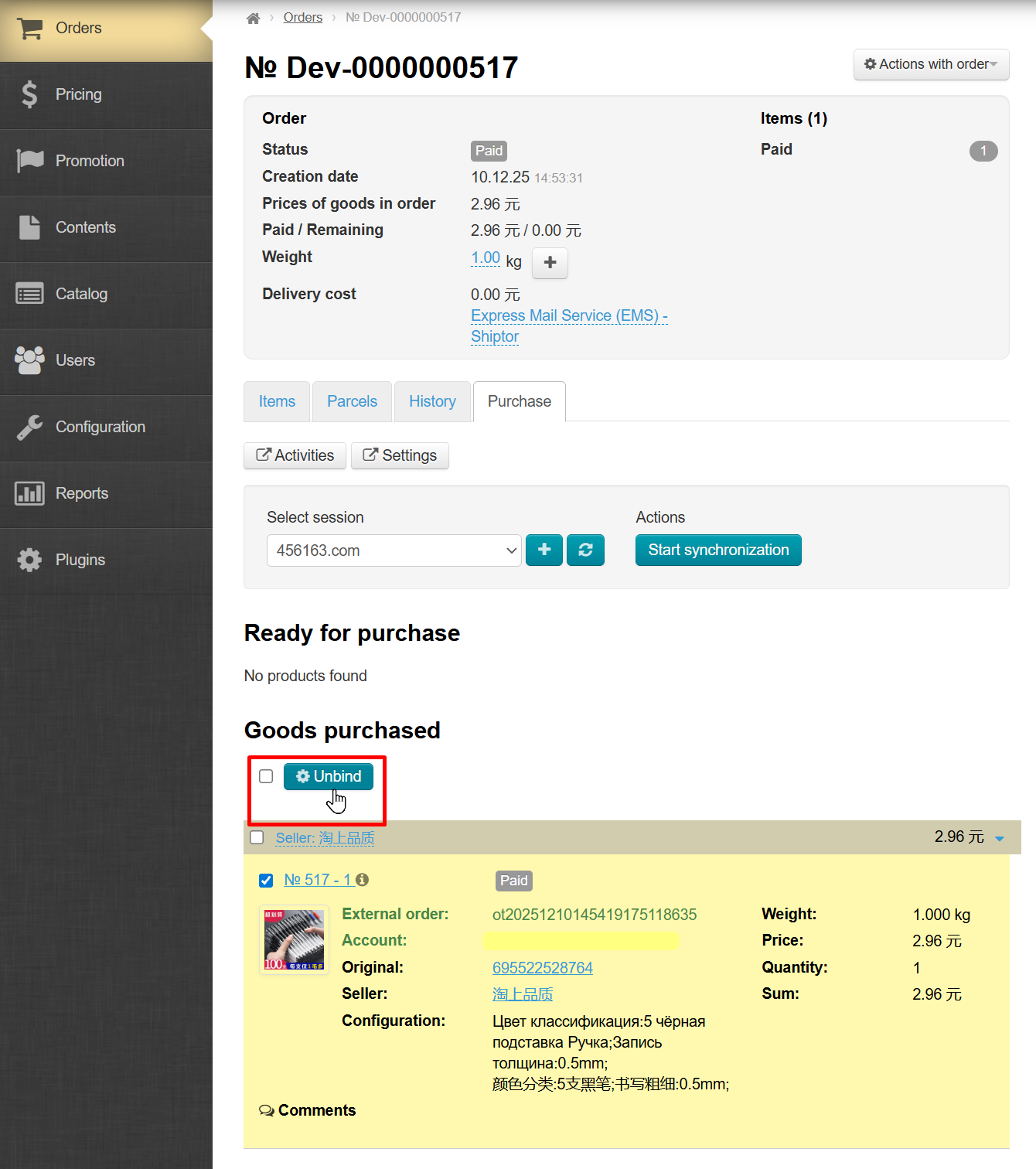
Monitor the process in the opened activity window or on the “Activities” page. Respond to system prompts if necessary.
Synchronization
The system checks order statuses on your product provider’s side in the background. For example, if a product on Taobao is successfully purchased, this will be reflected in the admin panel, and the product will be assigned the corresponding ID.
There are situations when the provider session expires and background synchronization is unavailable. For example, if you haven’t accessed the admin panel for a week and order statuses haven’t been updated. You can manually start synchronization (for example, at the beginning of the workday) as follows:
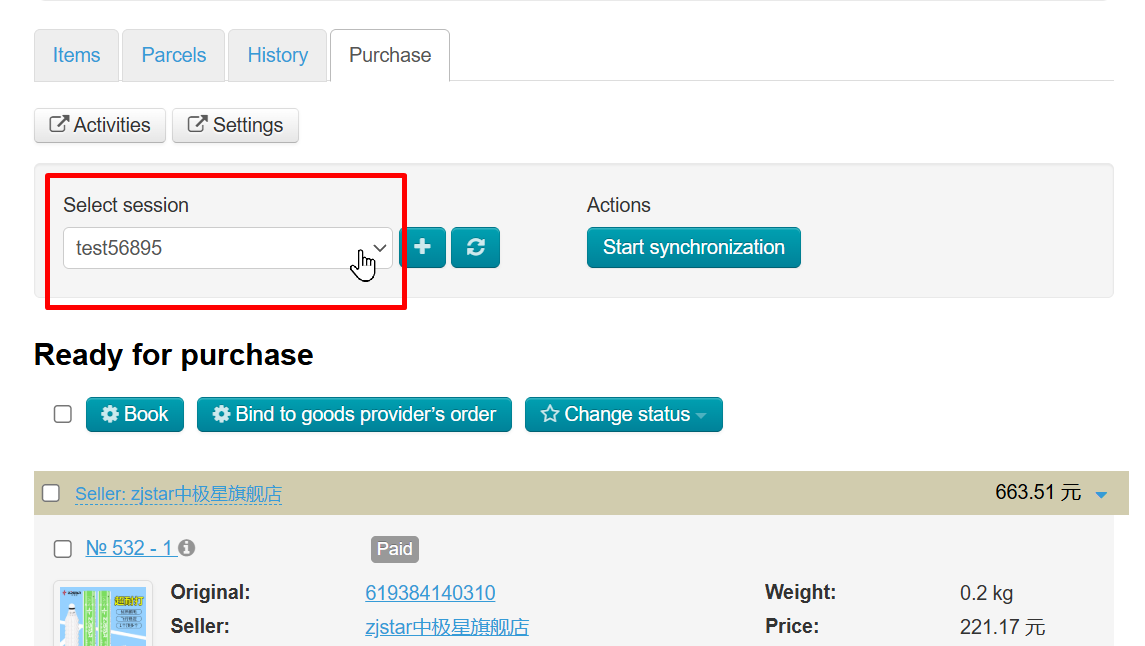
In the provider sessions window, select the account for which you want to start synchronization
Click “Start Synchronization” button:
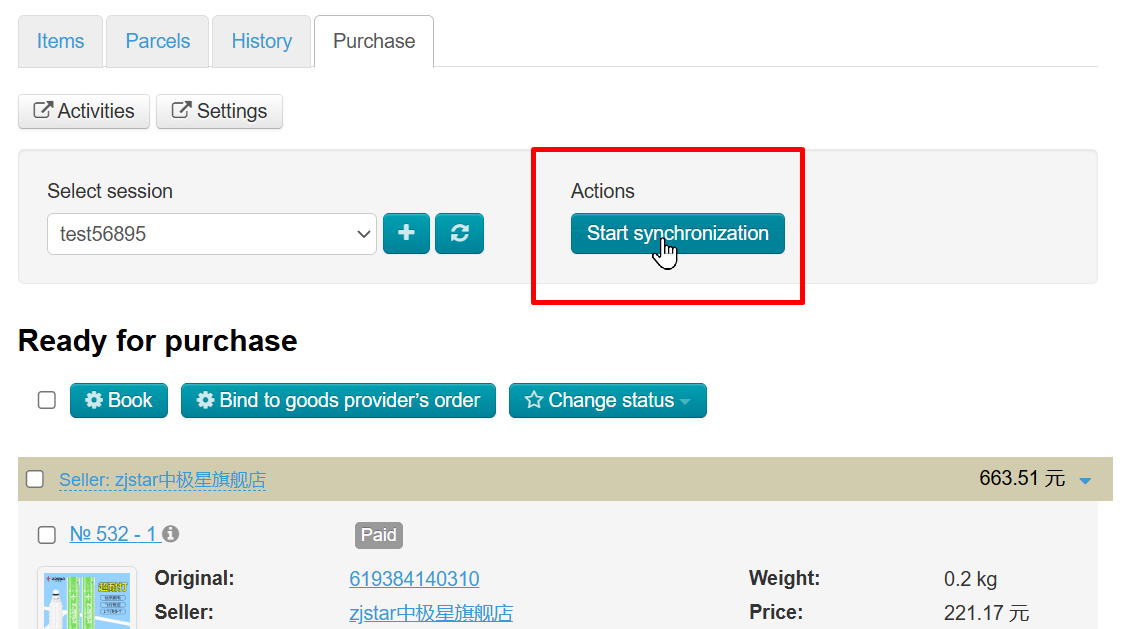
Monitor the process in the opened activity window or on the “Activities” page.
Bind Item to Order
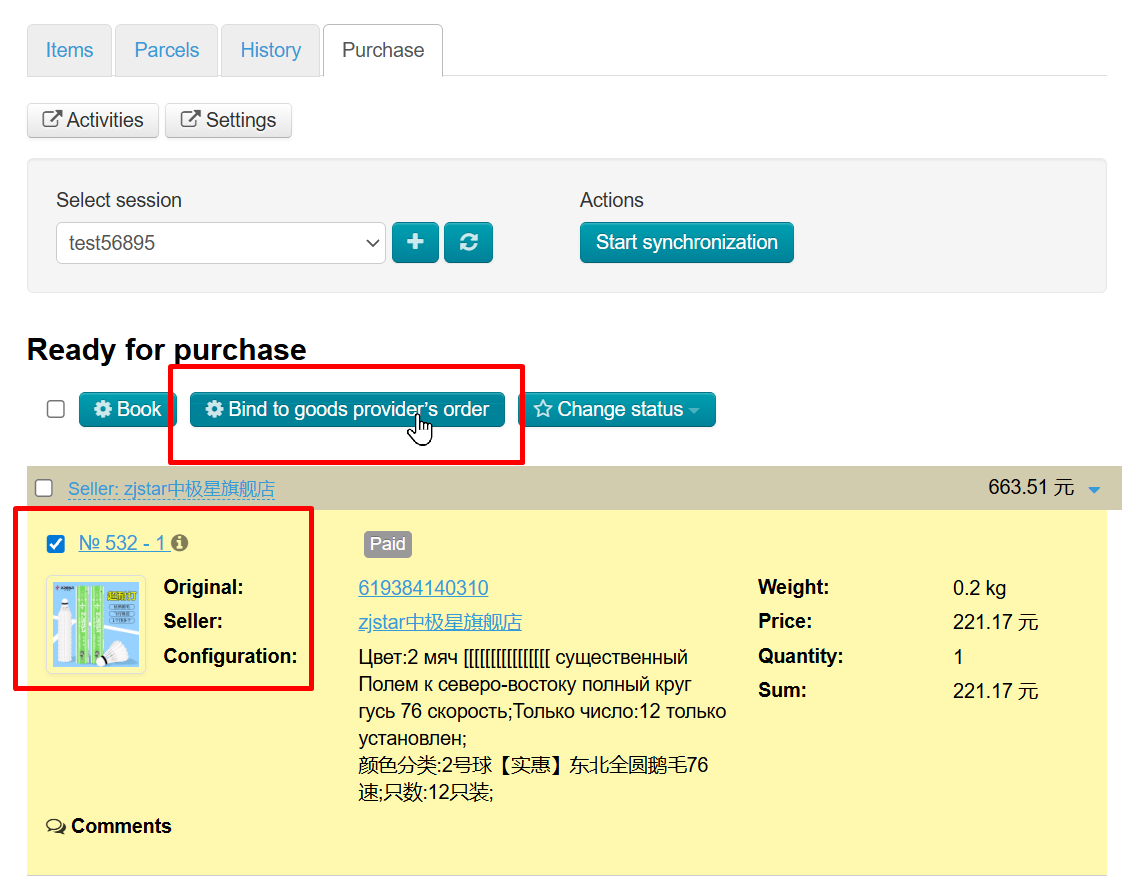
Sometimes the item is already reserved on Taobao. Follow the steps to bind the item to the order:
Select the account name in which these items are booked:
Click "Bind to goods provider's order" button
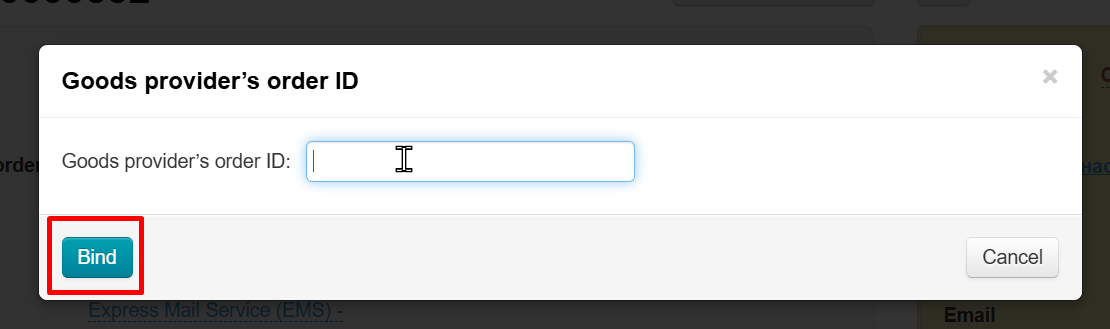
In the opened window, enter the Taobao order number and click "Bind" button:
Track binding process in the opened Activities window (all goods included in this platform order will be linked to the provider order.) or on the 'Activities' page."
Item Purchase, Status Updates and Information about Booked Items
Log into your personal account on product provider website to purchase booked item to your account. Then follow the steps:
- Manually top up the account (if necessary)
- Manually purchase an item
After the purchase, during synchronization, the statuses in the admin panel will change, and items 'Ready for Purchase' will move to the 'Goods purchased' section:
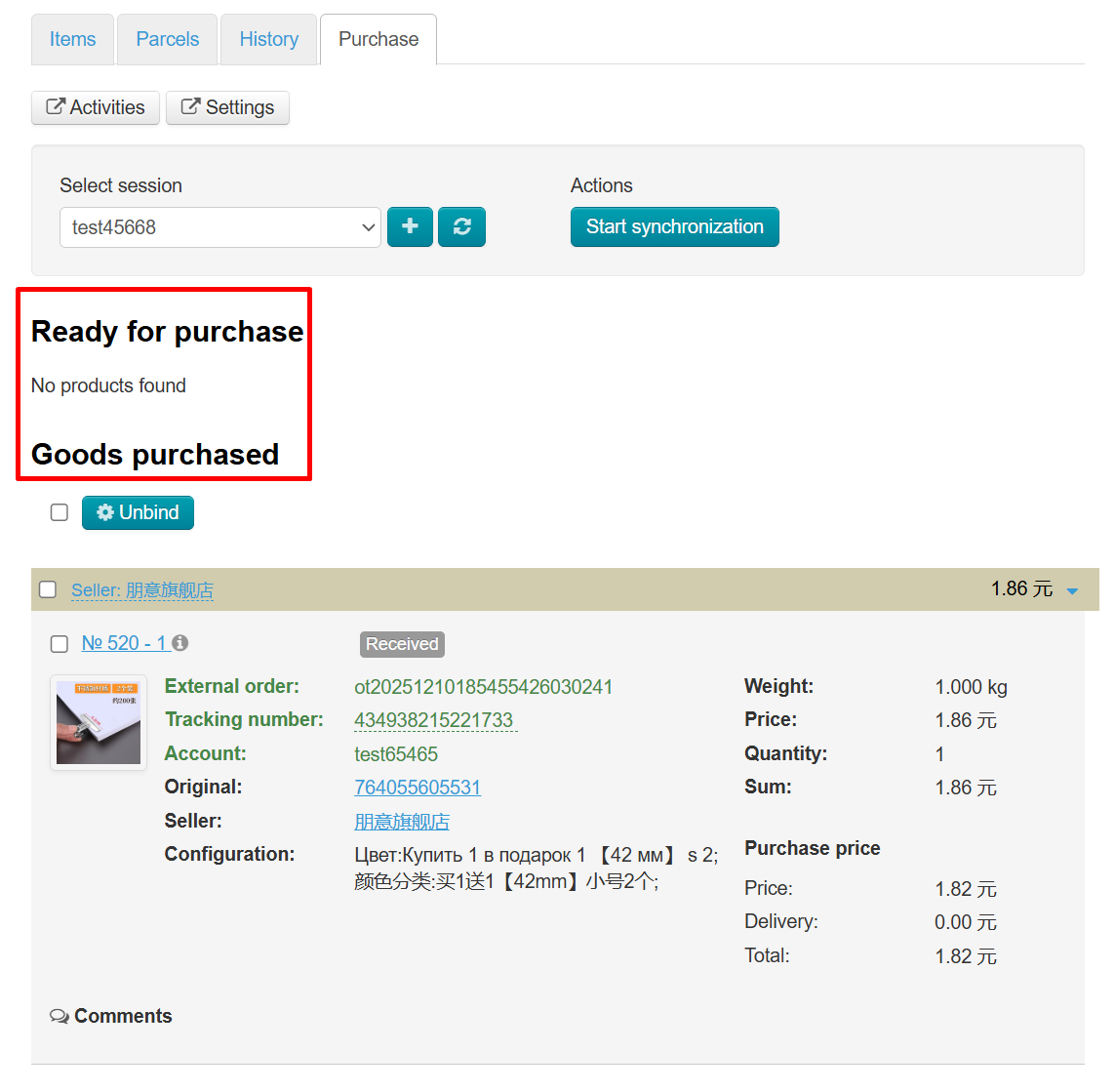
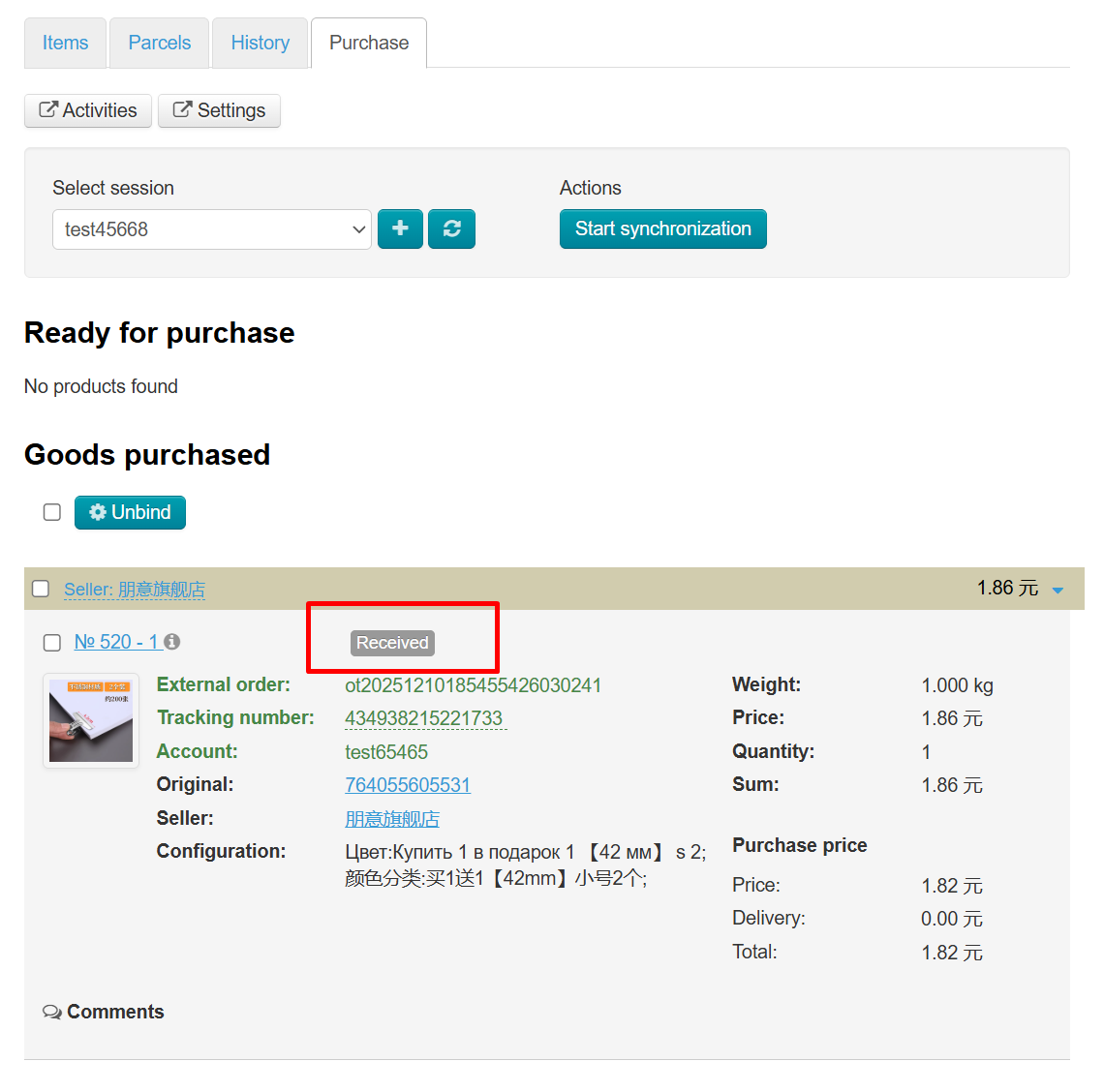
Item statuses will change during synchronizations to show you what is happening with the item:
Status name configuration (status mapping) is done in the "Plugins — AutoPurchase — Settings" section (we recommend leaving the default names). Configuration is done separately for Taobao and 1688.com:
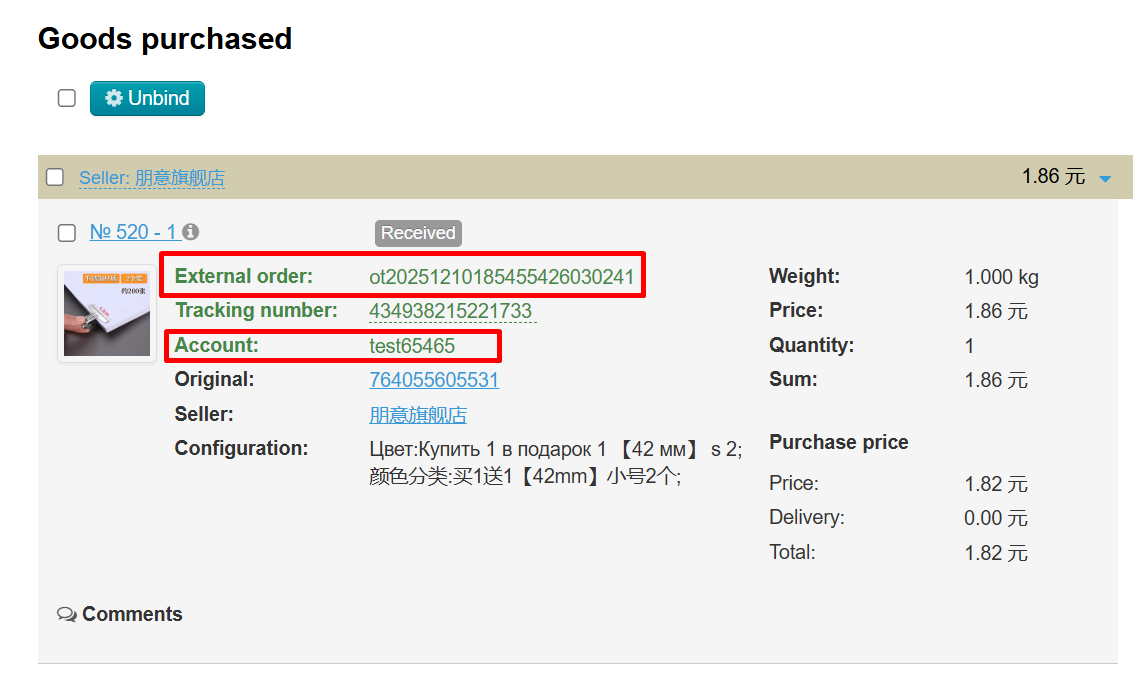
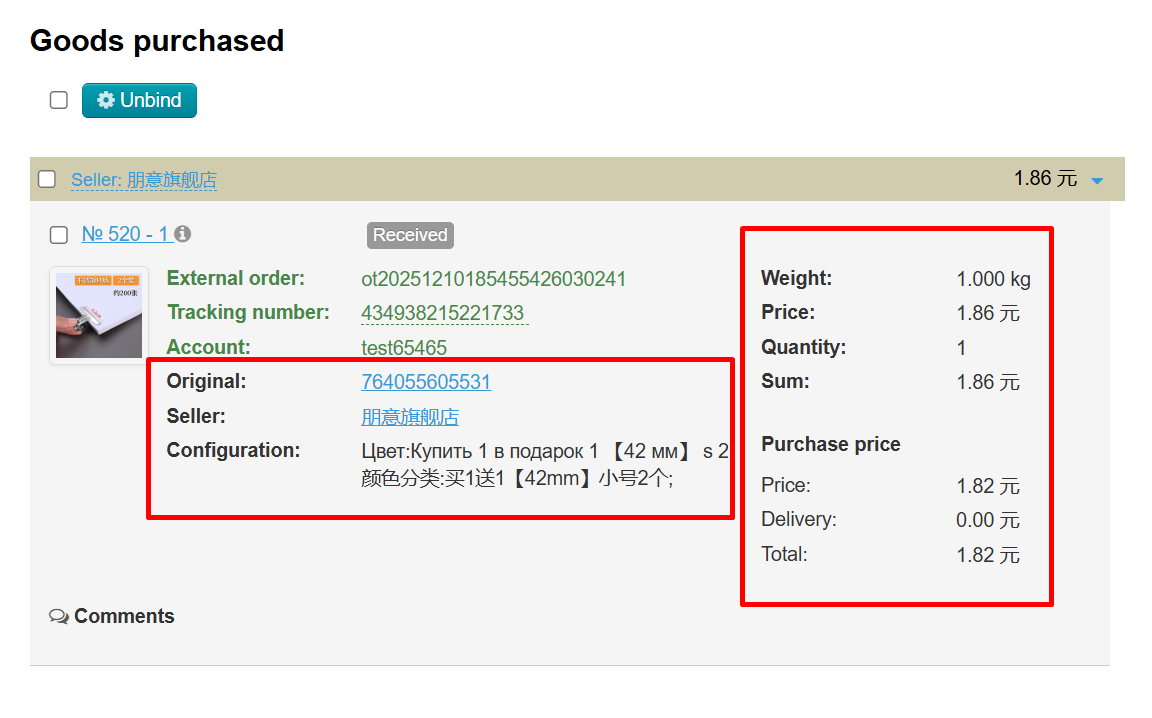
Additionally, other data from the product provider order will appear. For example, the account from which the purchase was made and, in some cases, the external order ID (depending on the provider).
When the item is shipped by the product provider to the warehouse you specified in the settings, it will have a tracking number for monitoring within the product provider country (for example, China). Please note that this tracking number is displayed only in the admin panel and does not appear in the customer's account on your website:
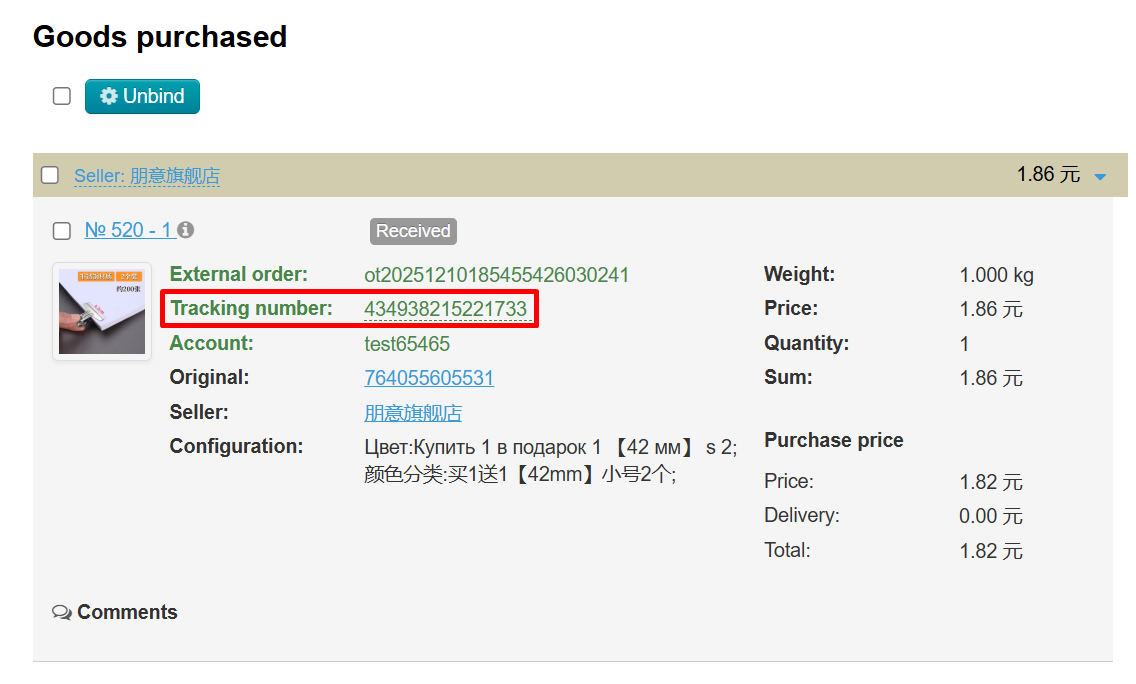
Additionally, for reference, there will be information about the item weight, regular price, purchase price and much more:
Tracking Тumber of the Parcel Generated from Orders at the Warehouse
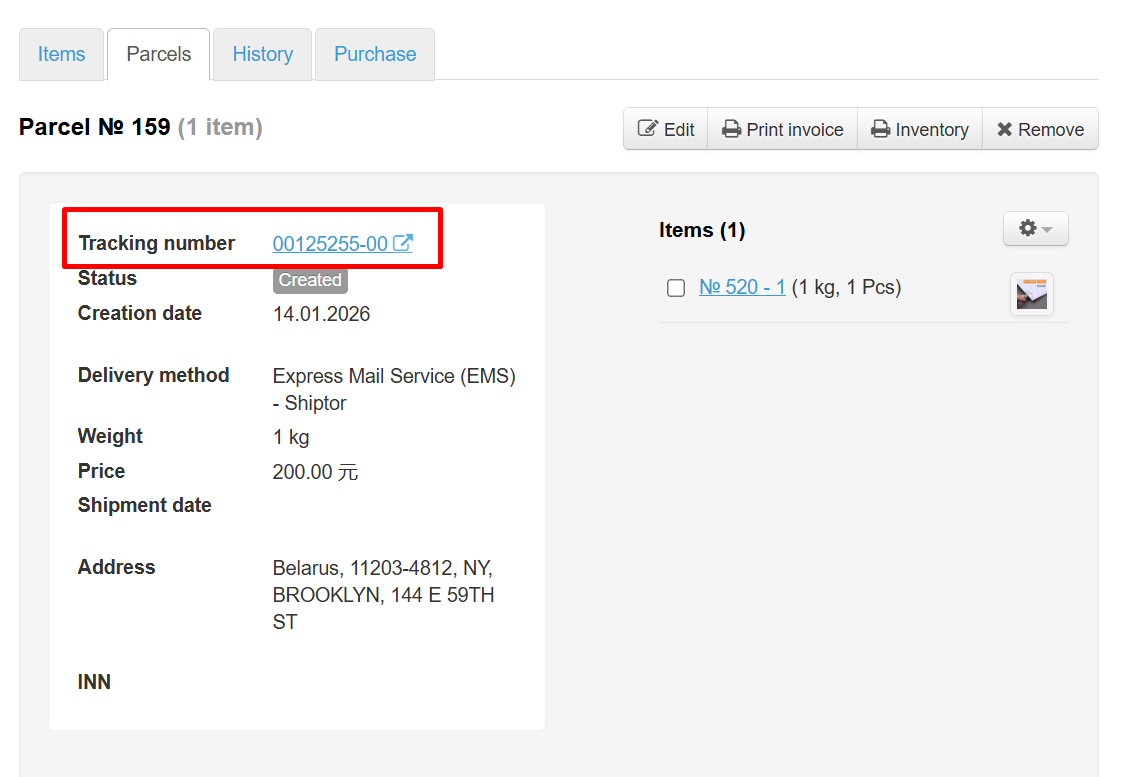
When all items arrive at the warehouse you specified in the settings, the package formation process begins (weighing, packing, etc.). Once the package is formed and a tracking number is assigned, this information is transferred to the OT Box during automatic synchronization. You can find the tracking number on the 'Parcel' tab:
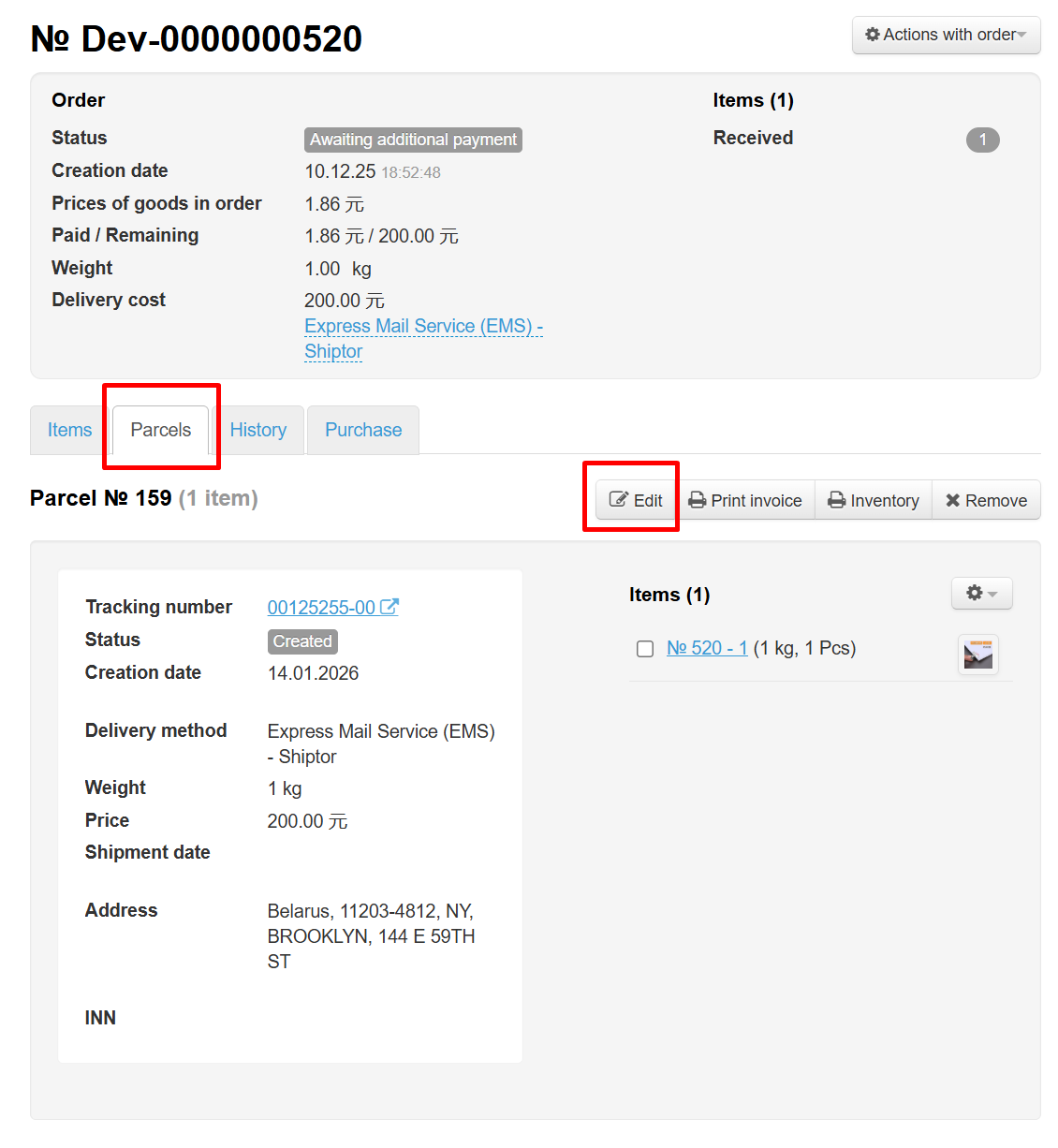
If for some reason the tracking number was not added or you want to make changes manually, you can add the tracking number while editing the package:
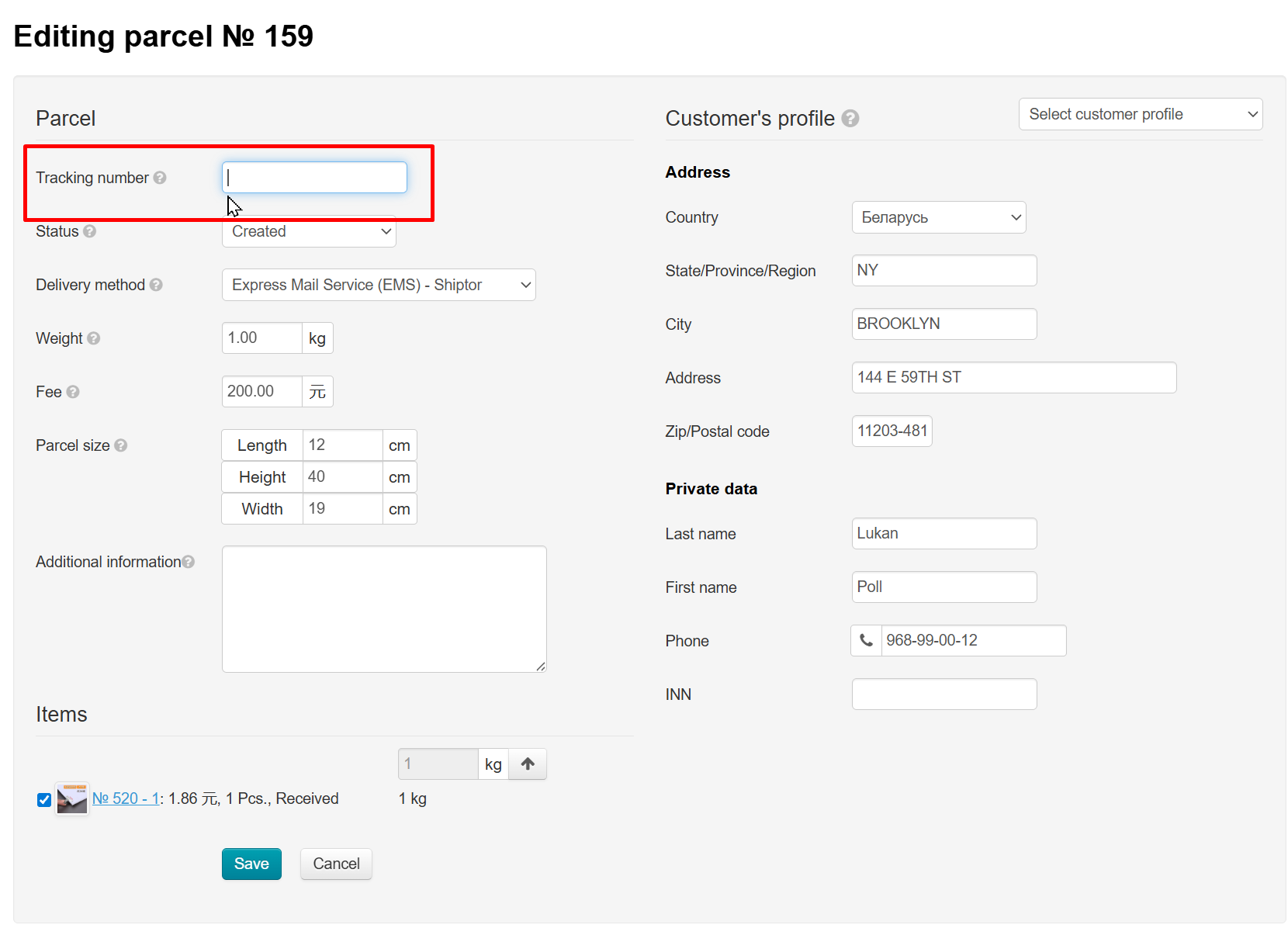
In addition to the tracking number, other information about the package is available for automatic or manual entry.
Using Barcode Scanner
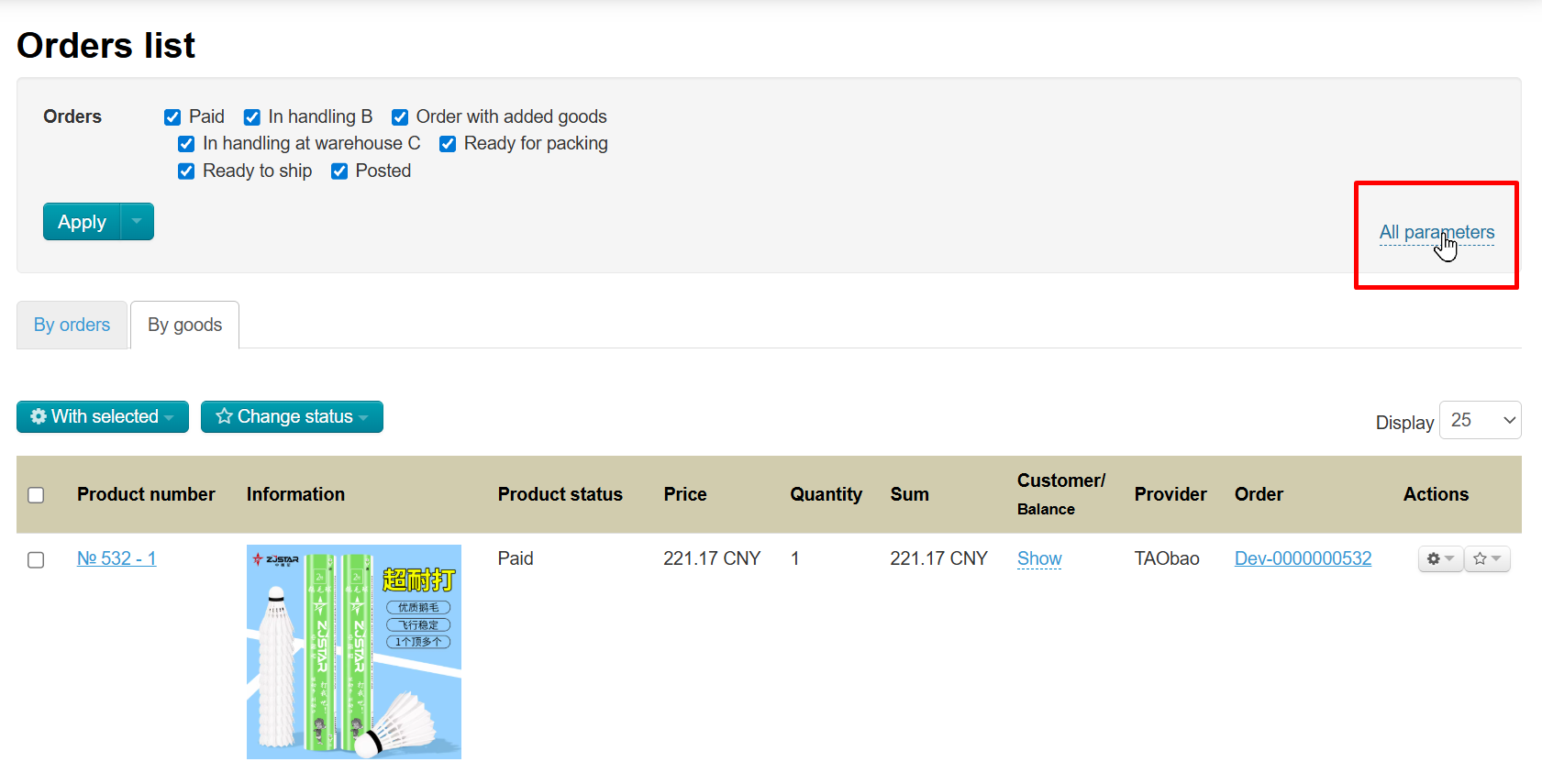
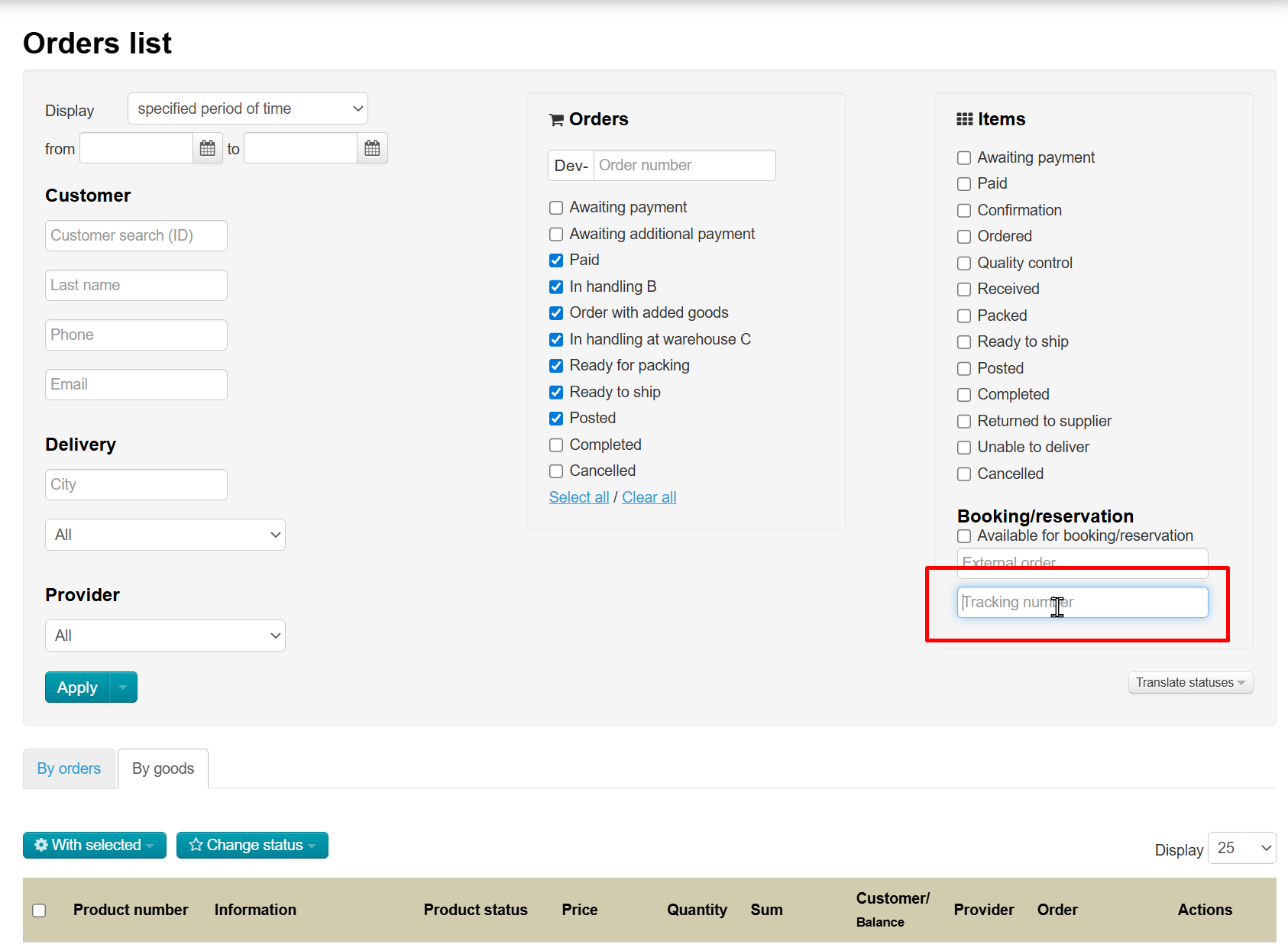
If you have a barcode scanner connected, you can use it to find items in the admin panel when receiving parcels with orders at the warehouse.
Follow the steps:
Open the “Orders” section:
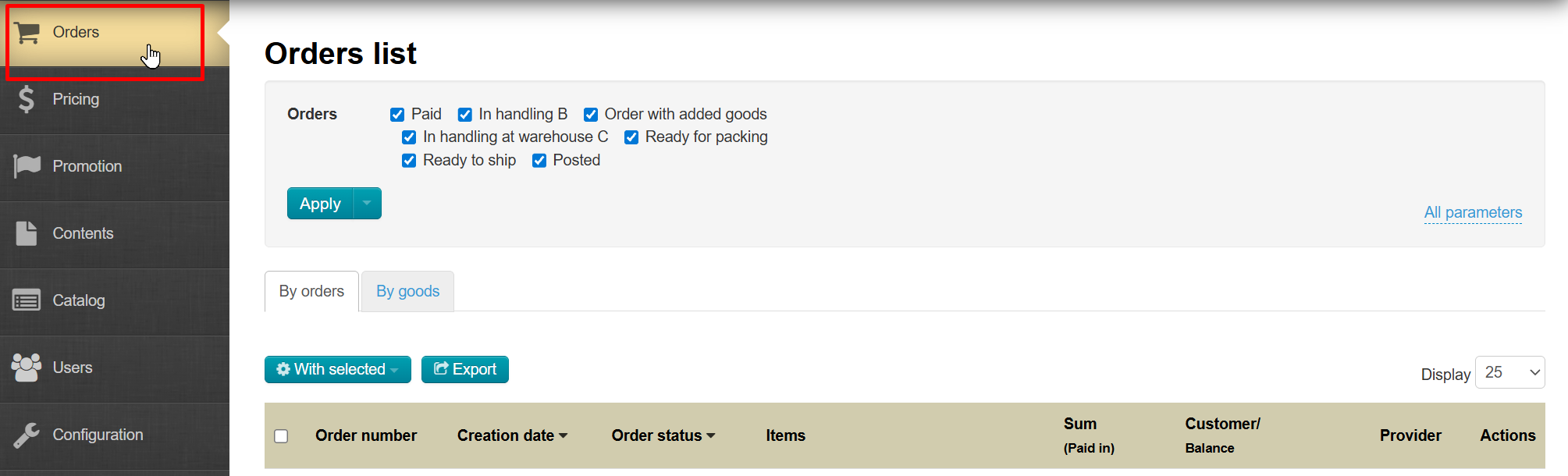
Open "By goods" tab:
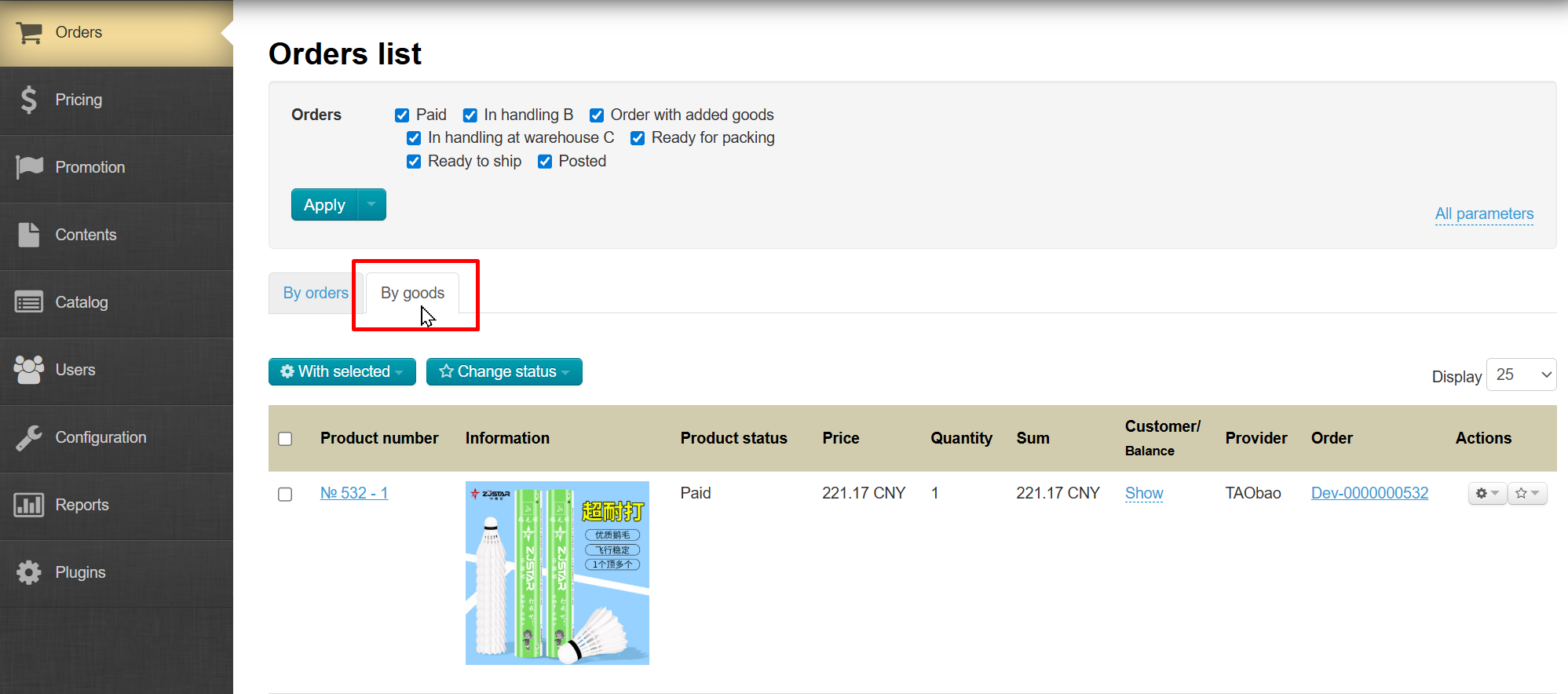
Place the cursor in the "Tracking Number" field, then scan the barcode from the item's package; it will be automatically entered into the field.