| Оглавление | ||
|---|---|---|
|
This page allows one to view orders details. The “Purchase” tab.
Go to: Orders > Order number (ID) in the administrative area of your website.
Ready for purchase
The items the status of which is “Paid” are displayed in the “Ready for purchase” section on the “Purchase” tab.
Items information
This section includes the items list. Each item contains the following:
Order and item number.
Item status.
Photo.
SKU.
Vendor name.
Item configuration (color, size in the language of the administrative area and in Chinese).
Weight.
Price.
Quantity.
Total (amount).
Item page
Click the item number (ID) in order to view the individual item page on your website.
To view an item page on Taobao you should click on SKU.
Description
To view the item description click on the “i” icon.
A pop-up with description will appear.
Vendor
Clicking on a vendor name takes you to the page that lists all goods of this vendor on your website.
Altering an order status
An item can be removed from the “Purchase” tab if the order changes its status. Let us consider the position of an item on the tabs in the table below:
The “Purchase” tab with the appropriate statuses is shown in green.
The table presents statuses that can be assigned to an item on the “Purchase” tab.
...
Status
...
Tab
...
Awaiting payment
...
Items
...
Paid
...
Purchase – Ready for purchase
...
Price confirmation
...
Items
...
Ordered
...
Items
...
Goods quality inspection
...
Items
...
Received at warehouse
...
Purchase - Purchased
...
Packing
...
Purchase - Purchased
...
Ready to ship
...
Purchase - Purchased
...
Shipped
...
Purchase - Purchased
...
Received
...
Purchase - Purchased
...
Returned to vendor
...
Items
...
Impossible to deliver
...
Items
...
Cancelled
...
Items
...
Order details page. "Purchase" Tab
Location in admin panel: Orders → Order number
Items with the "Paid" status are displayed in the "Purchase" tab under "Ready for Purchase" section

The main article "Auto-purchase Module" contains detailed information about the module's operation and settings.
Here, we will go through the purchase process step by step.
Seccion Choice
The session is selected automatically, depending on which product provider is connected and which one is used in the order.
However, a single provider can have multiple sessions (marketplace accounts for purchase). If you need to add another session, click "+" button and log in to the marketplace website (Taobao or 1688).

Synchronization
If your session has expired (the marketplace revoked authorization and you need to enter your login and password again), after selecting the session, start item status synchronization.
If the session has not expired, statuses are updated automatically.
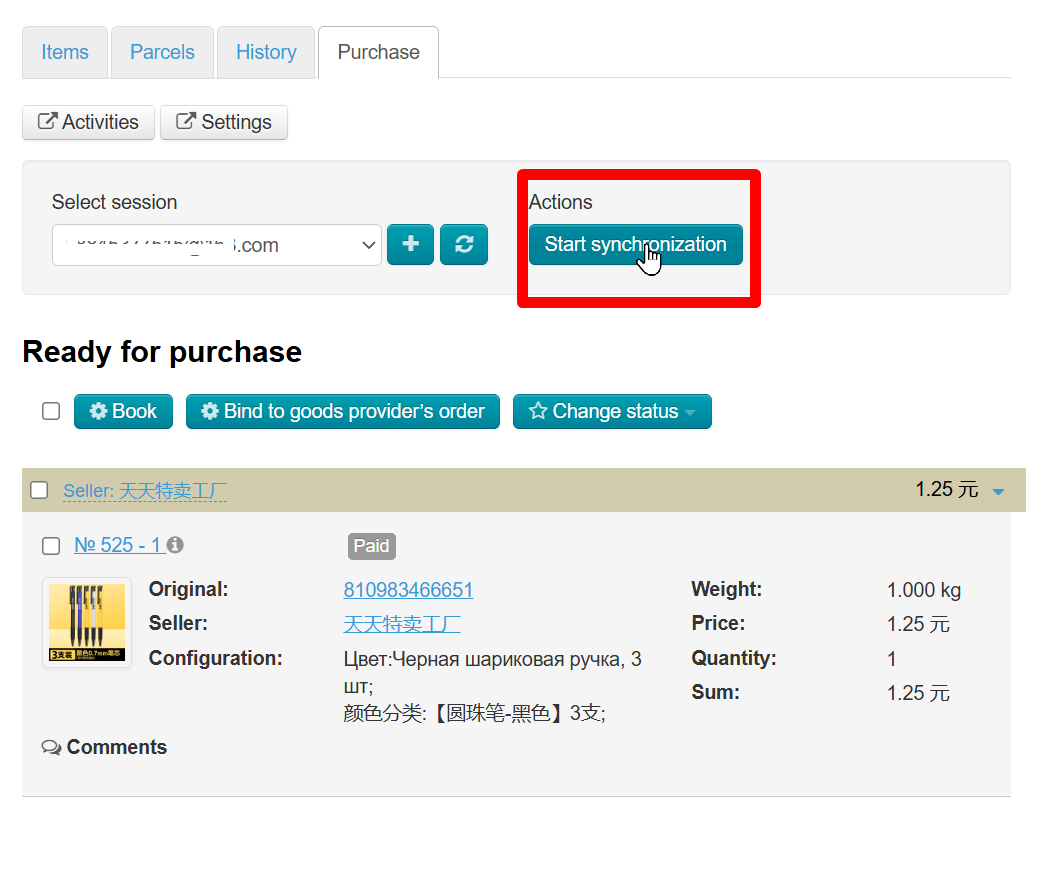
Synchronization process will be displayed in a window

All actions will be reflected in the "Activities" section

Booking
| Информация | ||
|---|---|---|
| ||
There is a limit on the number of booking, which depends on how often and how much you purchase. Sometimes the inability to book a product depends on this limiitation. |
If the item has not yet been booked on the marketplace, select it from the list and click “Book” button

If the product was previously booked not through OT admin panel, but on the marketplace website, it must be bound to the order. Select the product and click “Bind to goods provider's order.”

Enter the order ID on the provider marketplace (Taobao or 1688).

All actions will be reflected in the “Activities” section.
To cancel booking, select the item in the “Goods purchased” list and click “Unbind.”

What Happens after booking?
- You should pay for the order via the marketplace account. This is how purchases are usually made.
- Purchase process will continue after payment and all changes will be reflected in OT admin panel.
- Further work proceeds according to your business processes as usual: changing statuses (if the automatic status needs to be changed), communicating with the customer, and creating a parcel.
Working with orders is described in several stages in the articles of “Order Page” section.
To alter an order status of items you should select the desired items by putting a mark in the checkbox to the left of an item number (the selected item will be highlighted in yellow):
Or tick the checkbox in the table header if you need to select all items on a page automatically.
Click the “Change status” button which is located above the table.
Select the status you would like to assign to selected items from the dropdown menu that appears (in the example below: Received at warehouse).
Once you’ve clicked all selected items will change the status to that one you have just chosen and go to the “Purchased” section.
Purchased
This section of the “Purchase” tab shows items with the following statuses:
Received at warehouse.
Packing.
Ready to ship.
Shipped.
Received.
This section is purely informational. Here you can find the items that have already been in stock at warehouse or proceeded to the next steps of order fulfillment.
The status or configuration of items listed in this section cannot be changed. If you need to change the status or configuration of an item you should navigate to the “Items” tab.
Item information
This section includes the item list. Each item contains the following:
Order and item number.
Item status.
Photo.
SKU.
Vendor name.
Item configuration (color, size in the language of the administrative area and in Chinese).
Weight.
Price.
Quantity.
Total (amount).
Item page
Click the item number (ID) in order to view the individual item page on your website.
To view an item page on Taobao you should click on SKU.
Description
To view the item description click on the “i” icon.
A pop-up with description will appear.
Vendor
Clicking on a vendor name takes you to the page that lists all goods of this vendor on your website.